Email Notifications for zofiQ Assigned Tickets
Last updated: May 19, 2026
When zofiQ Assignes a ticket, you might want to enable email notifications to alert the assignee that they have a new ticket assigned to them.
While this is configured in ConnectWise, you may want to make modification to the Dispatch Agent to declare the status on tickets that zofiQ has assigned.
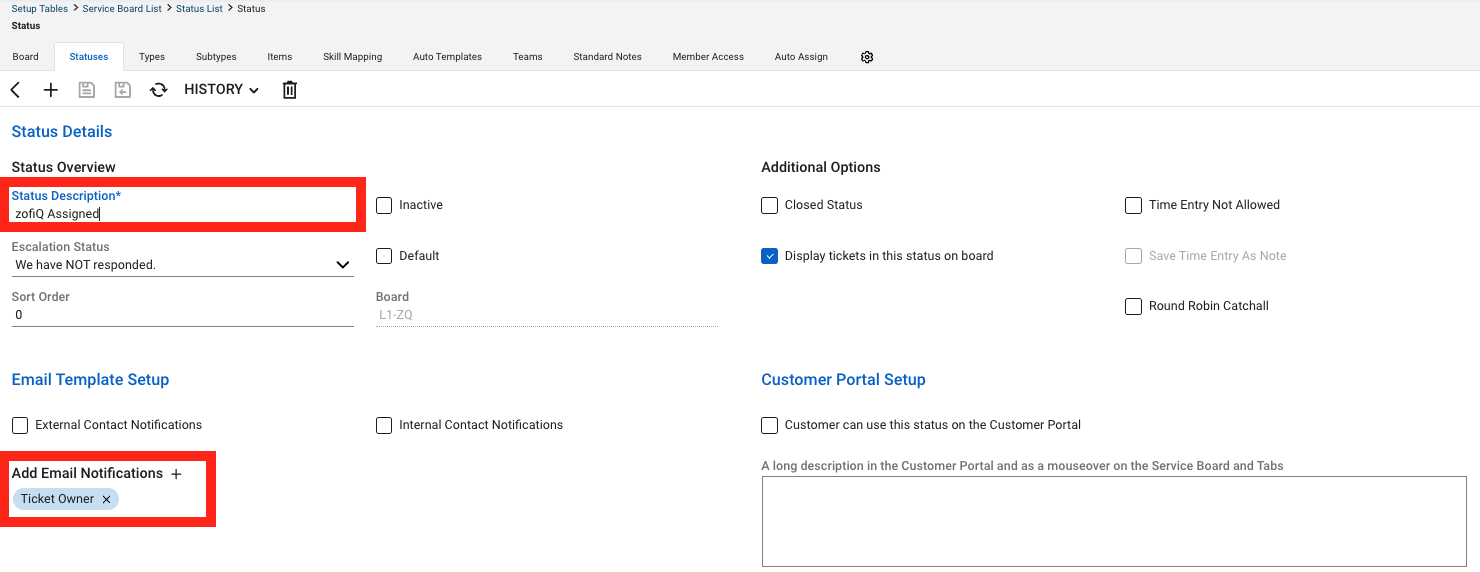
To keep this clean, it is recomended that you create a new status inside of ConnectWise PSA called "zofiQ Assigned".
Open ConnectWise PSA with an account that has Administrative access.
Navigate to System > Setup Tables.
Search for and select the Service Board table.
Click on the specific Service Board you want to configure.
Go to the Statuses tab.
Create or Select the status used when a ticket is assigned (e.g., "zofiQ Assigned").
Scroll down to the Notifications section.
Check the box for Resource (this ensures the person assigned to the ticket gets the email).
Choose an Email Template from the dropdown to define what the notification looks like.
Click Save.
Once you hace setup the status and notification trigger, navigate to the zofiQ agentic platform.
Open the Dispatch Agent.
Locate field titled Status for ticket after dispatch.
Enter zofiQ Assigned or what ever status you configured in the previous step.
NOTE: This is board based, so this process will need to be replicated against any board where you wish this process to happen.