ConnectWise Agents Testing: Shadow Mode
Last updated: March 25, 2026
Update March 24, 2026 by Andrew Feng (Product Manager)
Overview
Introducing ConnectWise Shadow Mode - zofiQ Agentic Platform 🚀 - Watch Video
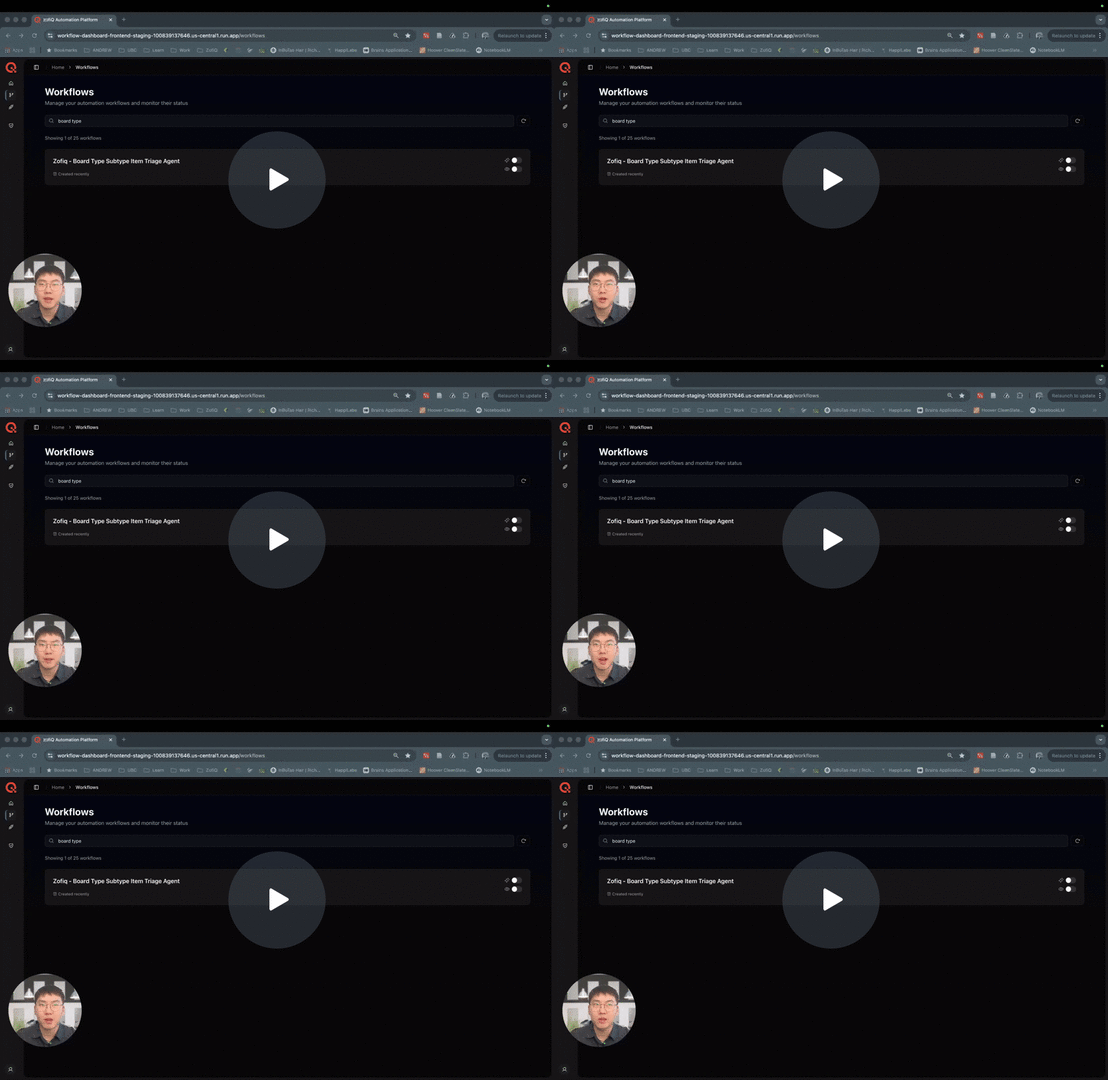
Shadow Mode is a testing feature in the zofiQ Agentic Platform that lets you see how an agent would behave on real tickets without making any changes in ConnectWise.
When Shadow Mode is enabled, the agent runs exactly as it would in production. The only difference is that nothing is written back to your PSA.
This allows you to safely validate agent behavior before allowing it to take action.
Why You Should Use Shadow Mode
If you are setting up an agent for the first time, it is important to understand how it behaves across real tickets, not just a few test cases.
Previously, this required running manual simulations one ticket at a time. That approach is slow and does not reflect real ticket volume or variability.
Shadow Mode improves this by:
Running continuously on real incoming tickets
Showing you how the agent performs across different scenarios
Reducing the need for manual testing
Helping you catch issues before they impact production
Before You Enable Shadow Mode
Shadow Mode should only be enabled after your agent is fully configured.
This includes:
Defining trigger conditions
Configuring all relevant fields and mappings
Setting up any SOPs or business rules
Validating expected behavior through initial testing (recommended)
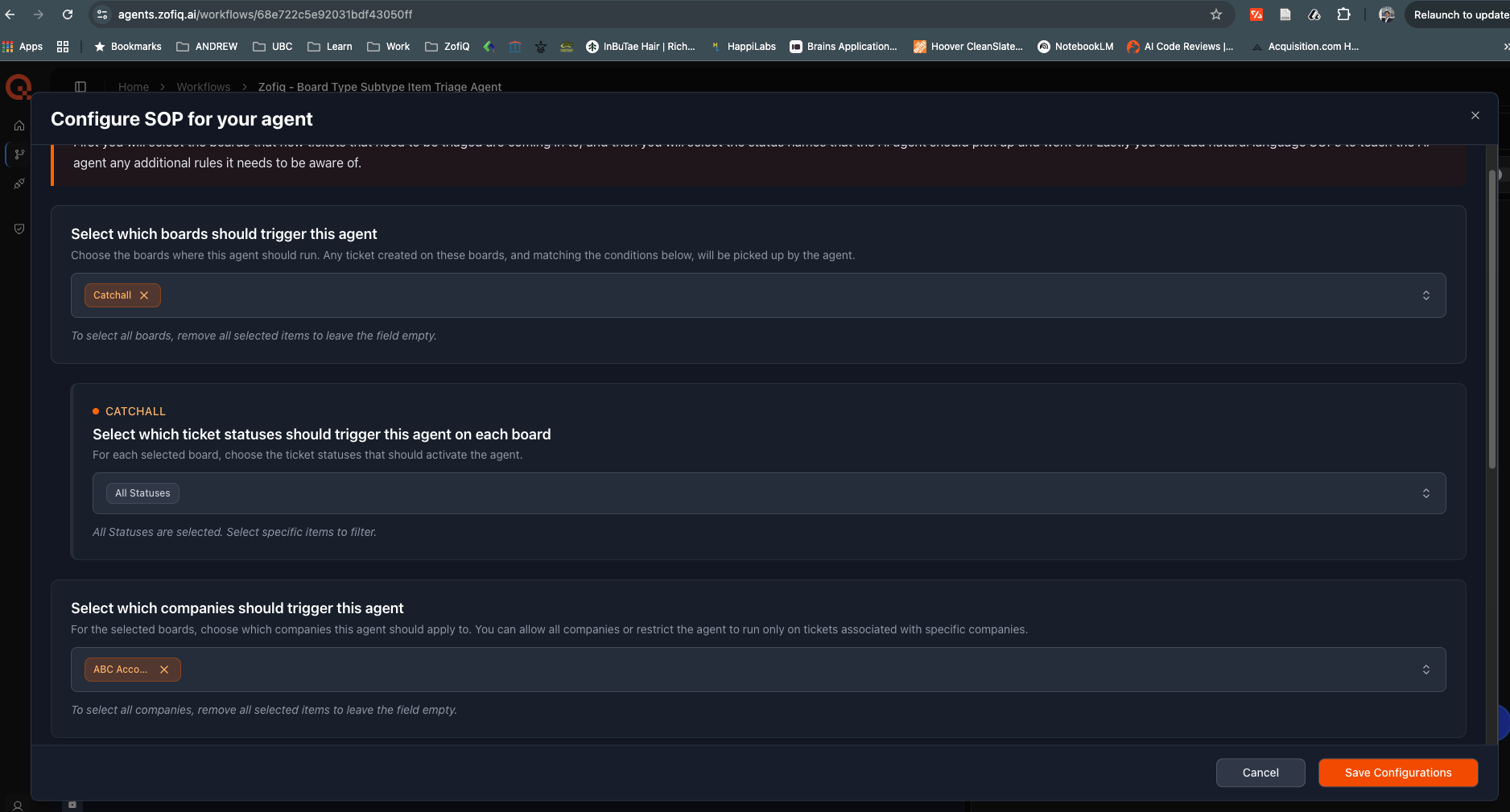
Eg. Board Agent Configurations setup
Shadow Mode is designed to mirror how the agent would behave in Live Mode. It does not automatically validate your setup. It executes your current configuration against real tickets exactly as written.
If your configuration is incomplete or incorrect, Shadow Mode will reflect that and produce misleading results.
To get meaningful insights, your agent should be set up as if it were ready to go live.
What Happens When You Turn On Shadow Mode
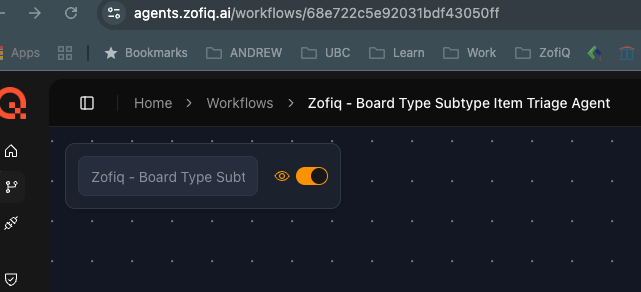
Once Shadow Mode is enabled for an agent:
The agent begins evaluating all incoming tickets that meet its trigger conditions
It generates predictions and decisions just like it would in Live Mode
It records those results in the Workflow Logs
It does not update any fields or take any actions in ConnectWise
In practical terms, this means:
Tickets will remain unchanged in your PSA
The agent is effectively running in the background
You can observe its behavior without risk
What Shadow Mode Does Not Do
Shadow Mode does not:
Update ticket fields
Assign or dispatch tickets
Move tickets between boards
Add notes or comments
If you do not enable Live Mode, the agent will never take action.
Which Agents Use Shadow Mode
Shadow Mode is only available for agents that modify tickets, such as:
Board/Type/SubType/Item Agent
Company Agent
Contact Agent
Urgency Impact Priority Agent
Agreement Agent
Summary Line Agent
Dispatch Agent
These agents benefit from validation before going live.
Read-only agents, such as the Insights Agent or Oversight Agent do not have Shadow Mode because they do not make changes.
How to Enable Shadow Mode
You can enable Shadow Mode in two places:
Option 1: From the Agent Configuration Page
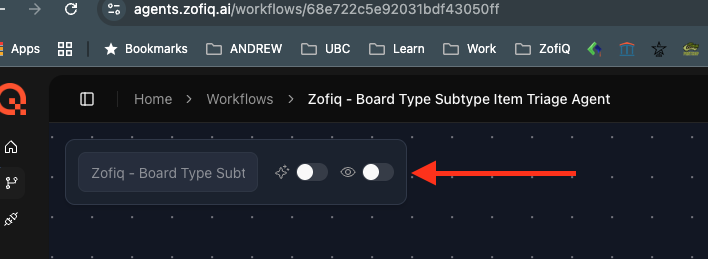
Navigate to the agent you want to configure
Locate the Shadow Mode toggle (Eyeball icon)
Turn the toggle on
Option 2: From the Workflow Dashboard
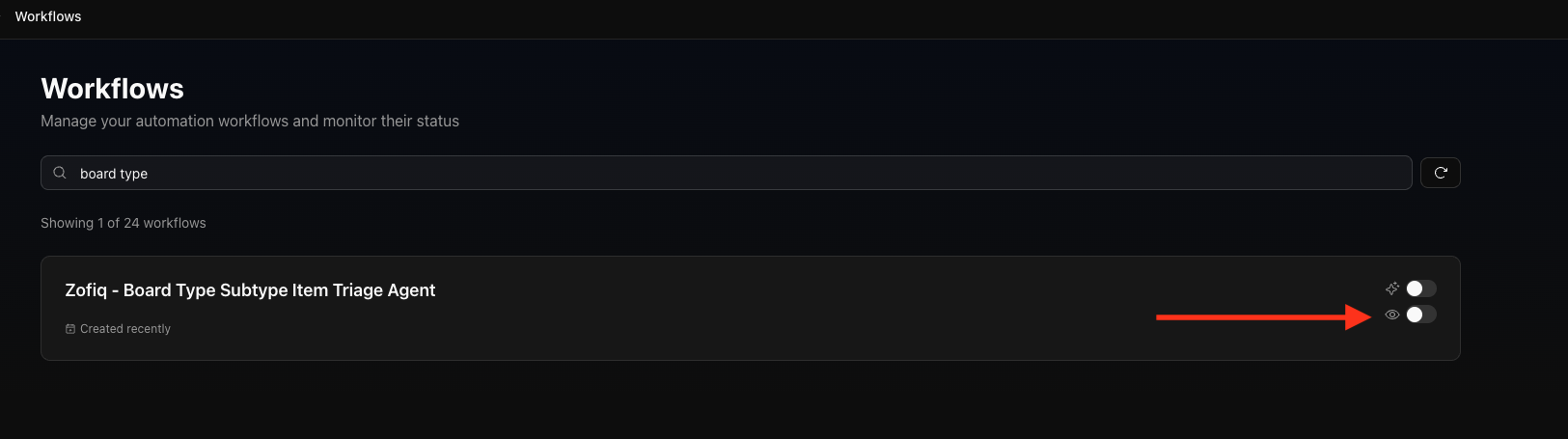
Open the workflow dashboard
Locate the agent in your workflow
Toggle Shadow Mode on from the same area where Live Mode is controlled (Eyeball icon)
Once enabled, the agent will immediately begin evaluating incoming net new tickets that meet the agent trigger conditions
Important Safeguards
Shadow Mode and Live Mode cannot be enabled at the same time
Turning off Shadow Mode does not automatically enable Live Mode
Live Mode must always be enabled manually
Existing live agents are not affected by Shadow Mode
Shadow Mode is optional and can be used at any tim
How to Review Shadow Mode Results
After enabling Shadow Mode, you should review the agent’s behavior through the Workflow Logs.
Steps:
Open Workflow Logs
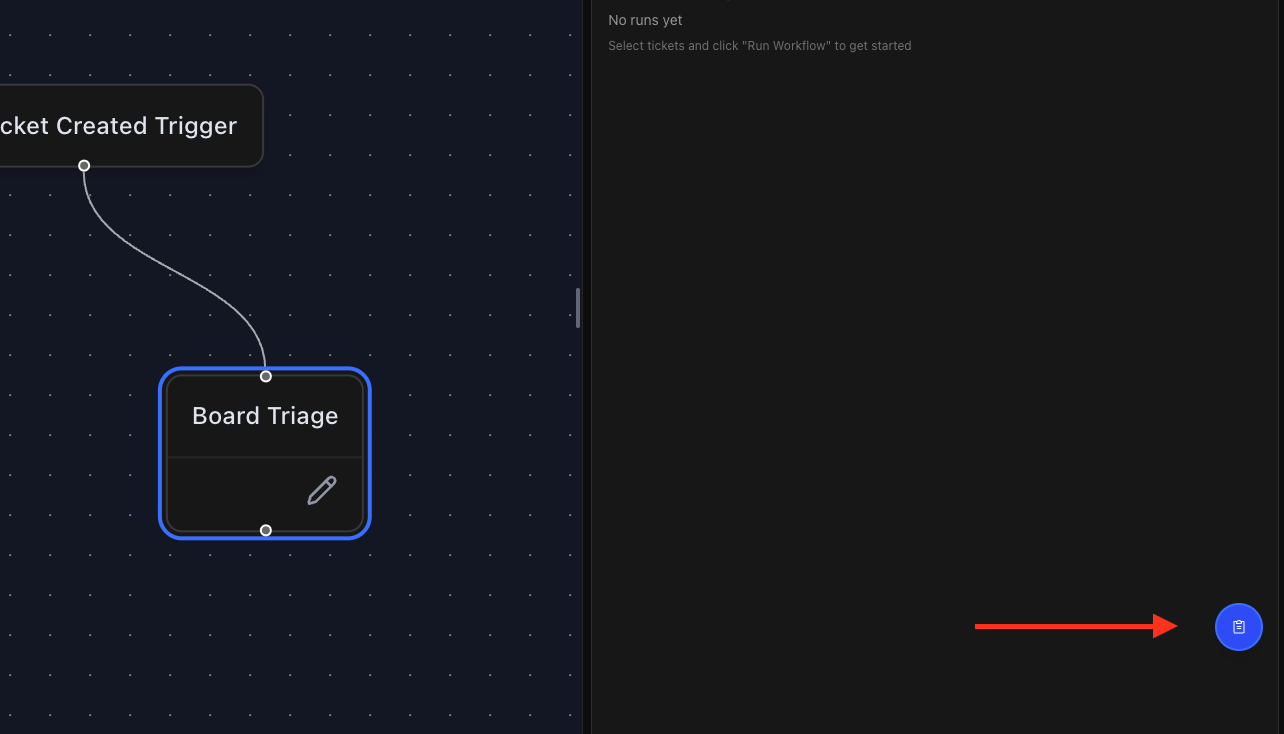
Select the Shadow Mode tab
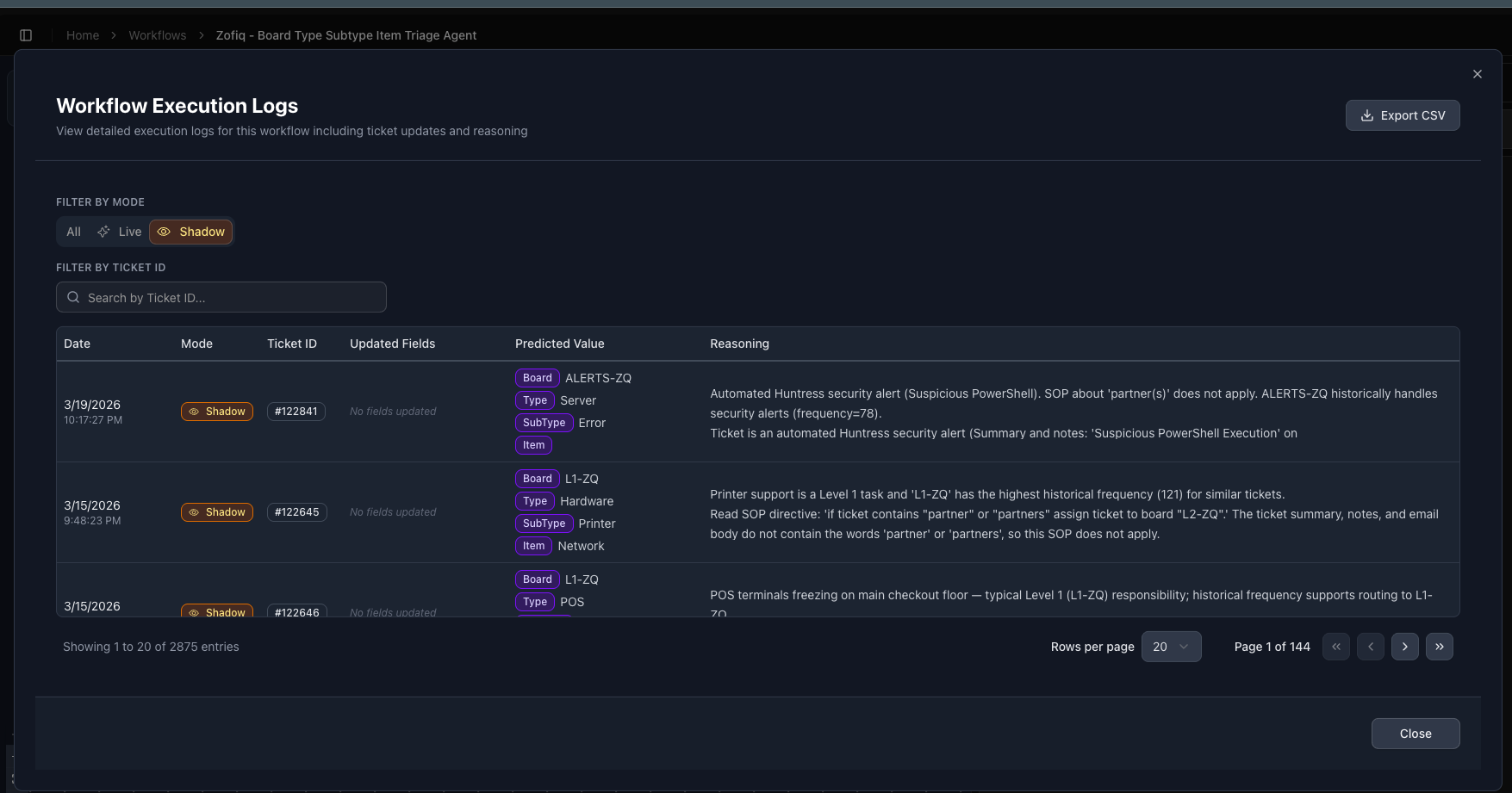
Review individual ticket entries
For each ticket, you can see:
What the agent predicted
What fields it would have updated
The reasoning behind the decision
This is the most important step in the process. It allows you to verify that the agent is behaving as expected before going live.
How to Know When You Are Ready for Live Mode
You should consider enabling Live Mode when:
Shadow Mode predictions are consistently correct
Edge cases have been reviewed
Any incorrect behavior has been addressed through configuration or SOP updates
There is no automatic transition. You decide when the agent is ready.
Recommended Workflow
For new users, the recommended process is:
Configure your agent
Enable Shadow Mode
Let it run on real tickets
Review results in Workflow Logs
Refine configuration as needed
Enable Live Mode when confident
If you have any other questions or concerns you can reach out to support@zofiq.ai