Board, Type, SubType, Item Agent (ConnectWise)
Last updated: June 30, 2026
Updated Feb 8, 2026 by Andrew Feng (Product Manager)
Overview
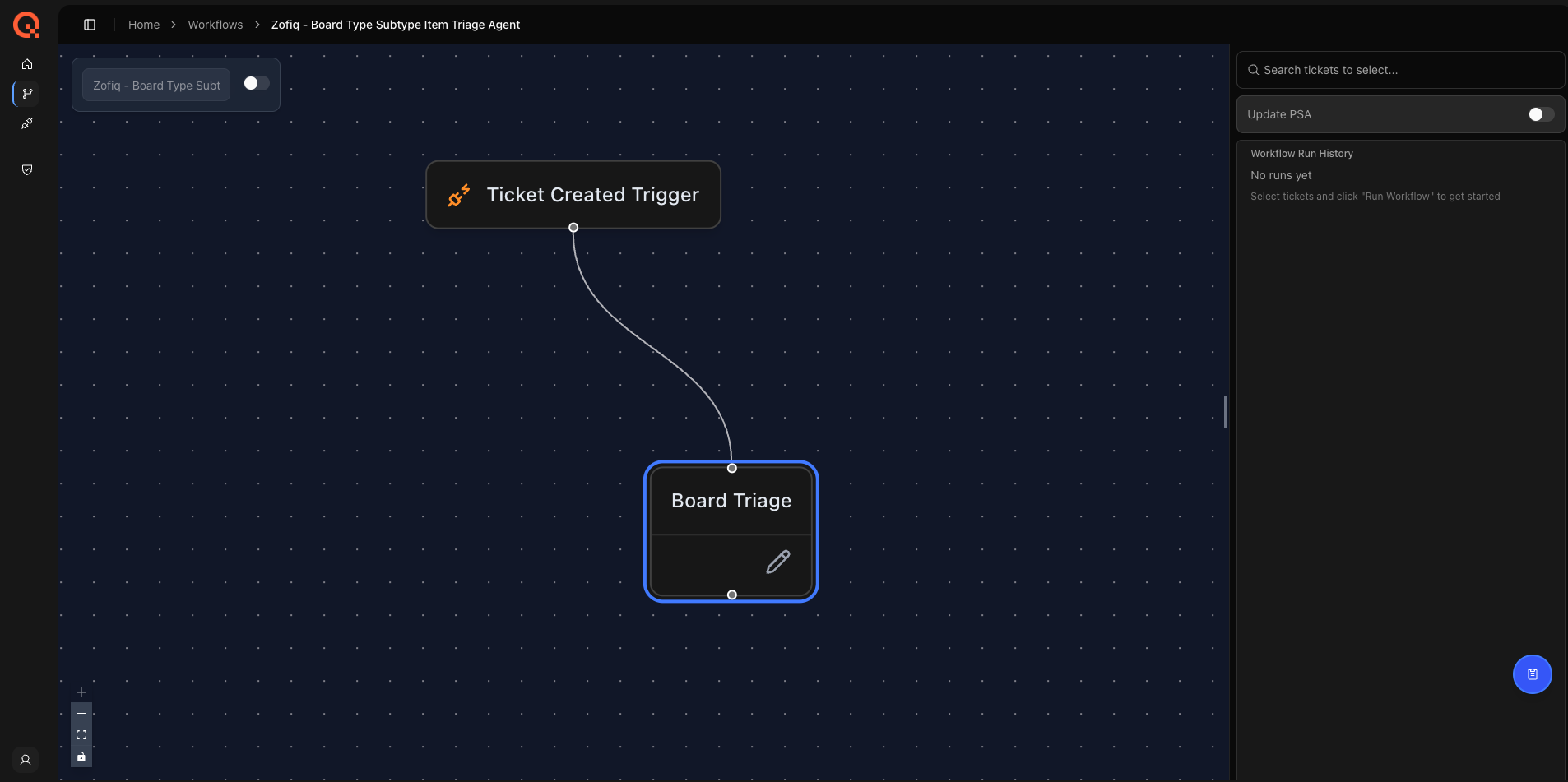
The Board, Type, SubType, and Item Agent (Commonly referred to as the "Board" Agent) ensures that tickets in ConnectWise are classified and routed to the correct board with the appropriate Type, SubType, and Item values.
Its primary purpose is to automatically assign or correct the Board, Type, SubType, and Item classification fields when they are missing, inconsistent, or incorrectly set at ticket creation. This helps ensure tickets land in the right queues, follow the correct workflows, and reach the appropriate teams without manual rework during early triage.
This agent plays a critical role in establishing ticket structure. Many downstream workflows, including SLA evaluation, agreement assignment, and dispatch logic, depend on accurate board and classification values. Because of this, the agent is designed to run early in the workflow, after company and severity context are established and before ownership or scheduling decisions are applied.
Important Execution Behavior
The Board, Type, SubType, and Item Agent runs once per ticket.
After the agent evaluates a ticket and completes its classification, it will not run again on that ticket, even if:
The ticket changes status later
The ticket is moved back to the same or a different board
Board, Type, SubType, or Item values are manually edited after the agent runs
If routing or classification needs to be corrected after the agent has run, changes must be made manually.
When This Agent Runs
The Board, Type, SubType, and Item Agent evaluates a ticket when all of the following conditions are met:
The ticket enters a configured board
The ticket reaches a configured status
The ticket’s current Company value matches one of the configured Company trigger filters
Any applicable Standard Operating Procedures (SOPs) allow the evaluation to proceed
All four conditions must be satisfied for the agent to activate.
This ensures the agent runs at the correct point in the workflow, only for tickets with untrusted company values, and only when no SOP rule restricts or overrides the agent’s behavior.
Example
You may configure the agent with the following conditions:
Board equals Catchall
Status equals New
Company Filter includes Catchall
In this configuration, the Board, Type, SubType, and Item Agent runs when a ticket reaches the New status on the Catchall board and the current Company value is Catchall, unless an SOP rule prevents reassignment.
What This Agent Can Change
Depending on the configuration, the agent can update the following fields:
Board
Type
Subtype
Item
The agent will only update the fields you explicitly enable. Any fields not selected will remain unchanged.
Important Note on Status Changes
Some MSPs have custom ConnectWise workflows that automatically change ticket status when a board is updated.
This agent does not directly modify ticket status. However, if a board change triggers an existing ConnectWise workflow, the audit trail may show a subsequent status change occurring after the agent runs.
In these cases, the status change is the result of your existing workflow logic, not a direct action taken by zofiQ.
Configuration Options
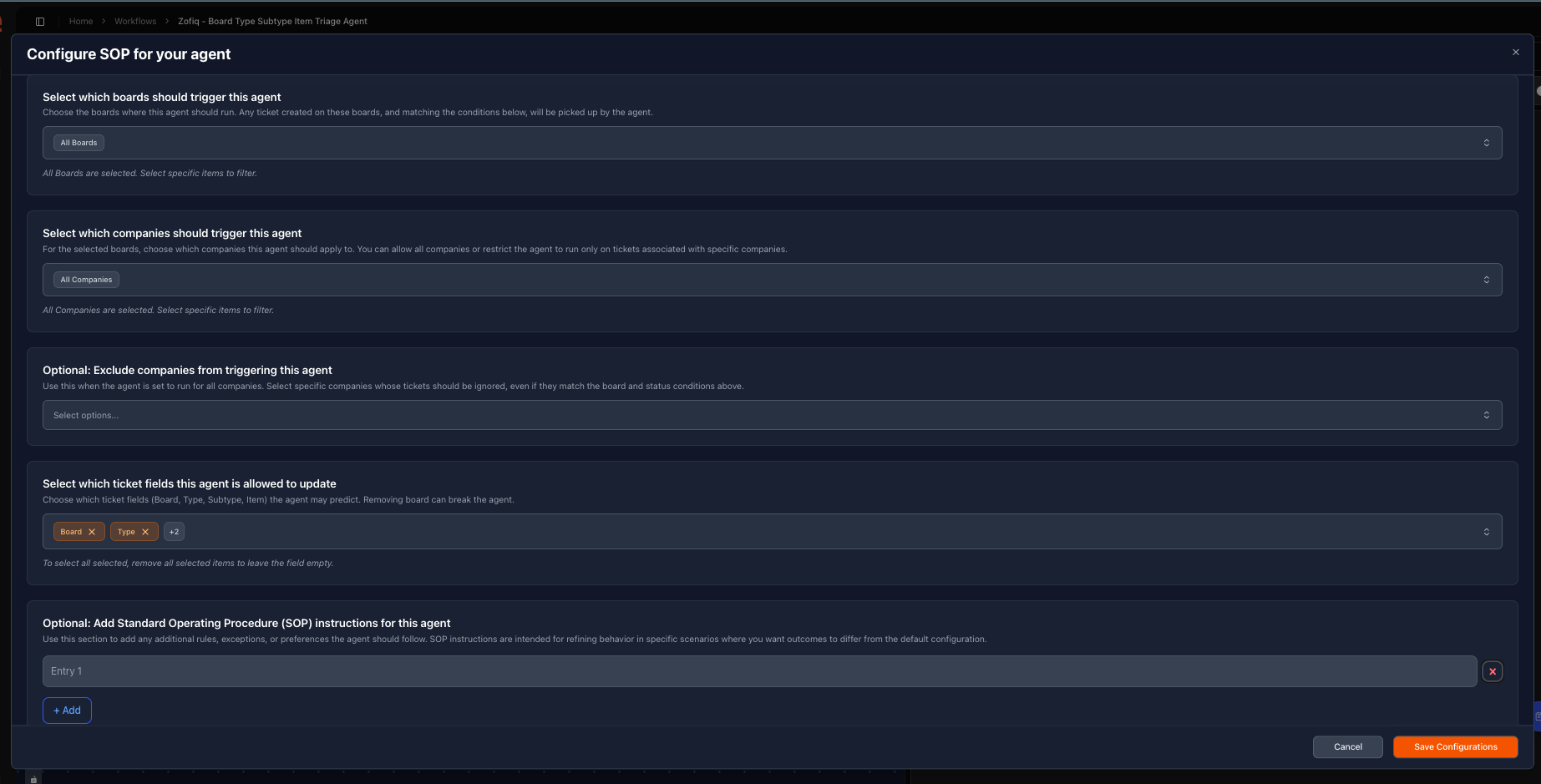
Board, Type, SubType, and Item Configurations
The Board, Type, SubType and Item Agent uses a combination of board scope, company scope, exclusions, and optional SOP instructions to determine when the agent should evaluate a ticket and whether it is allowed to make changes.
1. Select Which Boards Should Trigger This Agent
This setting defines where the agent is allowed to run.
Select one or more boards where the Agent should evaluate tickets. Only tickets that exist on these boards will be considered.
If all boards are selected, the agent may run on tickets from any board, provided all other trigger conditions are met. The agent is set to run on all boards by default.
This setting does not determine what the agent changes. It only controls eligibility based on board placement.
2. Select Which Companies Should Trigger This Agent
This setting defines which existing company values are eligible for evaluation.
The Agent will only evaluate tickets whose current Company field matches one of the selected companies.
This is commonly used when:
Tickets are created under a placeholder company such as Catchall.
Certain company values are known to be unreliable at ticket creation
If all companies are selected, the agent will evaluate tickets regardless of their current company value, unless restricted by exclusions or SOPs.
Important clarification:
This setting is evaluated against the company field that is on the ticket at the time the ticket is created, not the company that the agent may later assign or change.
In practice, the agent reads the ticket’s initial Company field as it first enters your ConnectWise environment and uses that value for this configuration. Any company updates made later in the ticket lifecycle do not affect this setting.
3. Optional: Exclude Companies From Triggering This Agent
This setting defines hard exclusions.
Tickets whose current Company value matches any excluded company will never be evaluated, even if:
The board condition is met
The status condition is met
The company is otherwise included in the trigger list
Common use cases include:
Your internal MSP company
Vendor or distributor records
Administrative or system level companies
Exclusions take precedence over company trigger selections.
4. Optional: Add Standard Operating Procedure (SOP) Instructions
SOPs provide behavioral rules and guardrails that the agent must follow.
SOPs are evaluated after trigger conditions are met but before any prediction or change is applied.
SOPs can be used to:
Restrict when the agent is allowed to change the company
Prevent reassignment in specific scenarios
Force or exclude specific company outcomes
Add business context that cannot be captured by filters alone
SOPs are optional. If no SOP is provided, the agent relies on board scope, company triggers, exclusions, historical patterns, and ticket context.
If an SOP applies and blocks execution, the agent will not modify the ticket. The decision and reason are recorded in the workflow logs.
How SOPs Affect Execution
SOPs are evaluated before the agent applies any inferred prediction.
If an SOP applies, it may:
Explicitly allow the agent to proceed
Restrict the agent from making any change
Force a specific company assignment
Exclude certain companies from reassignment
If an SOP blocks execution, the agent will not modify the ticket, even if all other trigger conditions are met. The outcome is recorded in the workflow logs.
Board, Type, SubType, and Item Specialty Configurations
1. Select Which Ticket Fields this Agent is Allowed to update
This configuration controls which ticket classification fields the Board, Type, Subtype, and Item Agent is allowed to update. You can choose any combination of Board, Type, Subtype, and Item, depending on how much routing and classification you want the agent to handle. Each option is selectable independently, allowing the agent to update a single field, multiple fields, or all four together.
All selections must follow native ConnectWise dependency rules. Certain fields depend on others being set first, so not every combination is valid. For example, an Item cannot be assigned unless its associated Type and Subtype are also included. When a field depends on another field, all prerequisite fields must be enabled to ensure updates remain valid and tickets are not placed into an inconsistent state.
How Predictions Are Made
The Board, Type, SubType and Item Agent determine the correct fields by evaluating multiple signals together, not by relying on any single field or rule in isolation.
Each decision is based on a combination of historical patterns, real-time ticket context, and explicit operational rules. When conflicts exist, SOP rules take precedence over inferred signals.
1. Historical Board, Type, SubType, and Item Assignments
The agent learns from how your team has historically classified the fields of interest in ConnectWise.
Past decisions for similar tickets help establish patterns that reflect how your organization typically assesses criticality. This allows classifications to align with real-world operational behavior rather than generic or default SLA assumptions.
Historical patterns inform decisions, but they are evaluated alongside ticket context and SOP rules rather than acting in isolation.
2. Ticket Context
At runtime, the agent evaluates the full ticket context, including:
Summary
Description
Notes
Requester and sender details
Rather than relying on a single keyword or field, the agent considers how all available information relates to the board agent. This allows it to assess the correct board, type, subtype and item values even when individual fields are incomplete, inconsistent, or ambiguous.
No single field is treated as authoritative on its own.
3. Standard Operating Procedures (SOP) Rules
SOPs act as high-priority guidance for the Agent.
When an SOP applies, it is evaluated before inferred signals from historical data and ticket context and is treated as the strongest input in the decision process. In the vast majority of cases, SOP instructions are followed explicitly and drive the final company assignment.
SOPs can be used to allow, restrict, or strongly bias company assignments based on your defined operational rules. Both positive and negative SOPs consistently outweigh inferred predictions and are designed to enforce your operational intent.
While the Agent evaluates SOPs alongside full ticket context, cases where an applicable SOP is not followed are rare and typically tied to ambiguous or conflicting ticket signals. All such decisions are visible in workflow logs for review.
Interaction with other zofiQ Agents
This agent is designed to work as part of zofiQ’s broader triage and dispatch workflow rather than in isolation.
When multiple triage agents are enabled, zofiQ follows a defined orchestration order to ensure each agent receives the correct context and produces predictable outcomes. The Board, Type, Subtype, and Item Agent runs third in this sequence because downstream agents depend on accurate ticket classification.
At a high level, the orchestration flow is:
Company Agent
Identifies and confirms the correct company as early as possible to establish core ticket context.
Urgency, Impact, and Priority Agent
Evaluates urgency, impact, and priority early using the initial ticket content and company context.Board Agent
Determines the correct board for the ticket based on classification rules and routing logic.Contact Agent
Assigns or corrects the contact once company and agreement context is finalized.
Agreement Agent
Assigns the appropriate agreement using stabilized company and priority context.Dispatch Agent
Assigns ticket ownership after all classification and contractual decisions are complete.Summary Line Agent
Generates or refines the ticket summary last, incorporating all prior decisions and final context.
This ordering ensures that each agent operates on clean and complete data, reducing rework and preventing agents from acting on incomplete or incorrect information. Customers do not need to configure this order manually. Orchestration is handled at the platform level to maintain consistency and safety across all workflows.
Visibility and Control
All Board, Type, Subtype and Item Agent decisions follow the configured filters, overwrite rules, and SOP constraints.
Every action taken by the agent is fully observable:
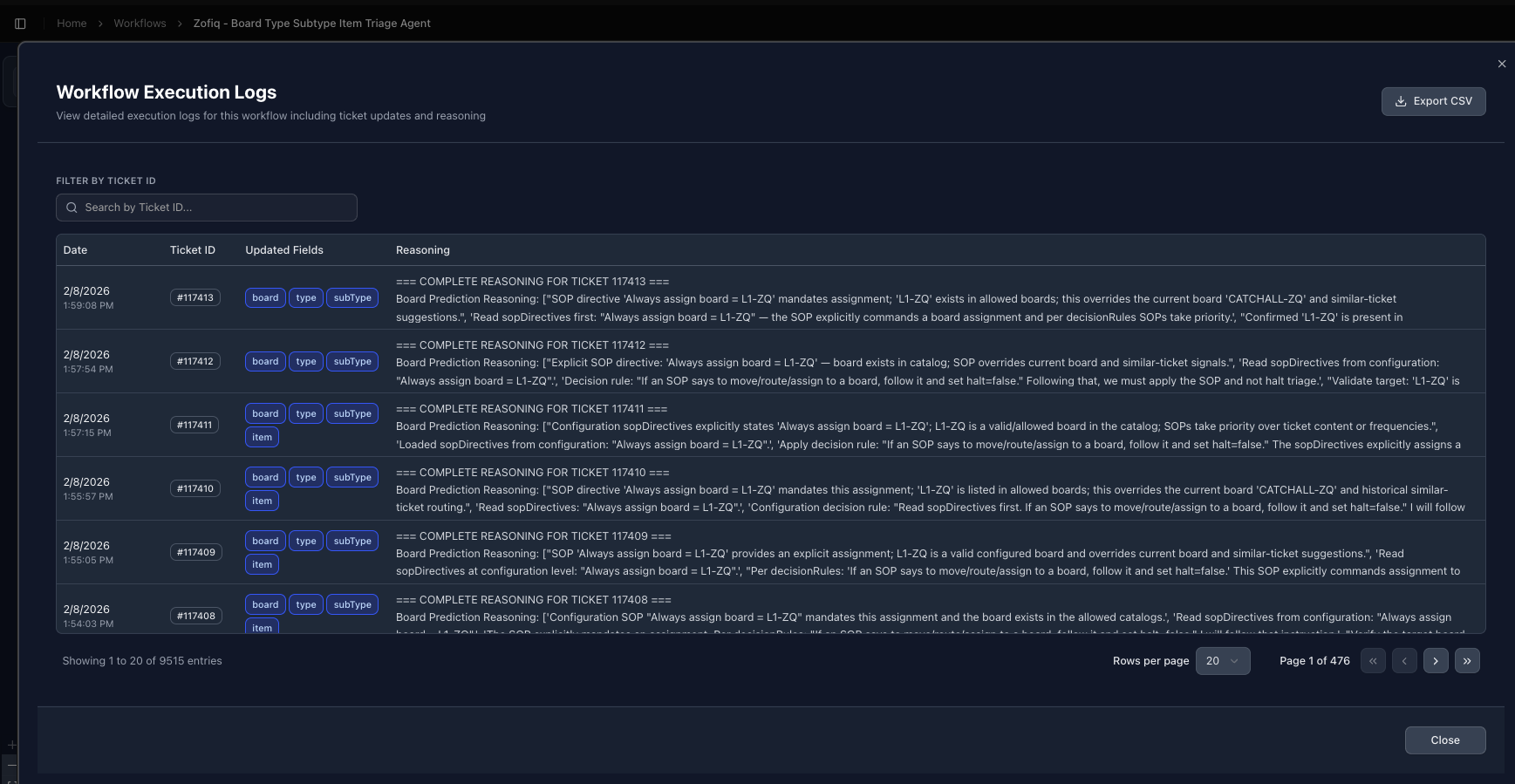
All evaluation steps, decisions, and execution outcomes are recorded in the agent’s individual Workflow Logs
Any changes applied by the agent are also reflected in the audit trail of each ticket it affects within the PSA
This provides a clear, end to end view of what the agent evaluated, what decision it made, and why, ensuring agreement assignment remains predictable, auditable, and aligned with how your organization delivers and bills for services.
If you have any other questions or concerns you can reach out to support@zofiq.ai