Insights Agent (ConnectWise)
Last updated: March 25, 2026
Overview
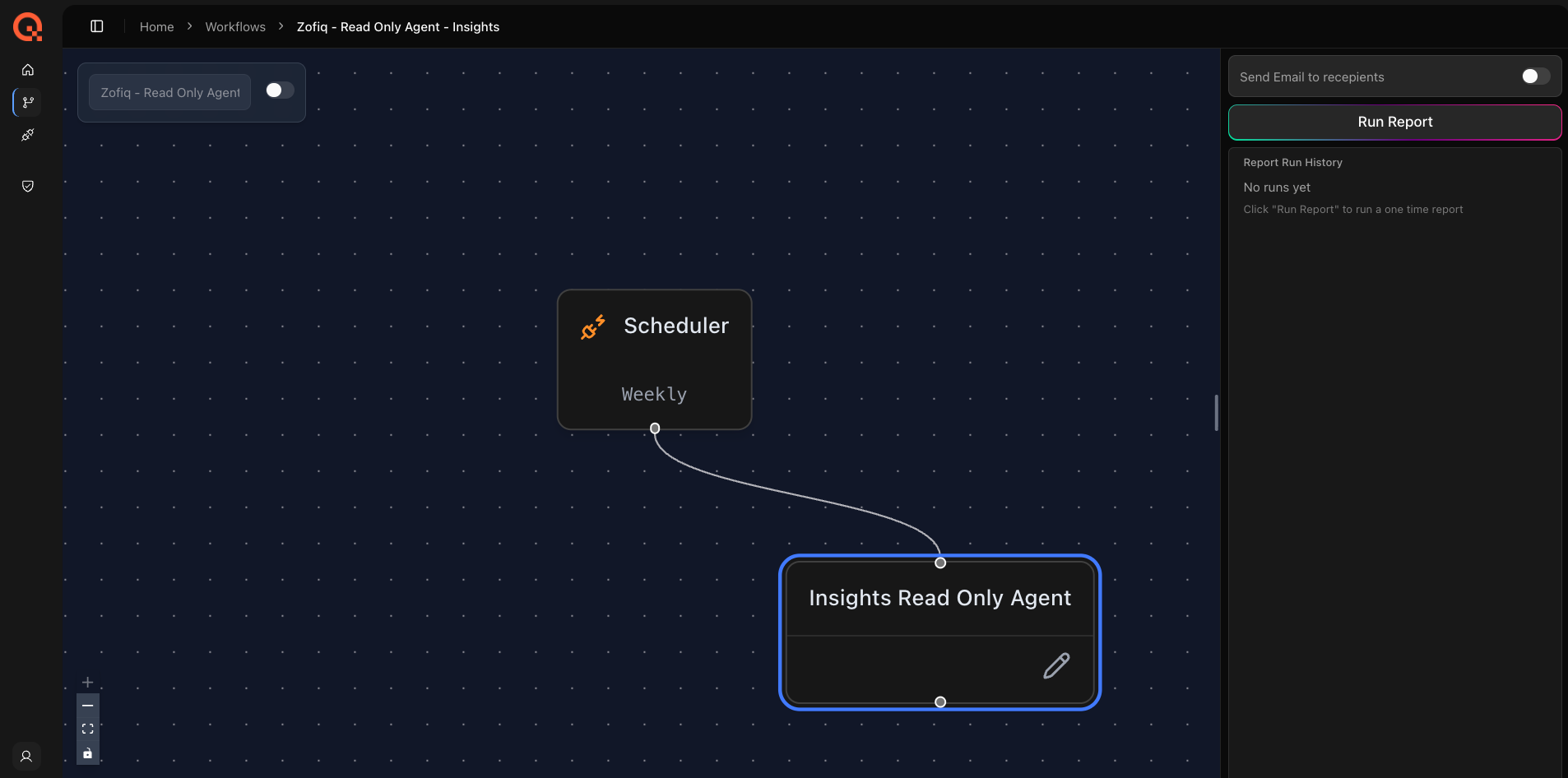
The zofiQ Insights Agent is a read-only reporting agent designed to help you understand trends, patterns, and operational signals across your service desk.
Instead of acting on tickets, the Insights Agent analyzes historical ticket activity and generates structured reports that summarize what is happening in your environment over time.
These reports are delivered by email and are intended for service managers, operations leaders, and account teams who need visibility into performance, trends, and areas that may require attention.
How the Insights Agent is Structured
The Insights Agent consists of two components:
Main Insights Agent (Parent Report)
This is the default report that runs automatically when the Insights Agent is enabled.
Runs once per week
Provides an organization-wide summary of trends
Uses a fixed schedule that cannot be changed
Can be configured with recipients, SOPs, and filters
This serves as your baseline report across the entire PSA.
Insights Sub-Reports (Custom Reports)
In addition to the main report, you can create sub-reports.
Sub-reports allow you to:
Focus on a specific board, customer, or team
Send reports to different audiences
Run reports on different schedules
Each sub-report is independent:
It has its own configuration
It has its own schedule
It can be turned on or off without affecting other reports
You can create as many sub-reports as needed.
How the Insights Agent Works (Step-by-Step)
For a first-time user, the setup process should follow this order:
Step 1: Configure Email Recipients
Before enabling the agent, define who should receive the report.
For both the main Insights Agent and any sub-reports:
Enter one or more email addresses
Place each email on its own line
These recipients will receive the report output on the configured schedule
If no recipients are configured, reports will not be delivered.
Step 2: Define the Scope of the Report (Filters)
Next, determine what data the Insights Agent should analyze.
This is done using filters.
Think of this step as answering:
“Which tickets should this report include?”
If no filters are applied, the report will analyze a broad set of ticket data
If filters are applied, the report will focus only on the selected subset
Start with high-level filters such as:
Board
Companies
Status
Then refine further if needed using advanced filters.
Step 3: Add SOP Guidance (Optional)
SOPs provide additional instruction on how the Insights Agent should interpret and summarize the data. Our team is currently in the process of improving SOP adherence for this agent.
Examples include:
highlighting specific types of issues
prioritizing certain patterns
emphasizing operational risks or trends
This step is optional, but recommended if you want more control over how insights are generated.
Step 4: Review Configuration
Before enabling the agent, confirm:
recipients are correctly set
filters reflect the intended scope
SOPs (if used) align with your goals
At this point, the agent is fully configured and ready to run.
Step 5: Enable the Main Insights Agent
Once enabled:
the weekly report will begin running automatically
reports will be delivered to the configured recipients
no further setup is required for the main report
Step 6: (Optional) Create Insights Sub-Reports
After the main Insights Agent is set up, you can create sub-reports to generate more targeted insights for specific use cases.
Each sub-report is a fully independent report with its own configuration.
For each sub-report, you can:
Apply a different set of filters
Define a unique dataset for the report (e.g., a specific board, customer, team, or priority level)Send reports to a different audience
Configure a separate list of email recipients specific to that reportDefine a custom schedule
Unlike the main Insights Agent, sub-reports allow full control over when reports are sent:Frequency: Daily, Weekly, or Bi-weekly
Day: Select a specific day for weekly or bi-weekly reports
Time: Choose the exact time the report is triggered
Time Zone: Reports run based on your local time zone
This allows you to align report delivery with how your team operates. For example:
a daily report sent each morning for operations
a weekly report sent before a team review meeting
a bi-weekly report for leadership updates
Sub-reports operate independently:
they can be enabled or disabled at any time
they do not impact the main Insights Agent
they do not affect other sub-reports
This makes it possible to run multiple reports in parallel, each tailored to a different audience or operational need.
When This Agent Runs
Main Insights Agent
Runs every Monday at 12:00 a.m. Eastern Time
Schedule cannot be changed
Designed to provide a consistent weekly overview
Insights Sub-Reports
Sub-reports are fully configurable:
Frequency
Daily
Weekly
Bi-weekly
Day (for weekly/bi-weekly)
Select the day of the week
Time
Choose when the report runs
Time Zone
Automatically uses your local time zone
Each sub-report runs independently based on its own schedule.
Report Delivery
Reports are delivered via email
Emails are sent from: info@zofiq.ai
Delivery follows configured schedule for each report
Main report and sub-reports send separately
Understanding Report Content
Each report is a summary of patterns, not a raw data export.
Typical sections include:
A high-level summary of what changed
Recurring themes across tickets
Notable patterns or anomalies
Operational observations
Areas that may need attention
Configuration Options (Filtering and Data Scope)
Filters control what data is included in the report.
This is the most important part of configuring the Insights Agent.
Main Filters (Define Scope)
These determine the primary dataset:
Board
Limits analysis to a specific service boardStatus by Board
Includes only specific statuses within a boardCompanies
Includes only selected customersExcluded Companies
Removes specific customers from the report
Advanced Filters (Refine Scope)
Once the main scope is defined, you can narrow it further:
Ticket Type
Focus on specific categories of workTeam
Limit to tickets handled by a specific teamSites
Focus on a specific location within a companyCompany Types
Include only certain classifications of customersContact Types
Focus on specific requester typesTerritories
Limit analysis to certain operational regionsPriorities
Focus on high or low priority ticketsTicket Source
Filter by where tickets originatedWork Roles
Refine analysis based on the work performed
How to Think About Configuration Filters
A simple way to approach this:
Start broad (e.g., one board)
Then narrow down (e.g., high priority tickets only)
Then refine further if needed (e.g., specific team or customer)
Each filter reduces the dataset and makes the report more targeted.
Data Lookback
The Insights Agent uses a fixed 7 day lookback window for all reports.
Every report analyzes ticket activity from the previous seven days relative to when it runs.
The lookback period does not change based on report frequency. Daily, weekly, and bi weekly reports all evaluate the most recent seven days of data.
What This Agent Can Change
The Insights Agent is read only.
It does not:
Modify tickets
Update fields
Trigger workflows
Write data back to your PSA
All outputs are informational only delivered only in report format to the preidentified users' emails.
Example Report Content
Insights Agent reports summarize patterns and trends observed during the reporting window. The exact content varies based on your data, configurations, and environment.
Reports may include:
A brief executive level summary of notable trends
Grouped themes or patterns observed across tickets
High level impact and recommended areas of focus
Key operational or business metrics worth monitoring
A concise summary suitable for leadership review
Reports are designed to highlight what changed/happened and why it matters, rather than list raw ticket data.
If you have any other questions or concerns you can reach out to support@zofiq.ai