Connectwise PSA API Creation & zofiQ Integration
Last updated: March 16, 2026
Introduction
This document outlines the steps required to integrate your ConnectWise PSA instance with the zofiQ Platform.
Requirements
ConnectWise PSA User account with sufficient permissions to:
Create new security roles
Create new API Members
Create API Keys
Step 1: Security Role & API Endpoint Configuration
Step 1: Security Role & API Endpoint Configuration
Log into ConnectWise PSA with your administrative account.
- Security Role Setup
Click on "System" Then on "Security Roles" | 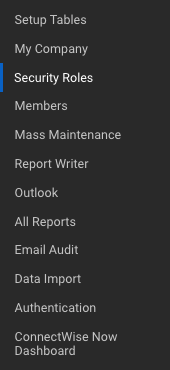 |
Click on the "+" Icon to create a new Security Role. | 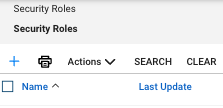 |
You now need to name the Security Role. You can call this "zofiQ Sec Role" for simplicity. Once you have entered the name, click on the "Save" Icon. | 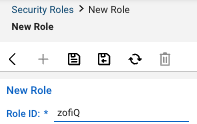 |
Once the save has been comitted, you will now see the security modules that you need to configure per the tables below. | 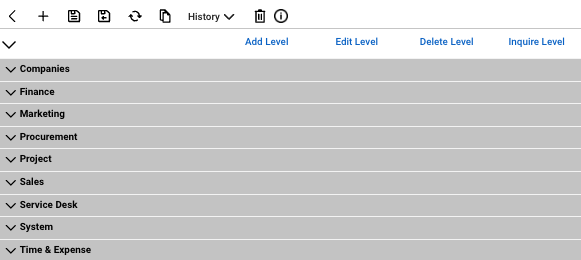 |
- Security Modules: Company
ROLE | ADD | EDIT | DELETE | INQUIRE |
Company Maintenance | ALL | ALL | NONE | ALL |
Company/ Contact Group Maintenance | NONE | NONE | NONE | ALL |
Configurations | ALL | ALL | NONE | ALL |
Contacts | ALL | ALL | NONE | ALL |
Manage Attachments | ALL | ALL | MY | ALL |
Management | NONE | NONE | NONE | ALL |
Notes | ALL | ALL | NONE | ALL |
Reports | NONE | NONE | NONE | ALL |
Team Members | NONE | NONE | NONE | ALL |
Tracks | NONE | NONE | NONE | ALL |
- Security Modules: Finance
ROLE | ADD | EDIT | DELETE | INQUIRE |
Agreements (Customize) | NONE | NONE | NONE | ALL |
- Security Modules: Service Desk
ROLE | ADD | EDIT | DELETE | INQUIRE |
Close Service Tickets | ALL | ALL | NONE | ALL |
Cloud Console | NONE | NONE | NONE | ALL |
Knowledge Base Approver | NONE | NONE | NONE | ALL |
Knowledge Base Creator | NONE | NONE | NONE | ALL |
Launch Remote Access | ALL | ALL | NONE | ALL |
Merge Tickets | ALL | ALL | NONE | ALL |
Print Service Signoff | ALL | ALL | NONE | ALL |
Reporting | NONE | NONE | NONE | ALL |
Resource Scheduling (Customize) | ALL | ALL | NONE | ALL |
Service Ticket - Dependencies | ALL | ALL | ALL | ALL |
Service Tickets | ALL | ALL | NONE | ALL |
SLA Dashboard | NONE | NONE | NONE | ALL |
Ticket Templates | NONE | NONE | NONE | ALL |
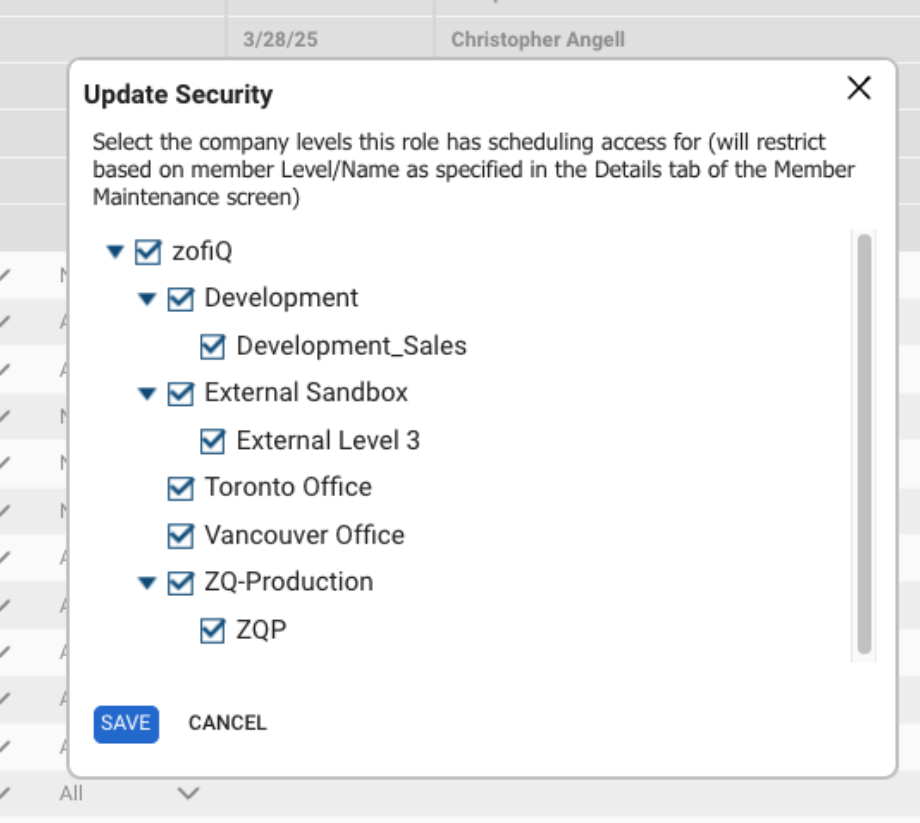
Resource Scheduling (Customize)
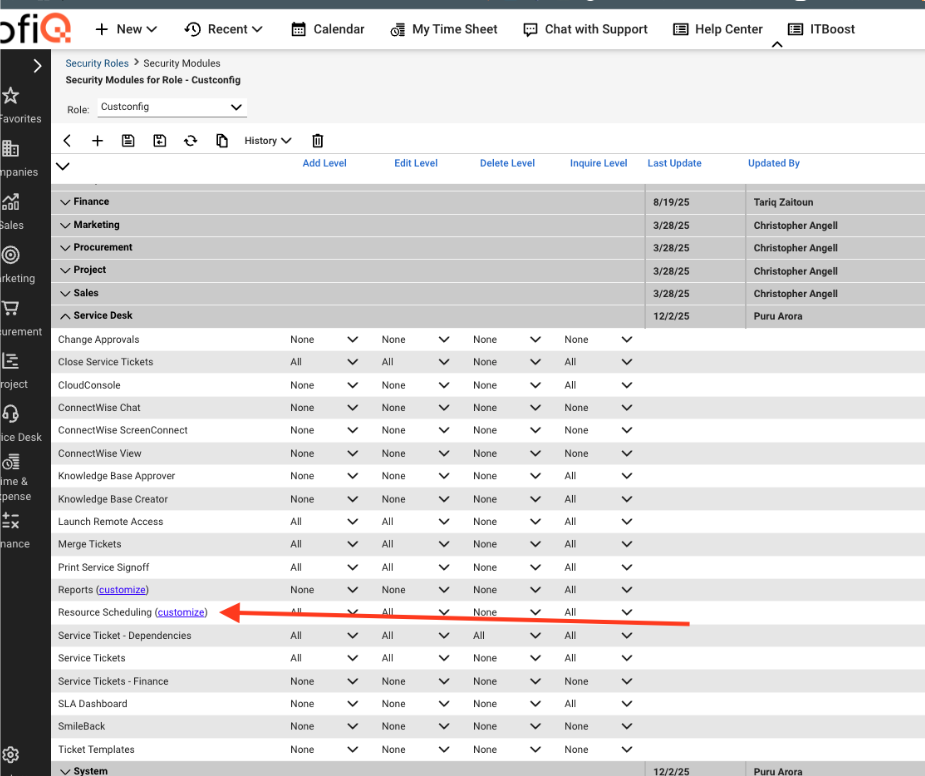
Select All Sites that can be Dispatched (
- Security Modules: System
ROLE | ADD | EDIT | DELETE | INQUIRE |
Managed Hosted API | ALL | ALL | NONE | ALL |
Member Maintenance | NONE | NONE | NONE | ALL |
My Company | ALL | ALL | NONE | ALL |
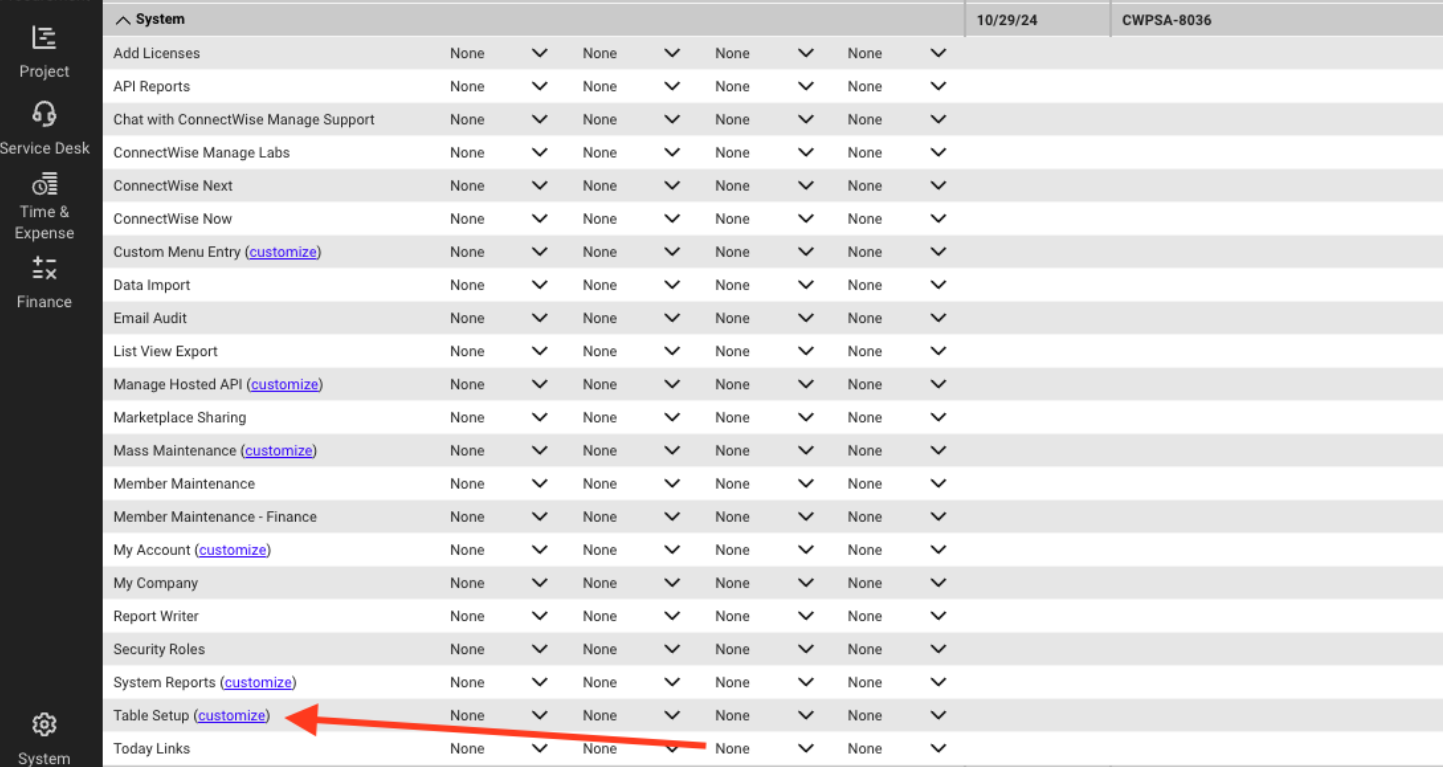
Table Setup (Customize) | ALL | ALL | ALL | ALL |
Table Setup (Customize)
Allow Access to: General/Calendar & General/Holiday
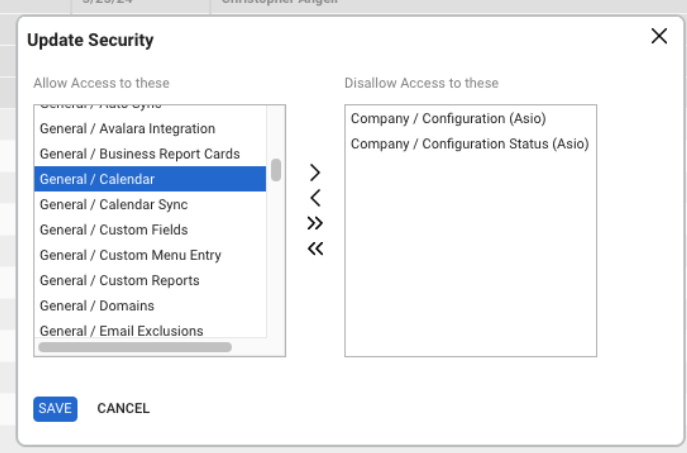
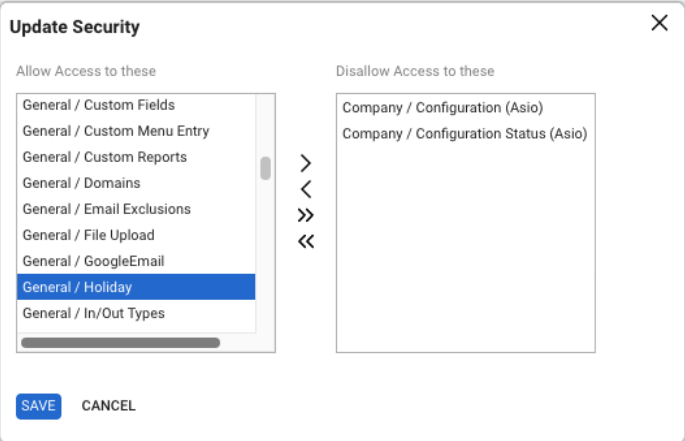
NOTE: zofiQ currently requires access all of the Setup Tables other than Company/ Configuration (Asio) and Company/ Configuration Status (Asio)
- Security Modules: Time & Expenses
ROLE | ADD | EDIT | DELETE | INQUIRE |
Time Entry | ALL | ALL | NONE | ALL |
Step 2: API Member & API Key Creation
Click on "System" Then on "Members" | 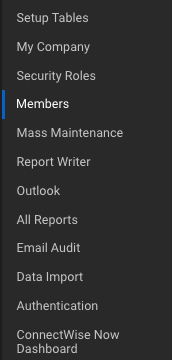 |
Click on "API Members" |  |
Click on the "+" Icon |  |
Under Profile, enter the following information: Member ID: zofiQ Member Name: zofiQ API Member Under System: Click on the dropdown menu and select "ZOFIQ API" or the name that you called the Security role if different. Ensure that all other fields under system align to your "Level 1" Org | 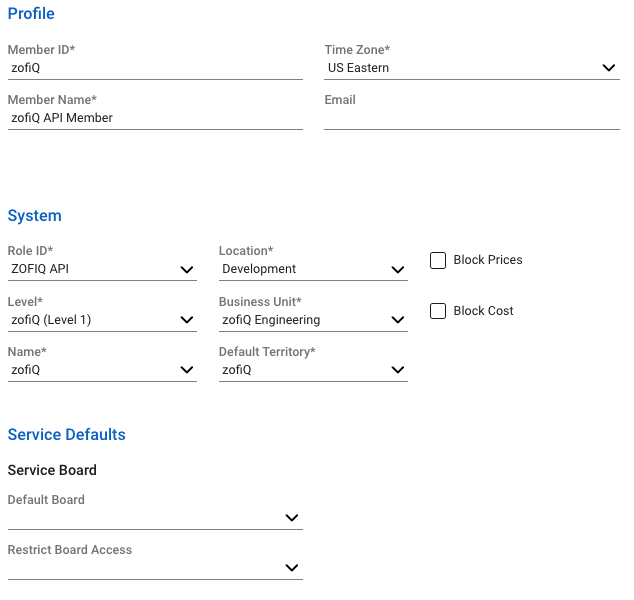 |
Click on the "Save" icon | 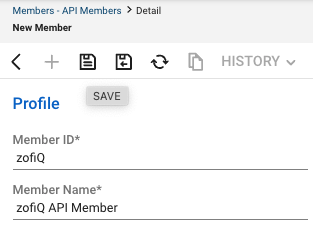 |
Click on "API Keys" |  |
Click on the "+" Icon | 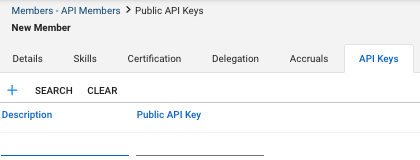 |
In the "Description" Field, enter "zofiQ API Keys" Click "Save" | 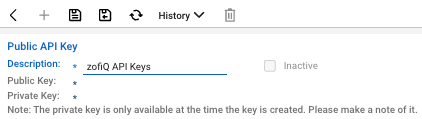 |
You will then be presented with your API Keys. Document these in a secure location such as a password vault. | 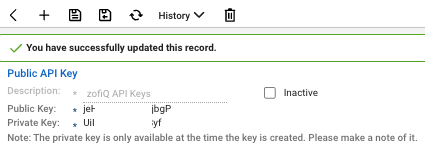 |
Step 3: Claiming your zofiQ Integration Link
Now that you have created your API Member and generated the API Keys, you can complete the onboarding form. The link to this form will be sent to your point of contact, they will need to fill out the form to start the integration.
This will automatically start to ingest your last six months of ticket data and training your instance.
Follow the steps below to complete the integration of ConnectWise and zofiQ:
When you click on the invite link in your welcome email, you will be presented with this screen. Once you have confirmed that the information is correct, click on "Get Started" | 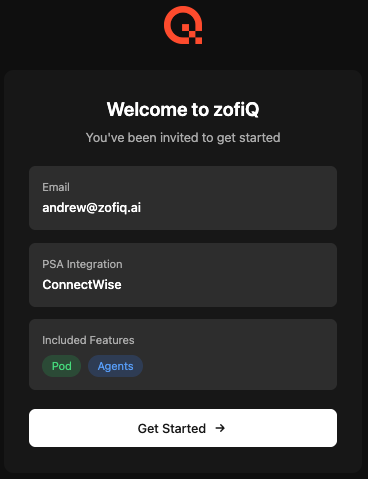 |
You will then have the ability to enter the following information:
Once you click on "Complete Setup" the zofiQ platform will conduct a validation test to confirm that the API Endpoints are accessible. If you get the following error "Invalid configuration - check credentials and settings" your entry did not pass our validation checks and you will need to confirm the above fields for accuracy. | 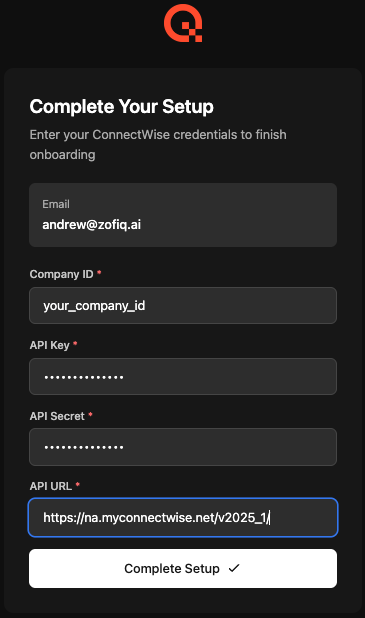 |
Common Troubleshooting Issues
Q. Upon initial integration, zofiQ Agents are unable to query the most recent tickets in my PSA
A. Double check that there are no third party software/firewall issues that may prevent the webhook from firing. Specifically ones that may be affecting outbound calls.
Eg. Threat Locker