Integrating IT Glue or Hudu With zofiQ
Last updated: May 5, 2026
This document outlines the steps required to integrate your IT Glue or Hudu instance with the zofiQ Platform.
IT Glue Requirements Needed for Integration
Your IT Glue API Key
Your IT Glue URL (zofiq.itglue.com)
IP Address Restrictions (If configured)
Setting up IT Glue API Credentials
Sign into IT Glue using an account with administrative rights. | |
Select “Admin” > “Settings” > “API Keys” |  |
In the “Enter Name” Field, Type: Please DO NOT check the “Password Access” field. And then click “Generate API Key” | 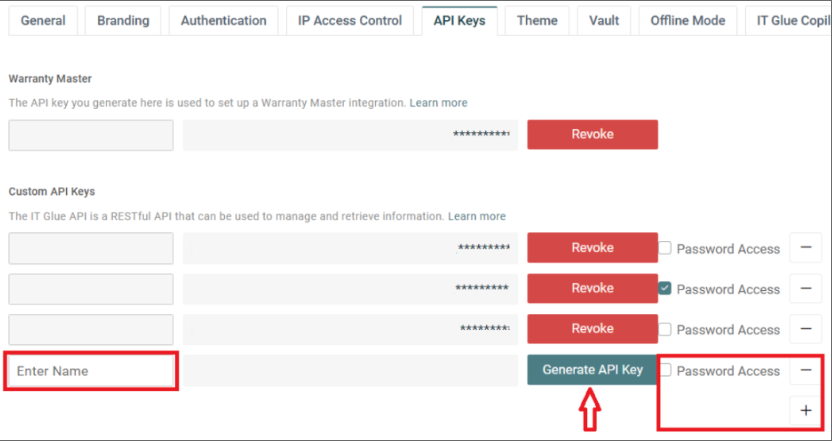 |
IT Glue IP Access Control (If enabled)
If you have enabled "IP Access Control", you will need to add the following IP Address: 34.192.122.179
Hudu Requirements Needed for Integration
Your Hudu API Key
Your IT Glue URL (zofiq.huducloud.com)
Setting up Hudu API Keys
Once you have logged into Hudu with your administrative account, select "Admin" | 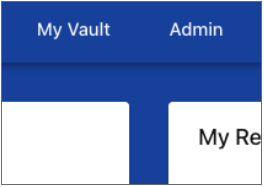 |
Then select "API Keys" | 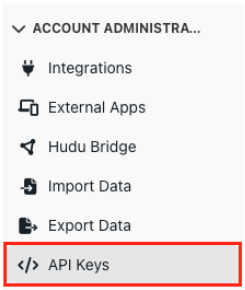 |
Click on the "+ New API Key" button |  |
Name the new API Key “zofiQ API Key”.
| 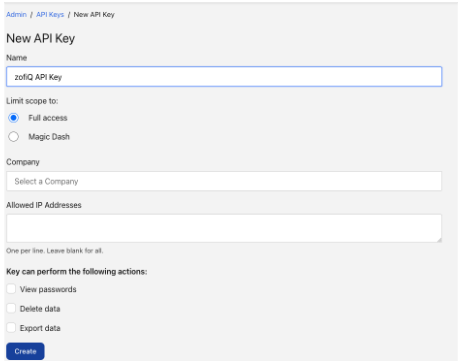 |
You can now copy your API Key and share it with zofiQ. | 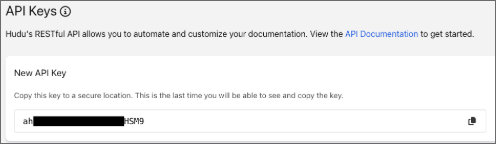 |
zofiQ Integration
Adding API Keys to zofiQ
Open Connectwise PSA and navigate the the zofiQ Co-piot in a service ticket. | |
Once the zofiQ Co-pilot is open, click on the "Buger Menu" |  |
When the navigation menu opens, select "Workspace" | 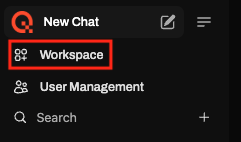 |
Select "Integrations" | 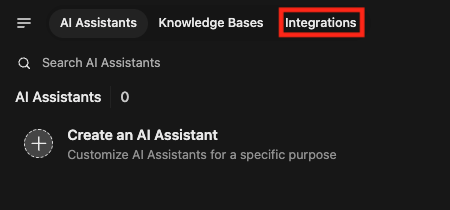 |
Click on the "+" Icon to add a new integration. | 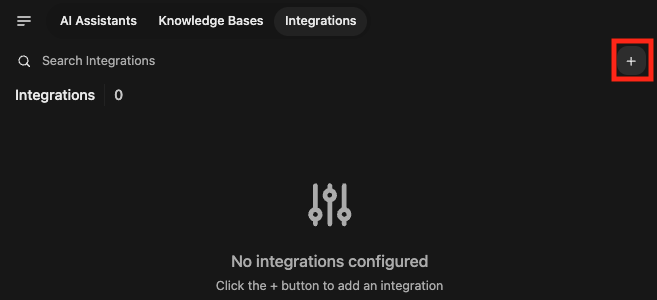 |
Select the desired documentation tool from the dropdown list. | 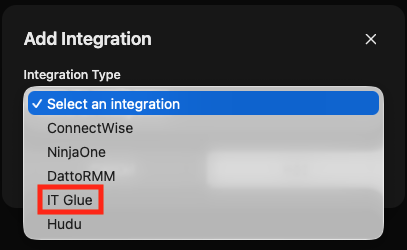 |
Complete the form with the required information that you obtained in the previous steps. Once the form has been completed, click "Add" | 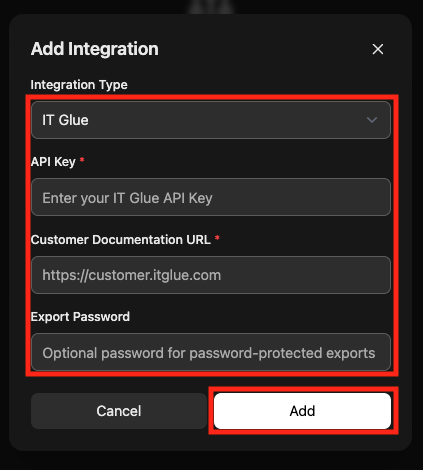 |
Once you have completed the steps above, you have sucessfully setup the integration between your IT Glue instance and zofiQ.