Start Here: zofiQ Agentic Workflow Platform User Guide and Operational Overview (ConnectWise)
Last updated: February 9, 2026
Updated Feb 8, 2026 by Andrew Feng (Product Manager)
Overview
The zofiQ Agents Platform is where zofiQ’s AI agents live and are managed.
This article is designed to walk you through what you see when you first log in, how agents are organized, and how to safely explore configurations, simulations, and logs before enabling anything live. It is recommended that all new users review this section before configuring or turning on any agents.
Agents are purpose-built AI components that do more than analyze or suggest actions. They can take real, auditable actions on tickets and related records in your PSA, such as filling in fields, assigning ownership, updating priority, or routing work based on defined rules and context. Each agent is focused on a specific part of the ticket lifecycle and operates within clearly scoped permissions.
The Agents Platform acts as a centralized workspace where you can discover available agents, understand what each one does, configure their behavior, and review exactly how they would perform through simulations and detailed logs. This allows you to validate outcomes and build confidence before allowing any agent to take action on live tickets.
Agents can be enabled gradually and independently, giving you full control over where automation is applied and how it evolves over time.
How to Access the Platform
The Agentic Workflow Platform is accessible via your web browser at:
For the best experience, we recommend using a Chromium-based browser, such as:
Google Chrome
Microsoft Edge
Please ensure your browser is up to date.
Access to the zofiQ Agents Platform is available to zofiQ users with Manager access or higher. Users with User access do not have permission to view or modify agent configurations.
If this is your first time logging into the zofiQ Agents Platform, this guide will help you get oriented and understand how to navigate the interface.
Logging In and Getting Oriented
When you log in to agents.zofiQ.ai using your work email, you are greeted with the main introduction screen.
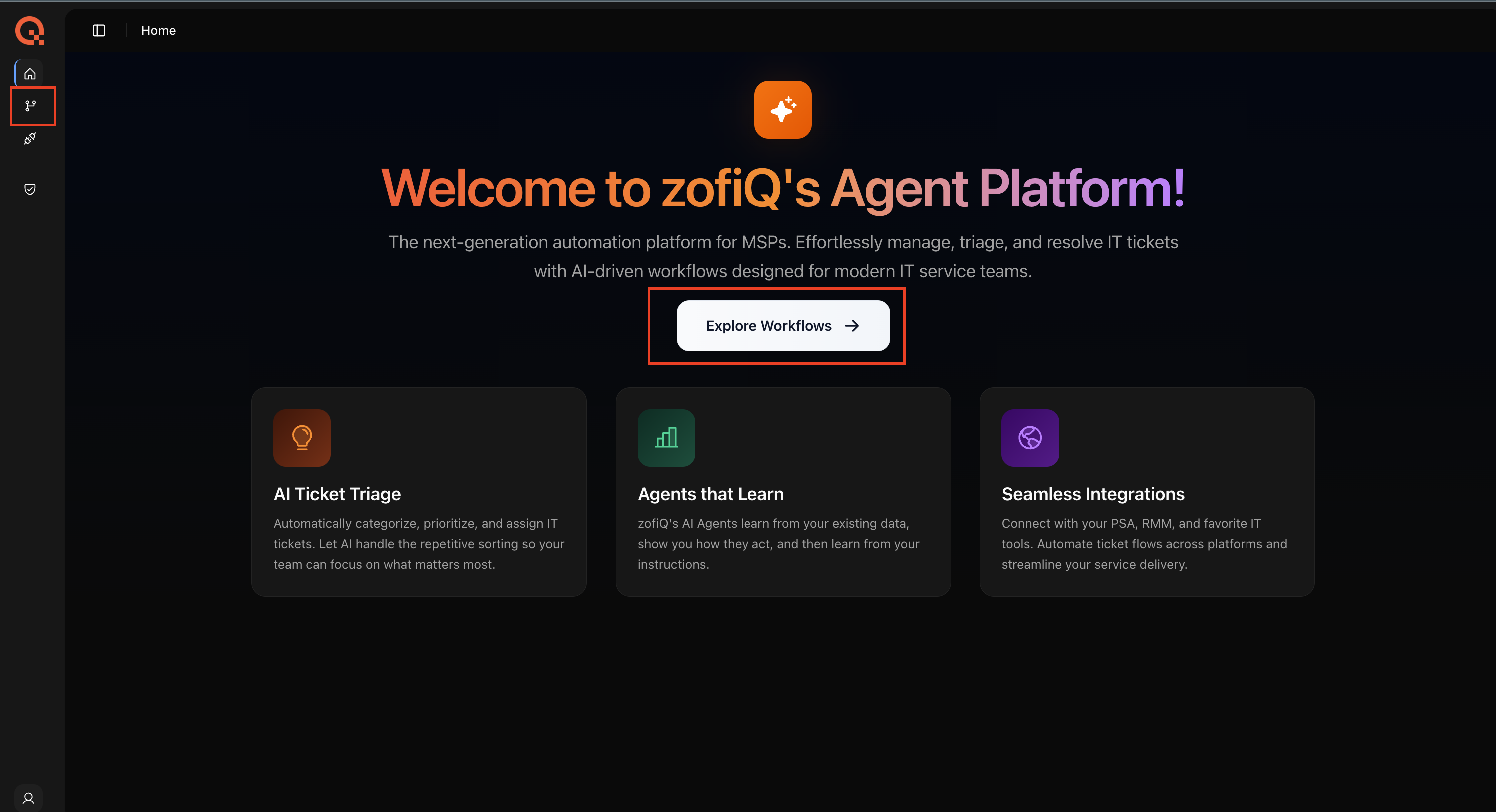
From here, you can:
Click Explore Workflows in the center of the screen, or
Select Workflows from the left hand sidebar
Both options take you to the same place: the Workflows Dashboard
Workflows Dashboard
The workflows dashboard displays all agents available in your environment.
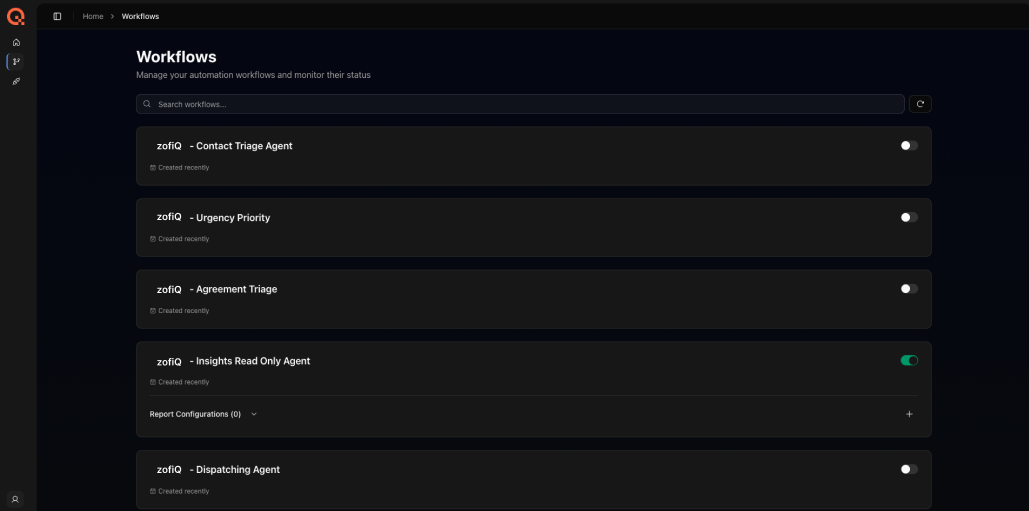
Each agent appears as a row and is fully clickable. Selecting an agent opens its configuration view.
On the right hand side of each agent row, you will see an on off toggle:
Green means the agent is live and running on tickets in your PSA
Gray means the agent is currently turned off
This view gives you a quick snapshot of which automations are active in your environment.
Integrations Setup
The third icon in the left hand navigation opens the Integrations panel.
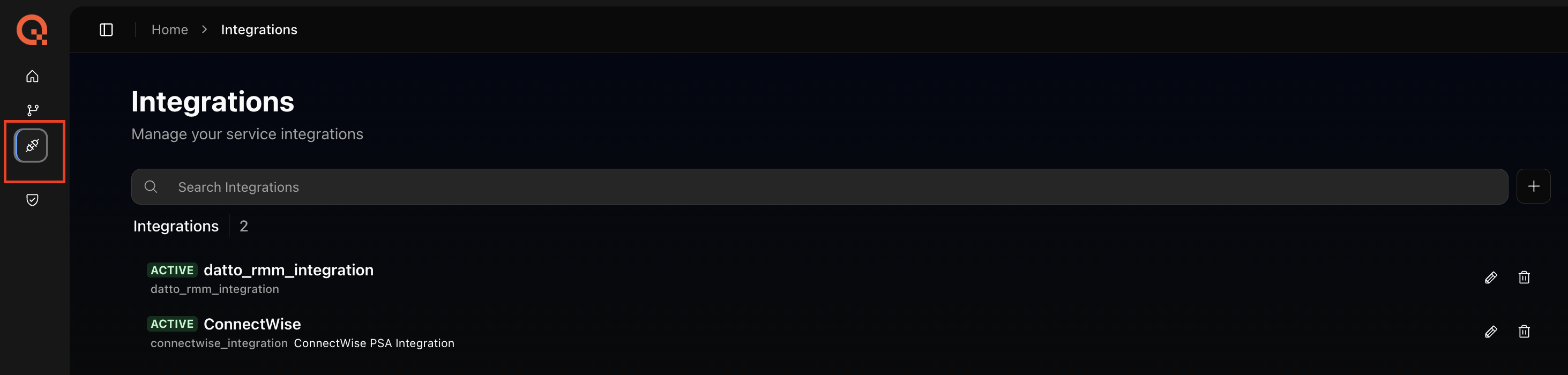
As zofiQ introduces additional agents that integrate with third party platforms such as NinjaOne RMM and Meraki, this panel is where you will configure and manage those connections.
Agent Configuration View
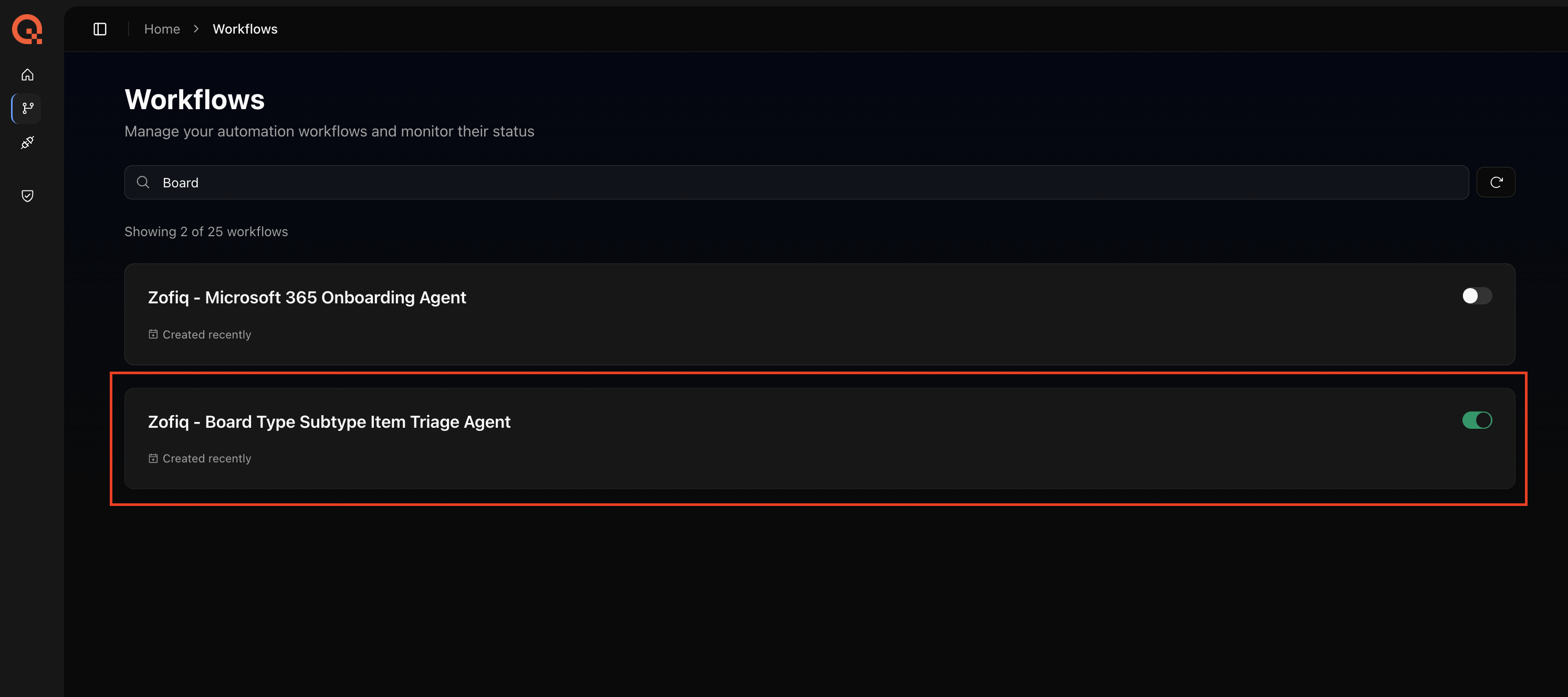
Clicking into an agent opens its main configuration panel. All agents share the same high level layout, which is divided into three sections.
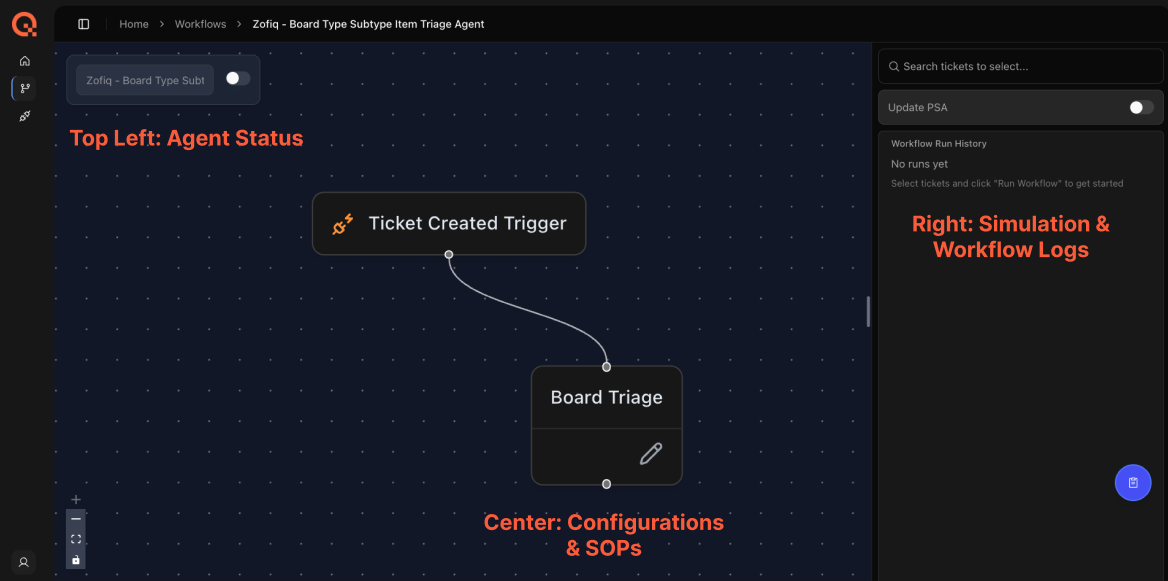
Top Left: Agent Status
The top left section contains the agent’s on off toggle.
Green indicates the agent is active
Gray indicates the agent is inactive
This toggle controls whether the agent runs live on tickets.
Center: Configuration and SOPs
The center section displays a stylistic Ticket Created Trigger node, which is just a visual indication that this agent runs when a new ticket is created in your environment.
The most important element in this section is the pencil icon on the agent node. This icon opens the agent’s configuration settings and is where the core behavior of the agent is defined.
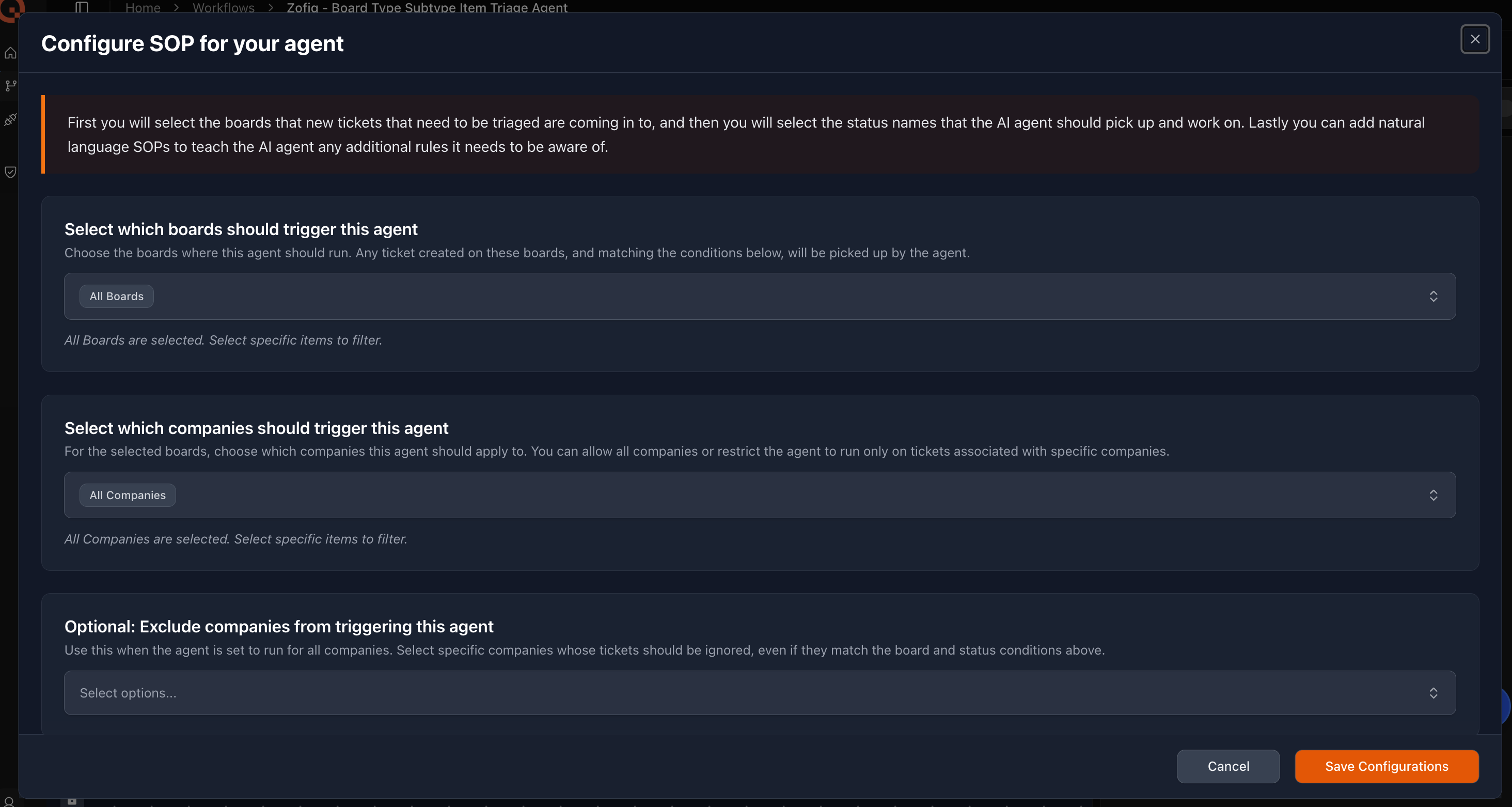
Clicking the pencil icon opens the configuration modal. The available configurations depend on the agent, but generally include:
Trigger conditions, such as when and under what circumstances the agent should run
Outcome controls, defining what the agent is allowed to change
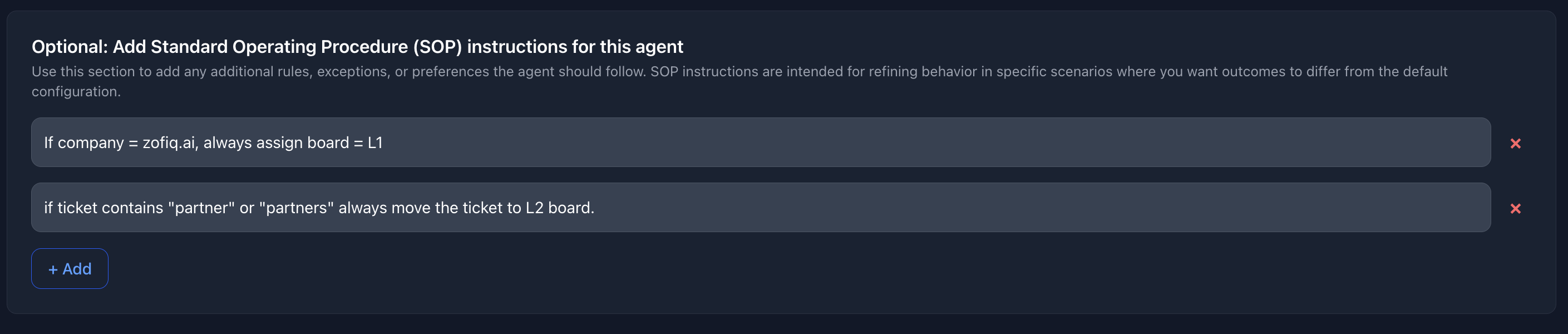
Below the configuration settings is a Standard Operating Procedure (SOP) input box. This allows you to add natural language instructions that further guide agent behavior beyond the structured configuration options.
SOPs can be used to:
Create specific desired outcomes
Add additional conditional filters
Introduce guardrails that prevent certain behaviors
For example, with the Urgency, Impact, and Priority Agent, you might write an SOP such as:
“If a ticket is from Company A, always assign priority P1.”
These instructions are evaluated alongside the agent’s configuration and help tailor behavior to your team’s workflows and exceptions.
For guidance on how to write effective SOPs, including best practices and common patterns, refer to the SOP Writing Guide in the documentation.
SOPs are not required for every agent, but they provide an additional layer of control when standard configurations are not sufficient.
Once configuration is complete, click Save Configurations.
Right Side: Simulation and Workflow Logs
The right hand section contains the Simulation tools and Workflow Logs.
Before turning agents on, we strongly encourages users to validate behavior through simulation. This builds trust and prevents unintended changes.
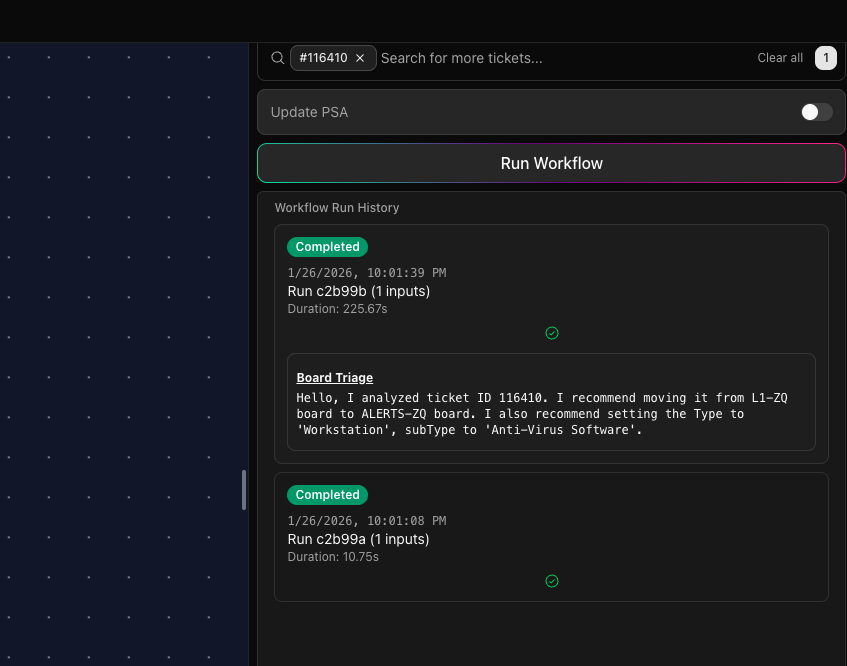
Running a Simulation
To run a simulation:
Ensure the agent's configurations are saved
In your ConnectWise, select a ticket that meets the agent’s trigger conditions
Copy the ticket number
Paste it into the simulation search bar in the top right corner
Click Run Workflow
This performs a dry run that will show you what the agent would do if it were live, without making any changes to the PSA.
If the dry run looks correct, you can enable the Update PSA toggle and click Run Workflow again. This applies the simulated changes directly to the selected ticket.
Simulation results appear immediately in the right-hand panel.
Workflow Logs and Reasoning
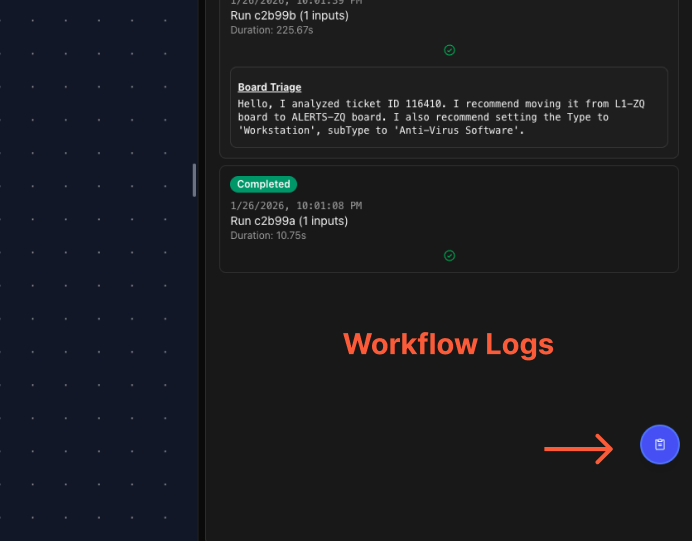
To inspect the agent's reasoning and actions, click the Blue Workflow Logs button in the bottom right corner.
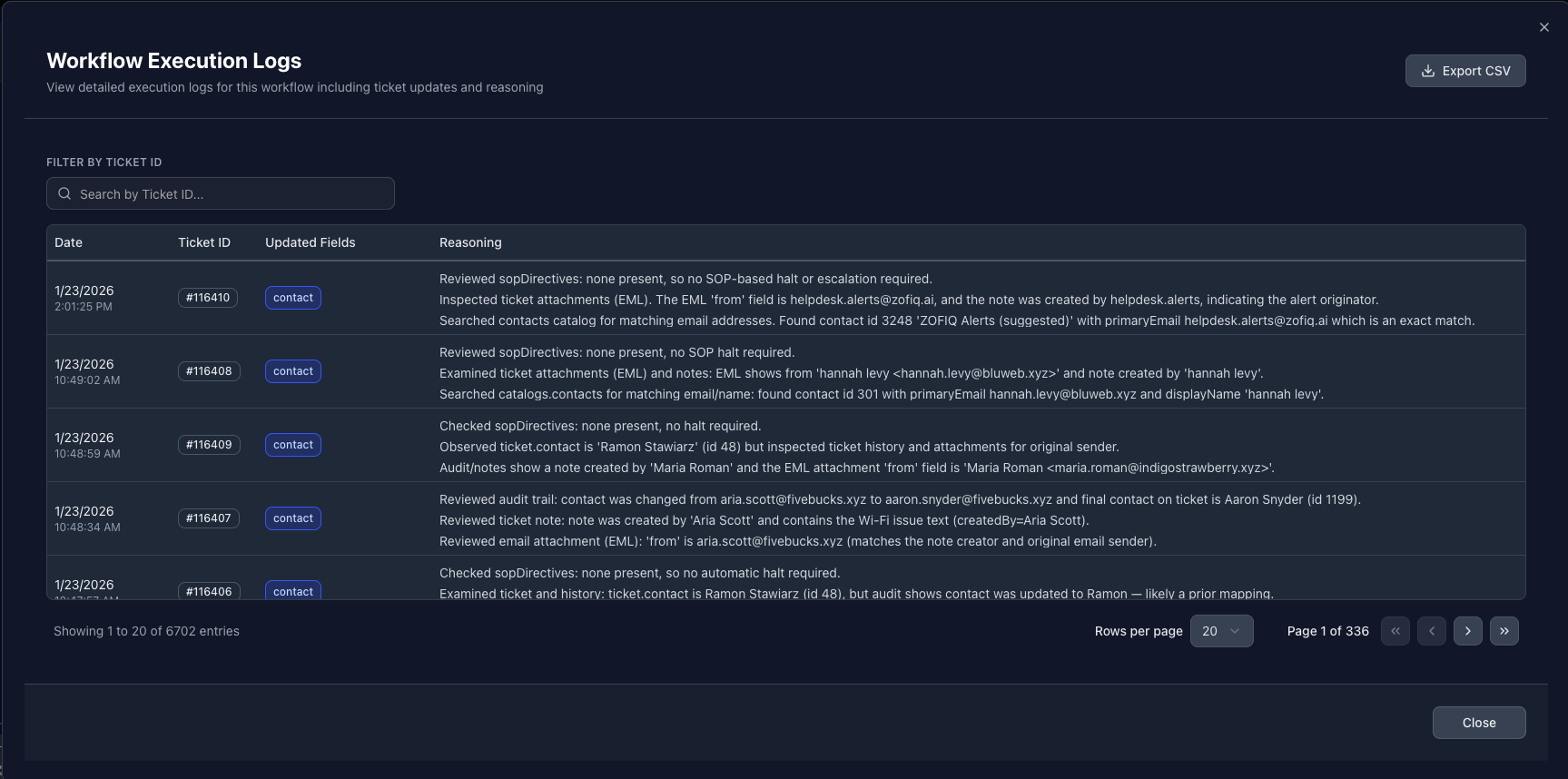
The logs modal is specific to the agent you are viewing and provides full transparency into agent behavior.
Each log entry includes:
Date and time the agent ran
Ticket ID
Fields that were updated
A reasoning column explaining why the agent made its decisions
You can search for a specific ticket or scroll through historical runs. Expanding the reasoning column shows a detailed breakdown of the decision logic, which is especially useful for troubleshooting and auditing.
Going Live
Once you have completed simulations and confirmed the agent is behaving as expected, you can enable the agent to run live.
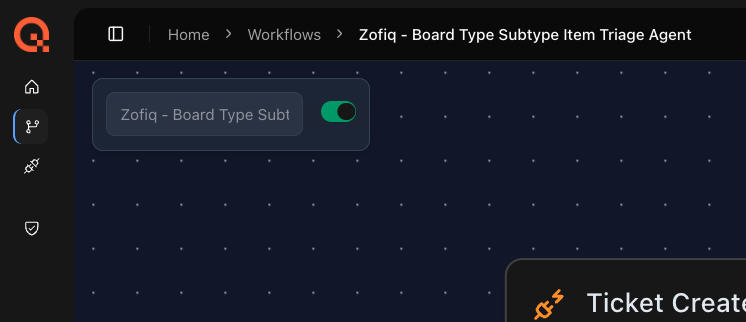
To go live, use the toggle located in the top left corner of the agent configuration page. Turning this toggle on (green) activates the agent in your PSA.
When an agent is live:
The agent processes net new tickets only that meet your configured boards, filters, and SOP conditions
Each ticket is evaluated once at creation time
Agents do not continuously re run on the same ticket
Tickets created before the agent is enabled are not modified
All qualifying tickets are evaluated and acted on automatically
For most environments, the full agent execution cycle completes in under three minutes from the time a ticket is created. This includes ingestion, context analysis, SOP evaluation, and any write actions back to your PSA.
Agents run continuously in the background and require no manual intervention once enabled.
Important:
Before enabling live mode, verify that all configurations are correct. When live, the agent will write changes directly to your PSA for every qualifying ticket. zofiQ agents include a built in fallback safety mechanism. If a human is actively modifying a ticket at the same time an agent attempts to take action, the agent will halt its workflow and will not apply changes to that ticket. This prevents overwriting human input and ensures manual actions always take precedence. This safeguard only applies to simultaneous activity. zofiQ can still update tickets before or after human actions, depending on timing and configuration. The halt condition exists solely to prevent conflicting writes during overlapping activity.
Platform Throughput
The current version of zofiQ agents can process up to 10 tickets per minute, with actual throughput governed by your PSA’s API rate limits. This limit exists to ensure platform stability, prevent API throttling, and remain compliant with PSA usage policies.
The platform continuously queues incoming tickets and processes them efficiently within these constraints, even during periods of elevated volume.
Burst Handling Behavior
When a large number of tickets arrive at once and exceed the platform’s processing capacity, the system prioritizes the most recent tickets in that burst.
This means:
Newer tickets are processed first to preserve real-time relevance
Some older tickets in the same burst may not be processed by the agent
Skipped tickets remain untouched in the board or queue
No automated triage or updates are applied to those skipped tickets
This behavior is intentional. It prevents the platform from falling behind on active work and ensures agents focus on tickets that still matter for live SLAs and technician workflows, rather than spending time catching up on stale backlog.
Operational Impact
Tickets that are skipped during a burst will not be retried automatically.
Action required:
Any unprocessed tickets must be handled manually. We recommend periodically reviewing your queues and, where appropriate, using simulation mode to reprocess missed tickets and validate agent behavior.
Wrapping Up
This article covered the general layout and navigation of the zofiQ Agents platform, including how to access agents, configure settings, run simulations, and review workflow logs.
From here, you can dive deeper into the specifics of each agent and learn how to configure them for your exact workflows. You can also review best practices for writing SOPs to further guide and constrain agent behavior.
If you have any other questions or concerns you can reach out to support@zofiq.ai