zofiQ Copilot Core Functionality
Last updated: February 18, 2026
Updated Feb 5, 2026 - Andrew Feng (Product Manager)
Overview
zofiQ Copilot is an AI companion built specifically for Managed Service Providers. It works alongside your technicians inside their daily PSA workflows to help them understand tickets faster, reduce manual effort, and resolve issues more accurately.
Copilot is not a generic chatbot and it does not replace your team. It is an extension of the technician, designed to support real MSP work by understanding PSA data, ticket context, and the operational realities of IT support. Copilot integrates with PSA, RMM, knowledge base, and other core MSP systems, enabling cross-platform intelligence from a single, unified workspace.
zofiQ takes a focused approach to AI. Copilot is purpose-built to support active ticket resolution. Its core strength is helping technicians reason through technical issues in real time. It can interpret the situation described in a ticket, clarify ambiguity, suggest structured troubleshooting paths, and provide MSP-relevant guidance that moves the issue toward resolution.
Rather than serving as a general information assistant, Copilot is optimized for problem-solving within the technician workflow. It is designed to help answer the question, “How do I solve this?” with context-aware, actionable direction grounded in real MSP environments.
zofiQ Copilot helps your team:
Understand and triage tickets faster by surfacing relevant context
Make more accurate decisions by asking contextual questions and receiving MSP-specific, actionable answers
Reduce repetitive work, such as drafting customer communications, summarizing findings, and structuring updates, while preventing unnecessary escalations through consistent, AI-assisted workflows
This article highlights some of the key functionalities of the platform that may be useful for your team
1. Autofetch
zofiQ Copilot - AutoFetch Overview - Watch Video
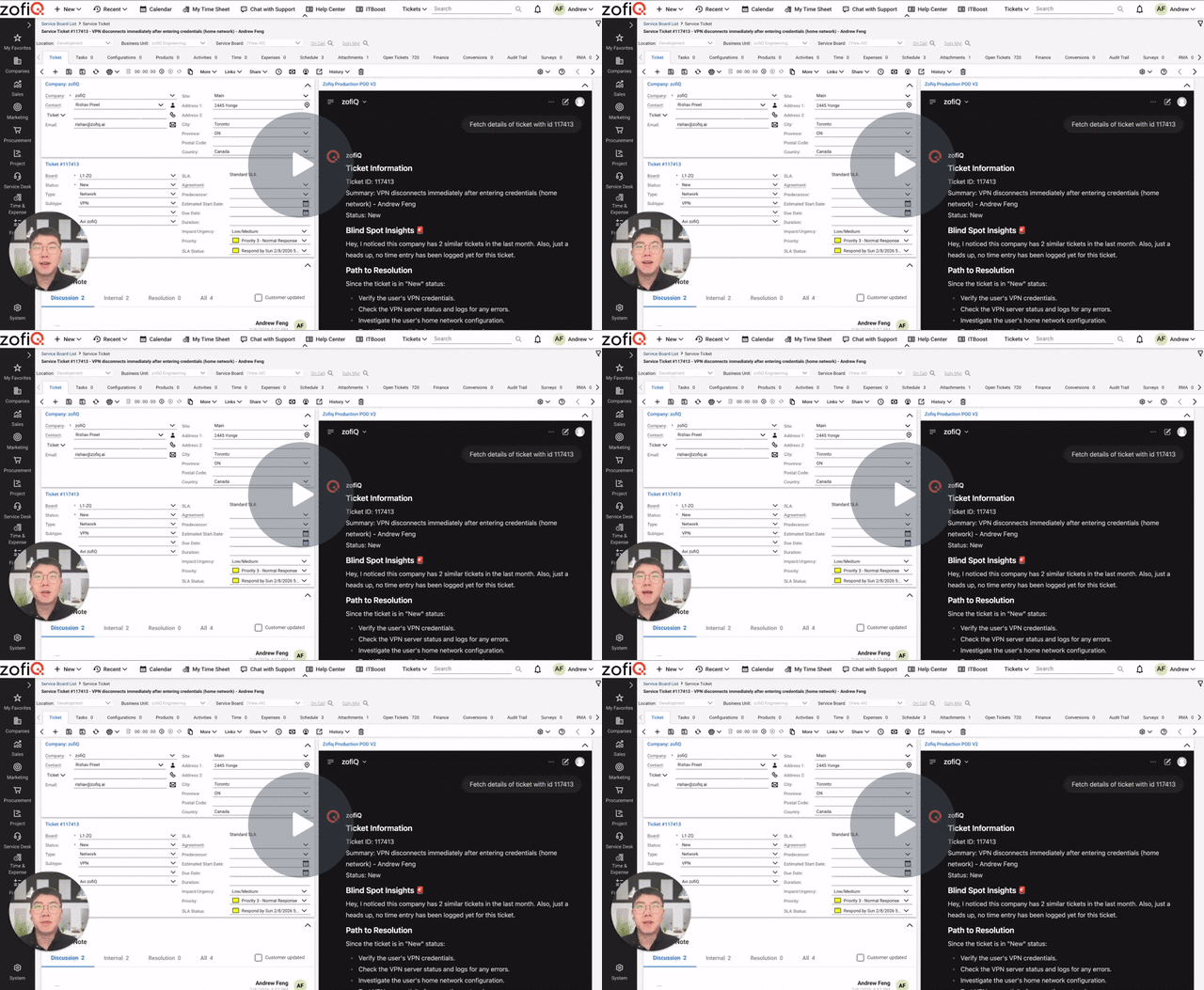
Autofetch is designed to give technicians immediate, high-value context the moment they open a ticket. It runs automatically inside the ConnectWise pod and surfaces the most relevant information needed to begin work without manual searching.
Enabling AutoFetch
Autofetch is controlled at the individual user level.
Each technician can enable or disable auto-fetch from their personal Copilot user settings. Once enabled, autofetch runs automatically every time the technician opens a ticket in ConnectWise.
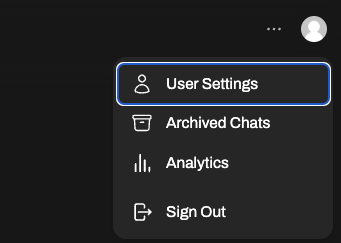
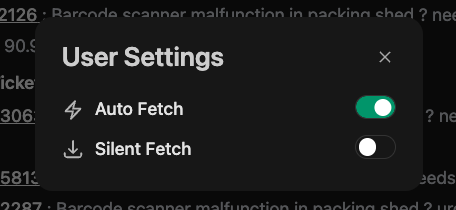
No manual prompts or commands are required.
What Happens When You Open a Ticket
When a ticket is opened, zofiQ Copilot triggers the autofetch sequence and presents information in a consistent, structured order. Each section is designed to build context progressively before work begins.
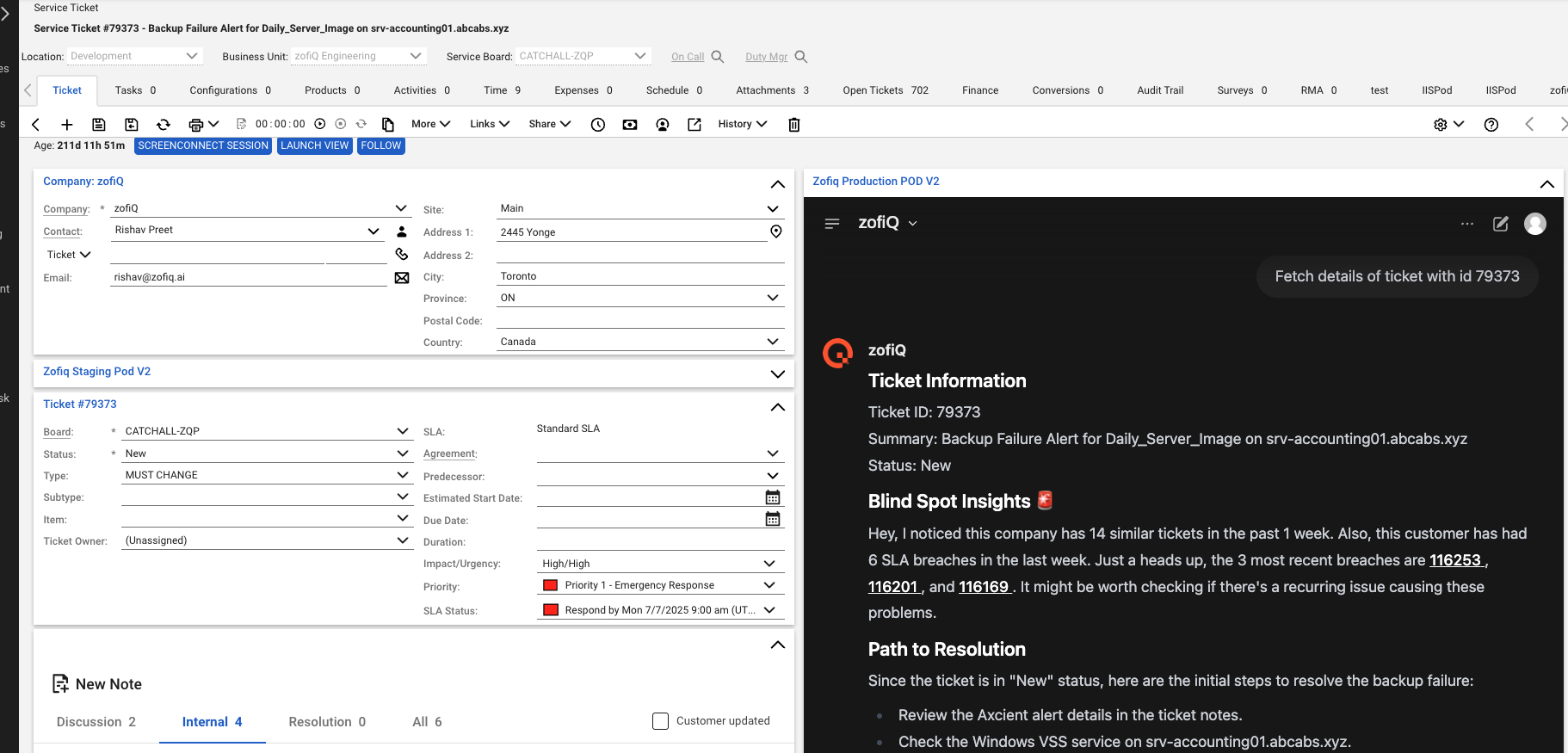
Ticket Metadata

Autofetch starts by surfacing high-level ticket metadata.
This includes core information derived directly from the ticket to help technicians orient themselves immediately, such as key identifiers and context needed to understand what they are looking at before diving deeper.
Blindspot Insights

Blindspot Insights highlight patterns or risks that are easy to miss during manual triage.
This section may surface insights such as:
Trends in similar tickets submitted by the same company over a recent time period
Indicators of recent or repeated SLA breaches
Signals about whether the ticket contact is considered important or high-impact based on historical interactions
These insights are not prescriptive. They exist to help technicians understand risk, urgency, and business context before taking action.
Path to Resolution
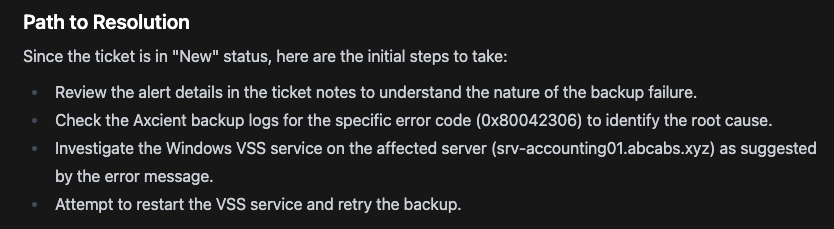
The Path to Resolution section is not intended to solve the ticket. It provides a short set of suggested starting points to help technicians get oriented quickly.
This section typically includes two to seven high-level guidance points. These are not full solutions, step-by-step instructions, or automated fixes. Instead, they offer directional guidance on where to begin investigation or which areas to check first, informed by patterns from similar past issues.
Documentation (IT Glue or Hudu)
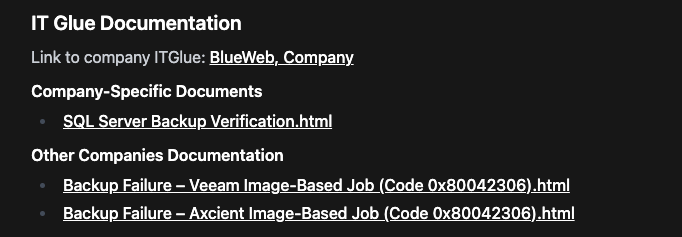
Copilot integrates directly with your documentation platform to surface relevant knowledge without leaving the ticket.
IT Glue Documentation
When IT Glue is connected, Copilot surfaces documentation using multiple contextual layers.
Organization Link
Copilot provides a direct hyperlink to the company’s organization record in IT Glue, allowing technicians to quickly access company-level documentation and details.Company-Specific Documentation
Links to IT Glue documents that belong directly to the company associated with the ticket. These documents reflect customer-specific configurations, procedures, or exceptions.Other Relevant Documentation
Links to IT Glue documents from other companies that are contextually relevant to the issue. These may include general procedures or best-practice guides that apply across customers.Flexible Assets
Relevant flexible assets are surfaced when applicable, providing additional technical or configuration context tied to the issue.
Hudu Documentation
When Hudu is connected, Copilot surfaces the top 3 relevant documents based on ticket context.
Like Tickets
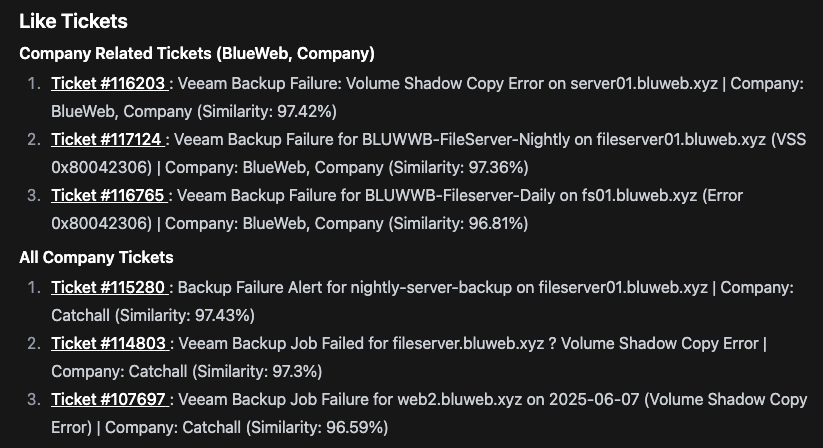
Copilot also surfaces resolved tickets that are relevant to the current issue.
These are divided into two categories:
Company-related tickets
Tickets from other companies with similar issues
Each ticket is presented as a hyperlink, allowing technicians to quickly review how similar problems were handled in the past.
Time Entry Button

At the bottom of the auto-fetch experience is a prominent Add Time Entry button.
Clicking this button opens the time entry editor, which mirrors the native ConnectWise time entry experience.
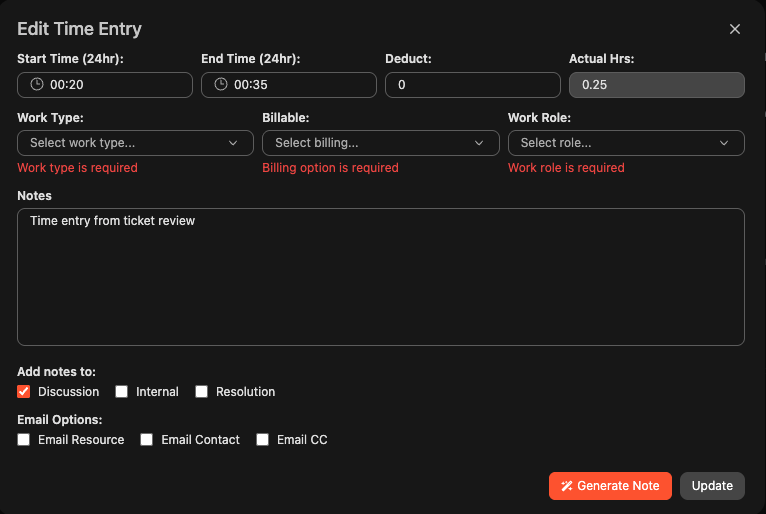
Technicians can:
Set start and end times
Apply deductions
Select work type, billable status, and work role
Choose whether notes are added as discussion, internal, or resolution notes
Email notes to selected recipients
Get AI Generated Notes
2. Followup Questions
After each Copilot response, zofiQ suggests a small set of follow-up questions to help technicians continue the workflow without starting from scratch.

These suggested options are presented as clickable chips and are based on the current ticket context and the action Copilot believes is most useful next.
Selecting a suggested follow-up is equivalent to typing the question manually. Clicking a chip automatically submits the request and loads the next step in the workflow.
Follow-up questions may include actions such as:
Drilling deeper into troubleshooting steps
Requesting additional technical detail or validation checks
Drafting a customer-facing response or update
Summarizing findings for internal notes or escalation
These suggestions are meant to accelerate common next steps, not restrict how technicians interact with Copilot. Technicians can always ignore the suggestions and ask their own questions freely.
The goal of follow-up questions is to reduce friction, maintain momentum, and keep technicians focused on resolution rather than navigation.
3. Special Tool Calls
Copilot supports 2 lightweight tool calls that allow technicians to take action or retrieve information quickly without breaking their workflow.
These tool calls are triggered directly from the chat box using a hashtag:
#time
Typing #time brings up the time entry interface.
This is useful when a technician is deep in a conversation with Copilot and the original time entry button from the auto-fetch sequence is no longer visible. Entering #time surfaces the time entry option again so work can be logged immediately.
Using #time is functionally identical to clicking the Add Time Entry button elsewhere in the Copilot interface.
#web
Typing #web allows Copilot to perform a targeted internet search to answer a specific question.
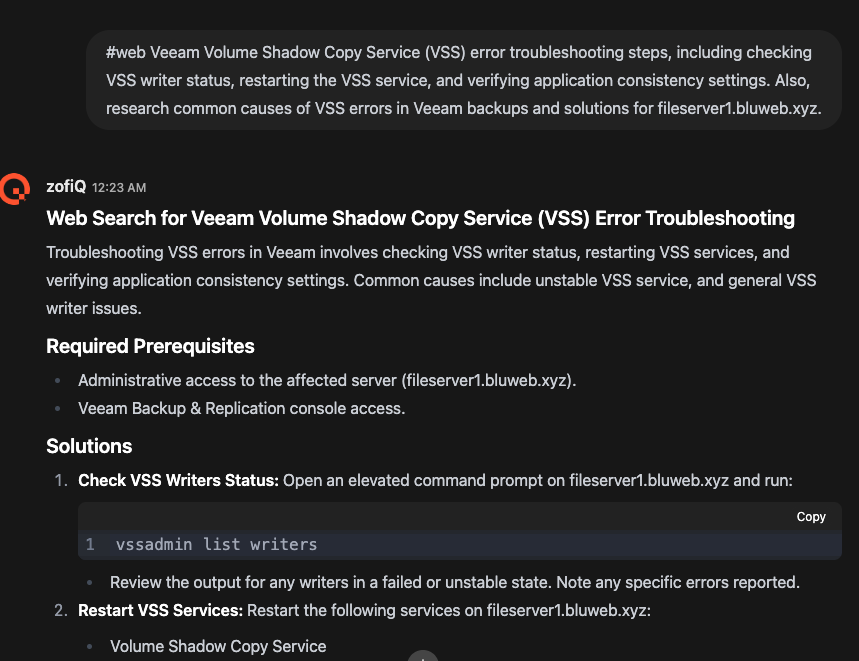
When a question is prefixed with #web, Copilot does not rely solely on internal reasoning or existing context. Instead, it actively searches the web to retrieve up-to-date information relevant to the request.
This differs from a traditional search engine in that Copilot:
Extracts only the information needed to answer the question
Summarizes results into a clear, actionable response
Provides source citations so technicians can verify or reference the information
This is especially useful for vendor documentation, error codes, or issues where external confirmation is required.
4. Image and File Analysis
Copilot allows technicians to drag and drop supported files directly into the chat and ask for help analyzing them.
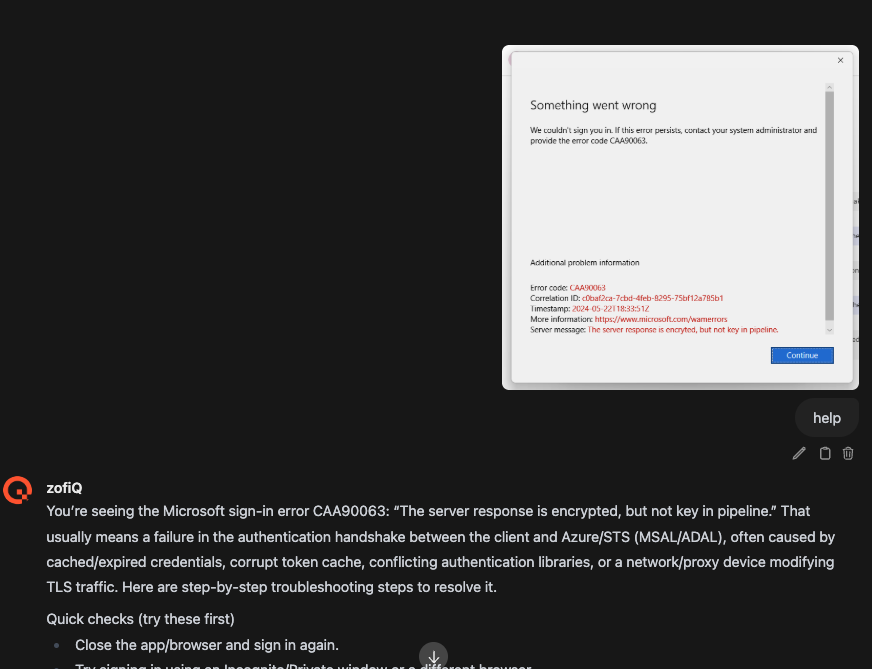
This is especially useful when tickets lack clear descriptions. In many cases, customers submit tickets with little more than a screenshot of an error message or warning.
Copilot currently supports the following file types:
Images: PNG, JPG, JPEG
Documents: PDF
Data files: CSV
After uploading a file, technicians can ask a simple question such as “help” or “what is this error.”
For images, Copilot uses built-in image analysis and optical character recognition to read the content, extract error messages or codes, and interpret what the issue likely represents.
Based on the file content, Copilot can:
Identify relevant errors or messages
Explain what the content means in plain language
Suggest initial troubleshooting steps or next actions
This allows technicians to get useful context quickly, even when the original ticket provides minimal information, and reduces the time spent manually interpreting screenshots or documents.
5. RMM Device Context (NinjaOne or Datto RMM)
If your organization has an active NinjaOne or Datto RMM integration configured by a manager, Copilot can answer questions about devices directly within the ticket workflow.
This allows technicians to retrieve device information without opening the RMM platform or switching tools.
Using natural language, technicians can:
Ask which devices are associated with a specific company
Drill down into individual devices by name or ID
Request details about a specific device directly from the chat
For these integrations, Copilot primarily surfaces device specification and inventory information, including:
Operating system and version
Hardware details such as RAM, storage, and device type
Device identifiers and policy information
Warranty status where available
This capability is designed to support faster triage and investigation by making commonly needed device details immediately accessible.
Copilot does not replace your RMM platform. It provides quick, read-only access to the most relevant device information so technicians can stay focused on diagnosis and resolution without unnecessary context switching.
More details on how these integration works can be found on the next page: zofiQ Copilot Additional Integrations