zofiQ Copilot User Guide and Operational Overview (ConnectWise)
Last updated: February 9, 2026
Updated Feb 5, 2026 - Andrew Feng (Product Manager)
Overview
This article is designed to help you understand where the zofiQ Copilot lives, how to access it, and how to navigate the Copilot interface.
The zofiQ Copilot is an AI assistant designed to support technicians and service teams by answering questions, summarising context, and retrieving relevant information across tickets, customers, and integrated systems. It is intended to augment day to day work, not replace existing workflows.
It is recommended that all new users review this section before using the Copilot in live ticket scenarios.
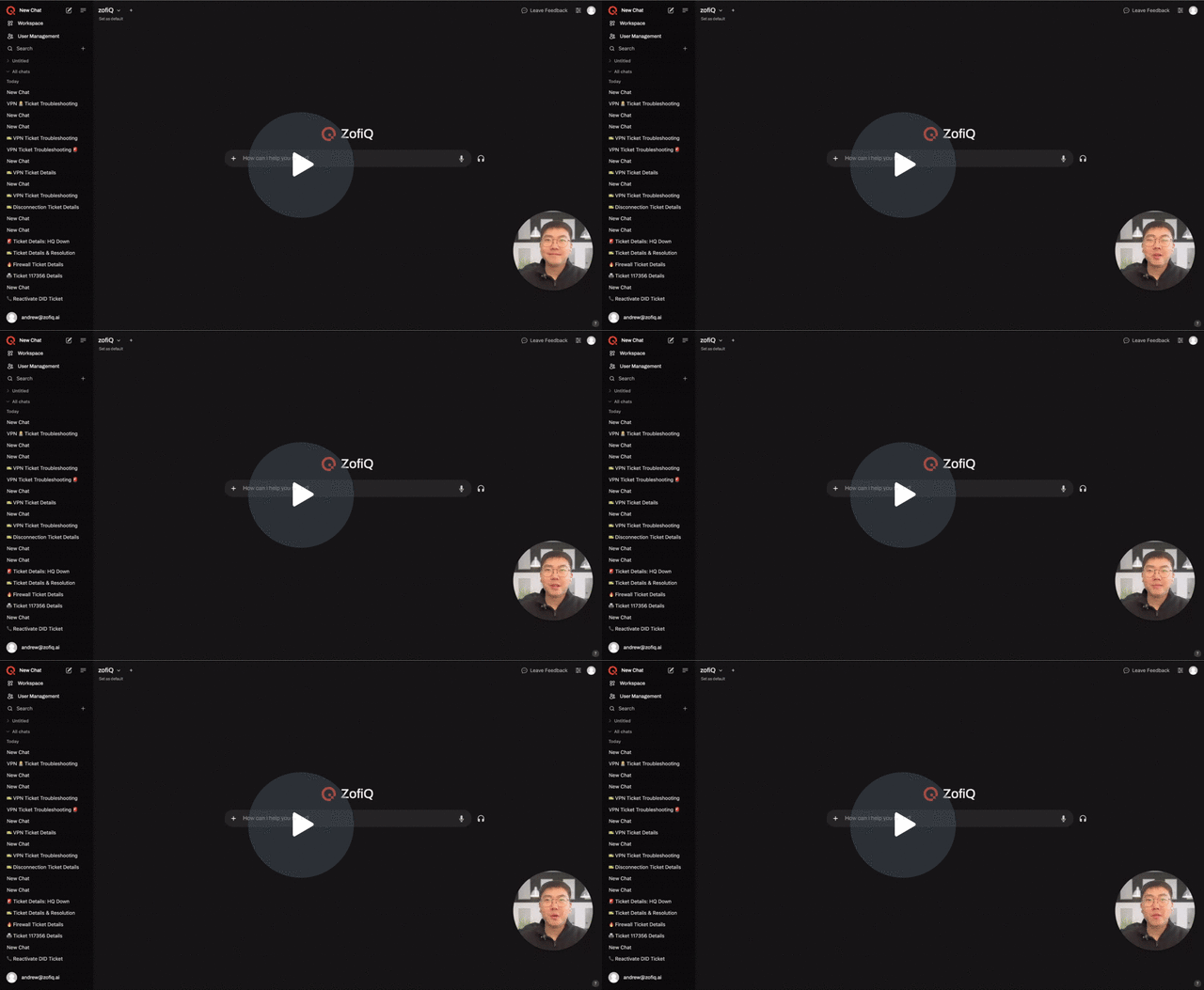
Video Overview
zofiQ Copilot User Guide and Operational Overview (ConnectWise) - Watch Video
Where to Access the zofiQ Copilot
The zofiQ Copilot is available in two locations:
1. Inside ConnectWise Tickets
The Copilot appears as an embedded pod directly within the ConnectWise ticket interface for Service Desk Tickets.
First-Time User Setup Requirements
The first time you use the Copilot pod, you must access it through the ConnectWise Manage web application. This is the primary entry point for technicians working directly in the PSA. Once the setup steps below are finished, the user can use the Copilot inside of the ConnectWise Manage web application or through the Desktop application.
Browser requirement:
The Copilot pod is supported in:
Google Chrome and Microsoft Edge.
For the best experience, ensure your browser is up to date.
To complete initial setup:
Open a new browser tab in Chrome or Edge
Log in to ConnectWise Manage using the web app
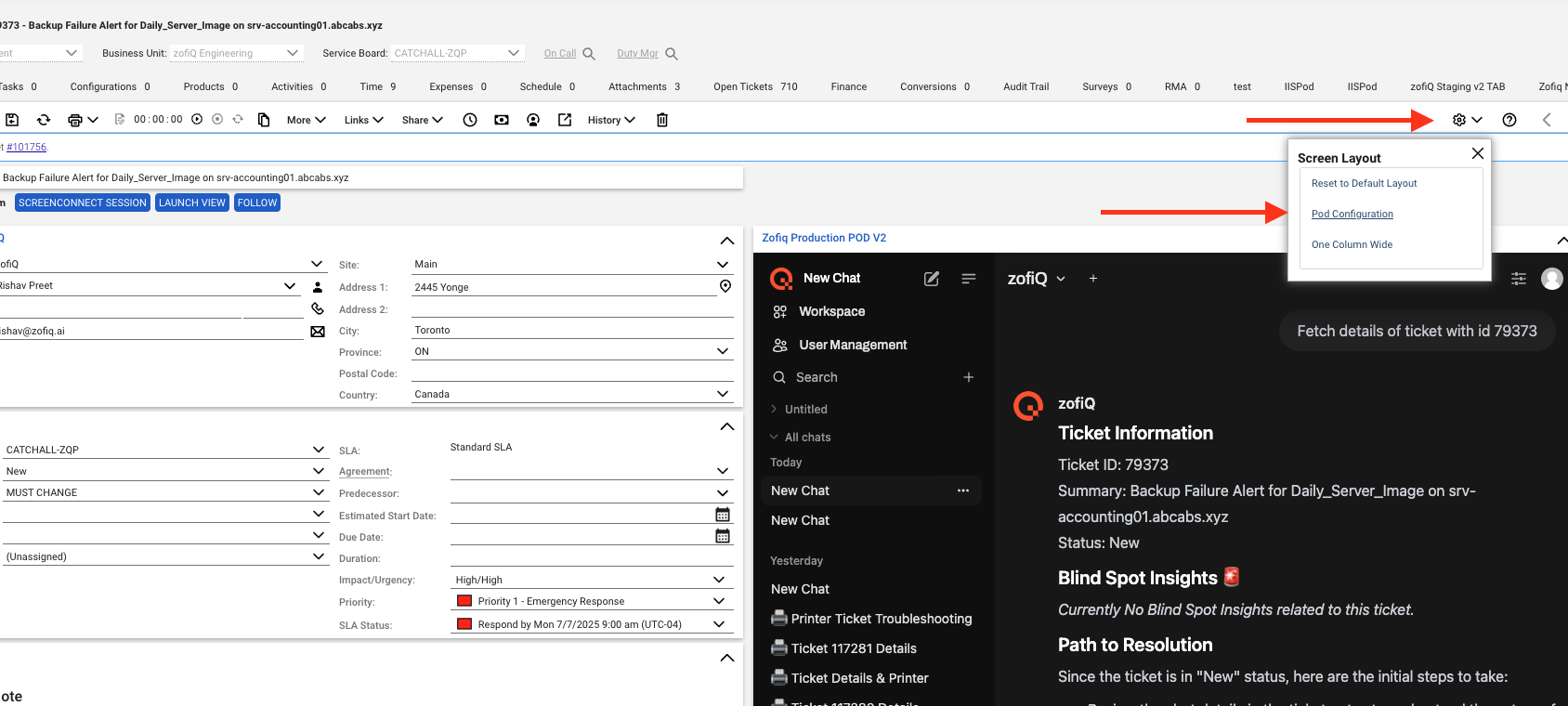
Click into any ticket and open the "Screen Layout Settings" -> "Pod Configuration"
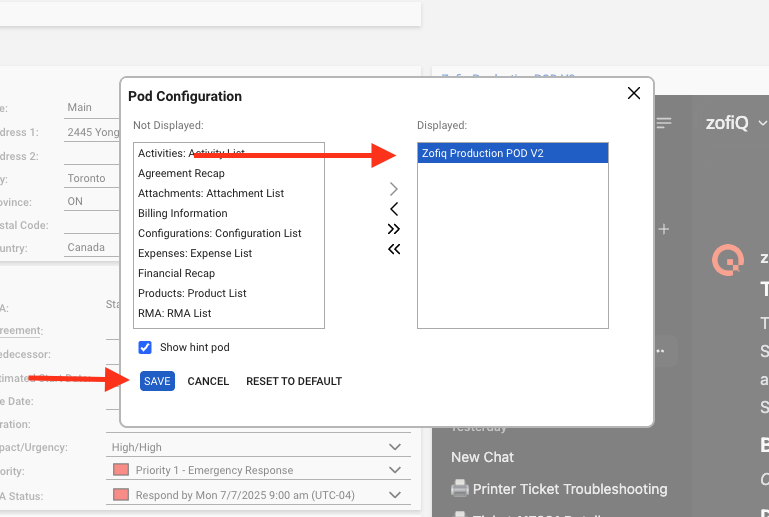
Move the "zofiQ Pod" from the "Not Displayed" column on the left to the "Displayed" column on the right.
Drag and drop the zofiQ Pod to the top right hand corner of the ticket layout.
The final setup should look similar to what you see below
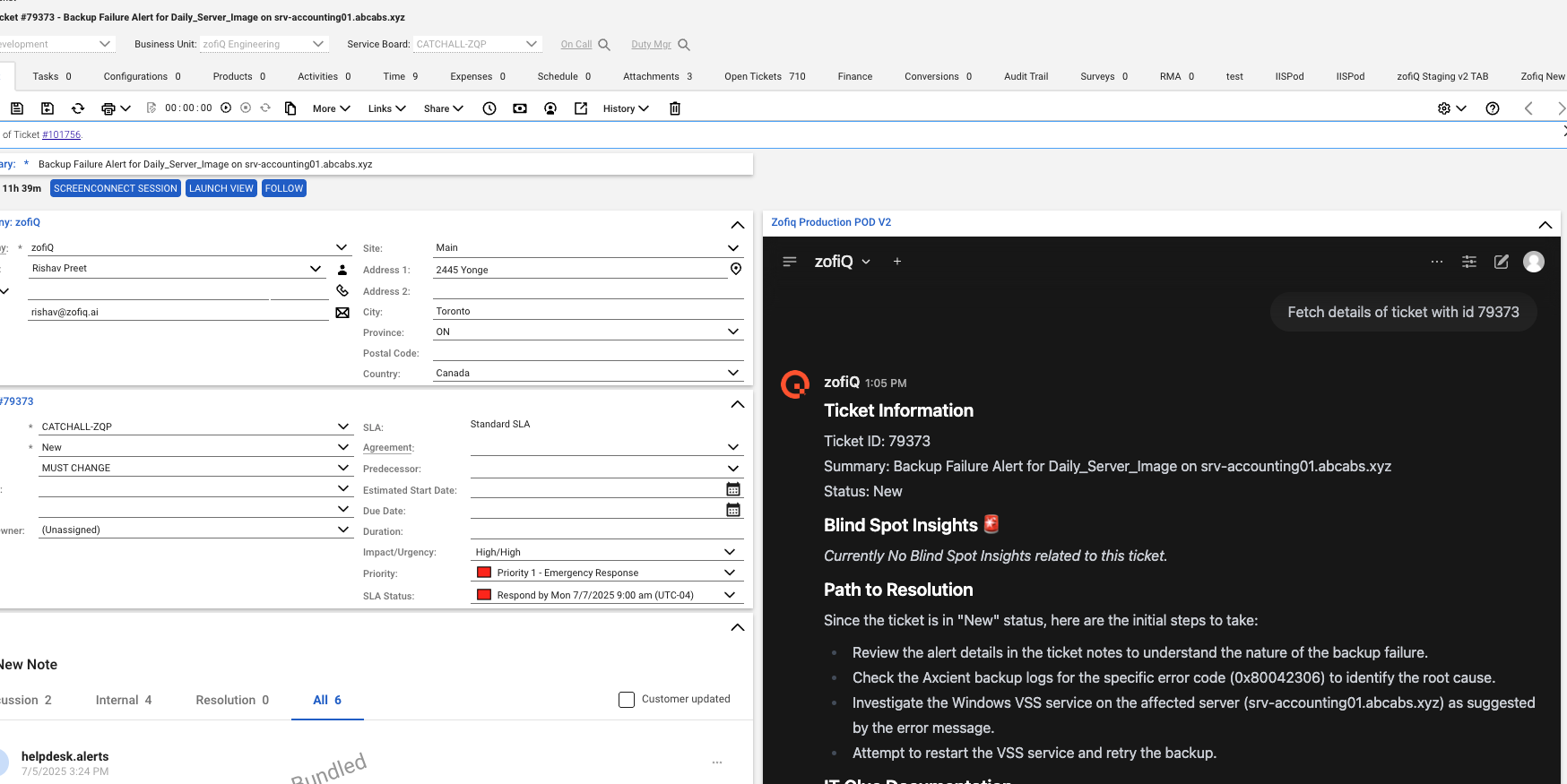
From here, technicians can:
Fetch the Ticket Information, then ask questions about the current ticket
Request summaries or clarifications
Get contextual guidance without leaving the ticket
The initial setup step inside of ConnectWise Manage web application is required to establish authentication using your ConnectWise session and work email. If the Copilot pod is accessed for the first time through the ConnectWise desktop application or the standalone Copilot app, authentication will not complete correctly.
Once this initial setup is complete, you can use the Copilot:
From the ConnectWise Manage desktop application
From the standalone Copilot app (app.zofiq.ai)
2. Standalone Copilot Application
The Copilot is also available as a standalone web application at: https://app.zofiq.ai. You would log in using your work email and receive a one time code for signing in.
The standalone experience is useful when:
You want to explore broader questions outside a single ticket
You need to review past conversations
You are managing knowledge, integrations, or AI configurations
Both experiences share the same underlying Copilot and data access.
The only difference is that on app.zofiq.ai there is no "Autofetch" feature that will trigger automatically.
Instead, users would have to copy a ticket number from Connectwise, and paste it into the conversation window with the prefix "Fetch"
Logging In and Getting Oriented
When you log into the Copilot using your work email, you are presented with a familiar, chat based interface designed to feel consistent with modern AI tools.
The interface is divided into three primary areas:
Left hand navigation menu
Center conversation console
Right hand user controls
Left Hand Navigation Menu
The left hand navigation menu is where you manage conversations and access additional functionality. What you see depends on your access level.
Standard Users
Users with standard access will see:
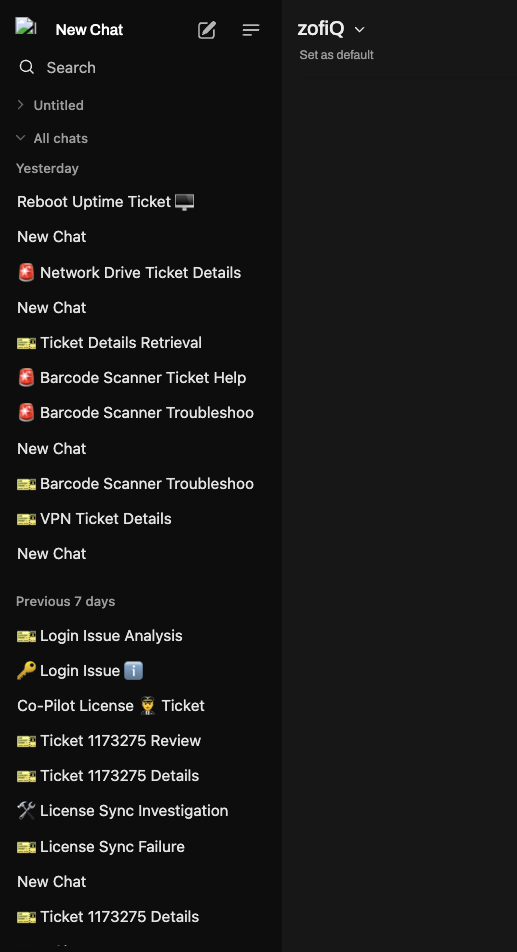
New Chat
Start a new Copilot conversation.Search
Search across previous conversations.Conversation History
A list of past conversations displayed as rows. Each conversation can be opened and continued at any time.
Managers
Managers see everything standard users see, plus additional workspace level controls.
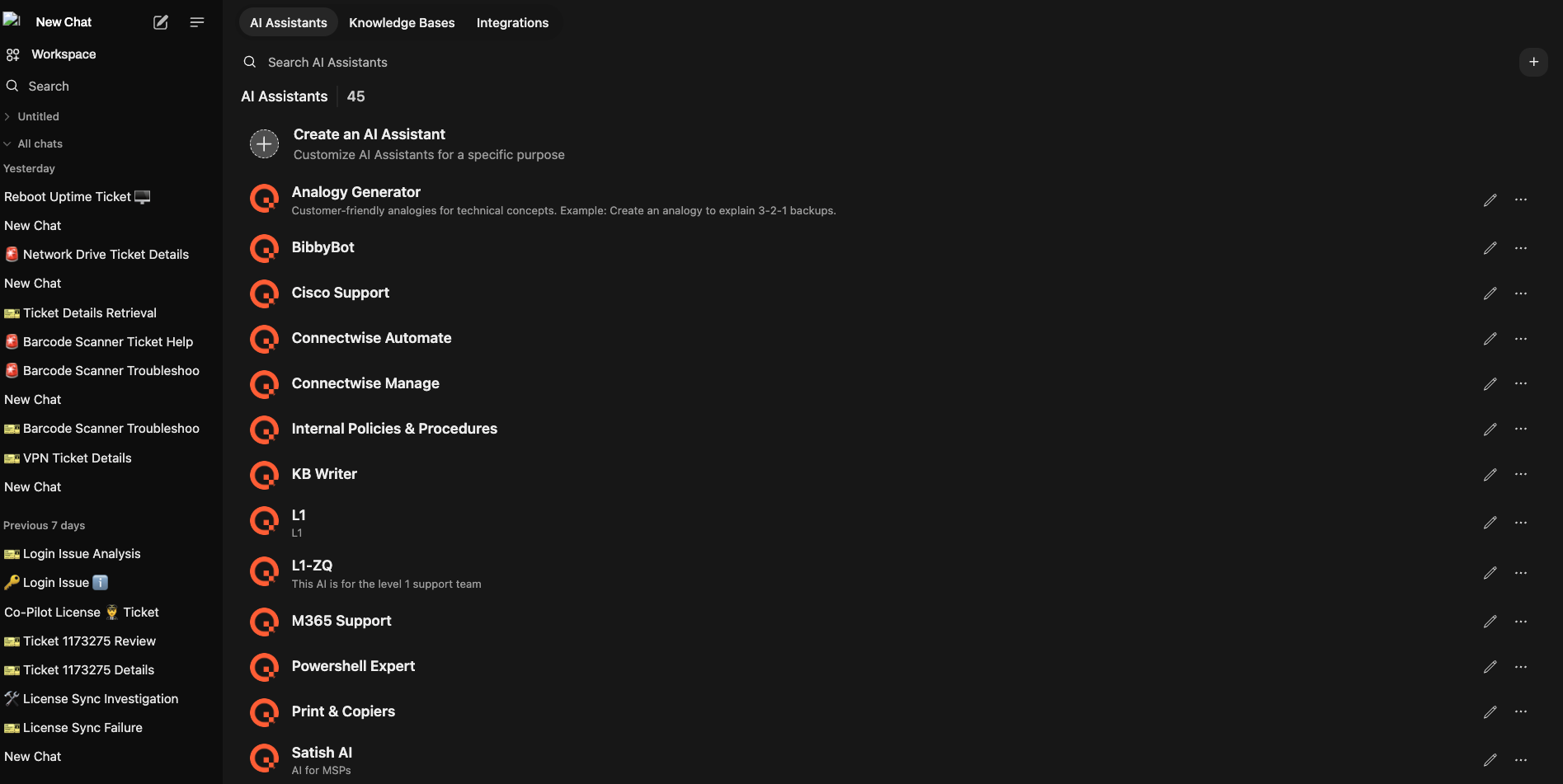
The Workspace section contains three tabs:
AI Assistants
Create and manage custom AI systems. These act as tailored Copilot variants built on top of base models to handle specific use cases or workflows.Knowledge Bases
Create local knowledge repositories by uploading documents. Once indexed, these documents can be attached to specific AI systems to extend their domain knowledge.Integrations
Configure third party integrations. Currently supported integrations include NinjaOne and Datto RMM.Once connected, Copilot can retrieve device level information such as:
Device associations
General specifications
Operational context
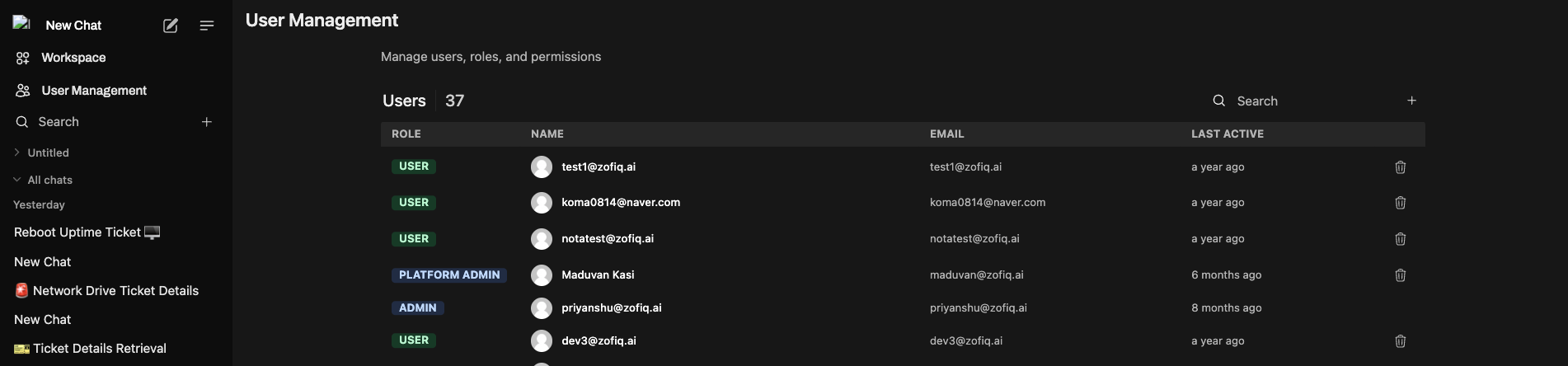
Platform Admins
Platform Admins can see and configure the User Management section, where access and permissions can be managed for their team members.
Center Conversation Console
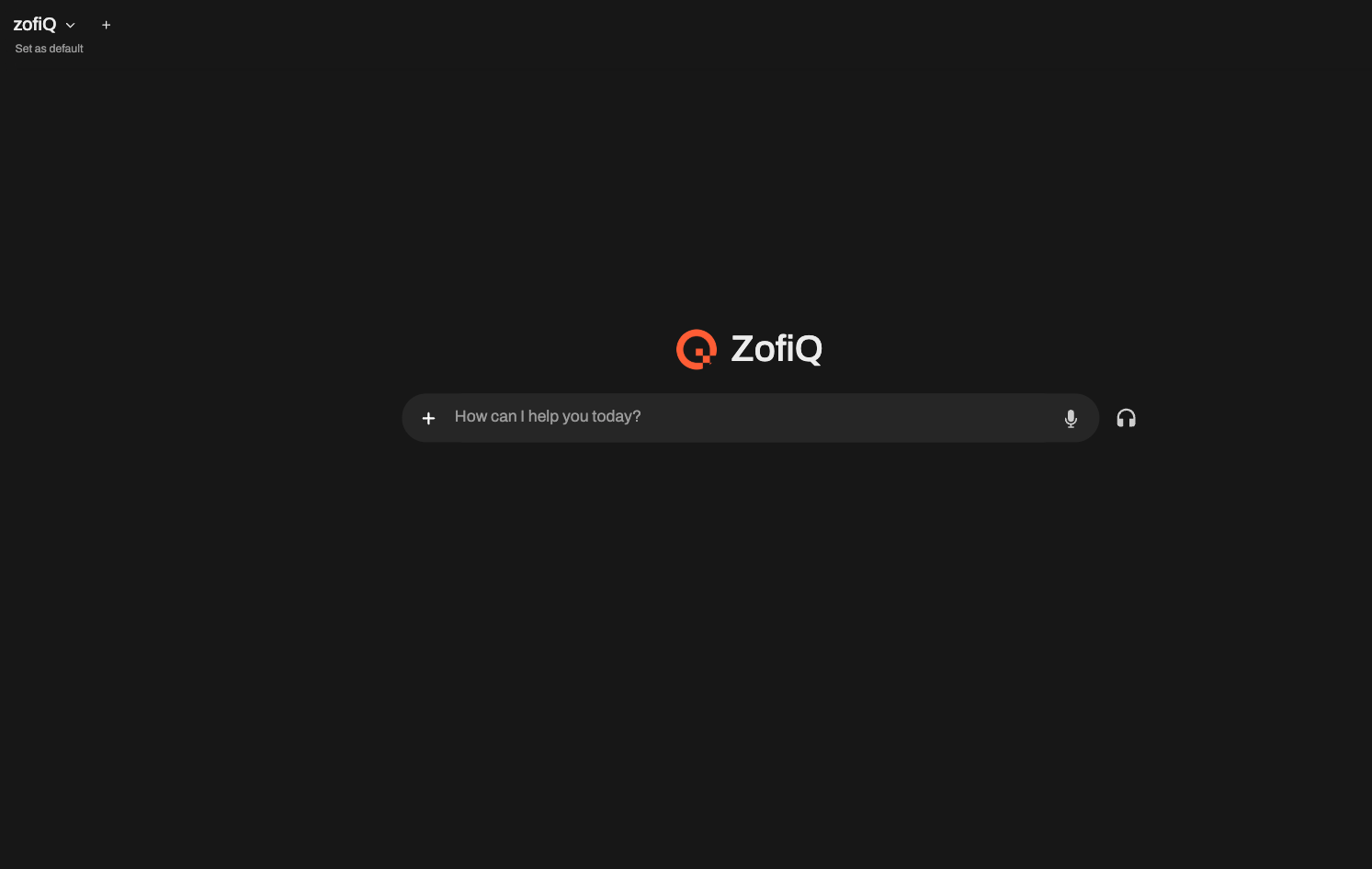
The center console is the primary interaction area.
This is where you:
Ask questions
Request explanations or summaries
Interact with Copilot using natural language
When Copilot is accessed from within a ConnectWise ticket and the Autofetch functionality is turned on, the conversation is automatically grounded in that ticket’s context.
Model Selection
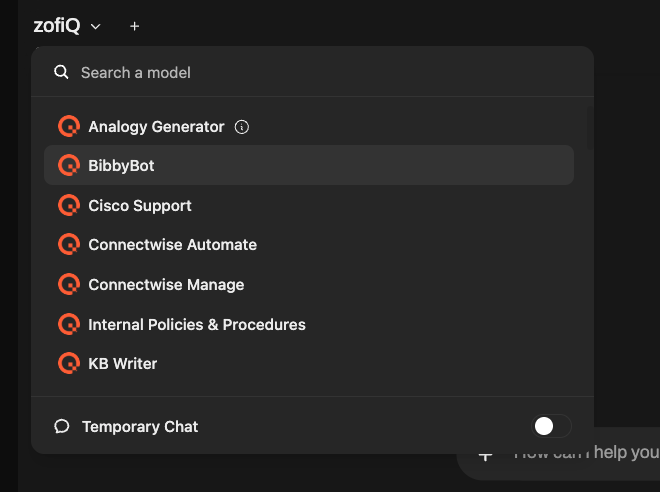
In the top left corner of the center console, you will see the currently selected AI model.
Clicking the dropdown allows you to choose a different base model or custom AI system
You can set a selected model as your default for future conversations by clicking the "Set as Default" button under the model name.
Right hand user controls
In the top right corner of the interface, you will find User Settings.
These settings allow you to control how Copilot retrieves and uses data during conversations.
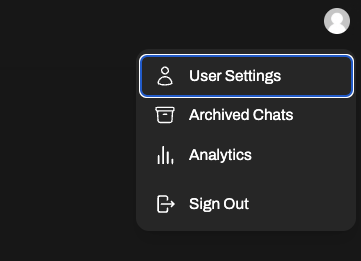
Key settings include:
Auto Fetch
When enabled, Copilot automatically retrieves relevant context such as ticket details, customer data, or device information when a question is asked.Silent Fetch
When enabled, Copilot retrieves supporting data in the background without explicitly surfacing each fetch step in the conversation.
These settings help balance transparency, speed, and verbosity depending on user preference.
Continue to the zofiQ Copilot Core Functionality page to explore the main platform functionality