zofiQ Copilot Additional Integrations
Last updated: February 18, 2026
Overview
Integrations allow zofiQ Copilot to securely access information from additional connected third party platforms so it can answer questions using real operational data.
Once an integration is connected, Copilot can reference data from that platform when responding to questions. This means you can ask Copilot about assets, devices, alerts, or other relevant information without leaving the Copilot experience.
Integrations are read only. Copilot does not make changes or take actions inside connected platforms. Its role is to surface context, clarify information, and help you understand what is happening across your tools more quickly.
The availability of information depends on the platform that is connected and the permissions granted during setup. As additional integrations are released, Copilot’s ability to answer cross platform questions will continue to expand.
Setting Up an Integration
Only users with Manager access or higher can set up integrations.
To add a new integration:
Open the hamburger menu in the top left corner of the Copilot interface.
Select the Workspaces tab.
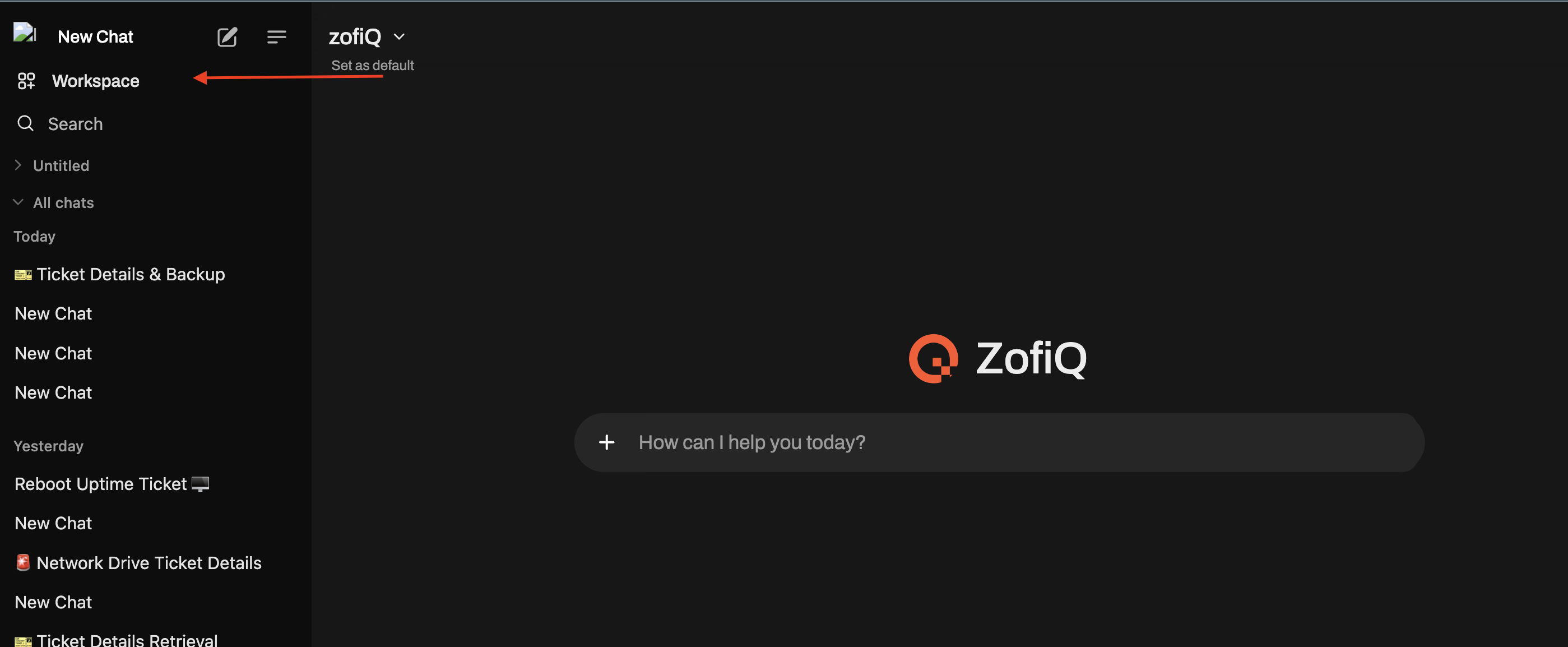
Click into the Integrations tab.
Click the plus button to add a new integration.
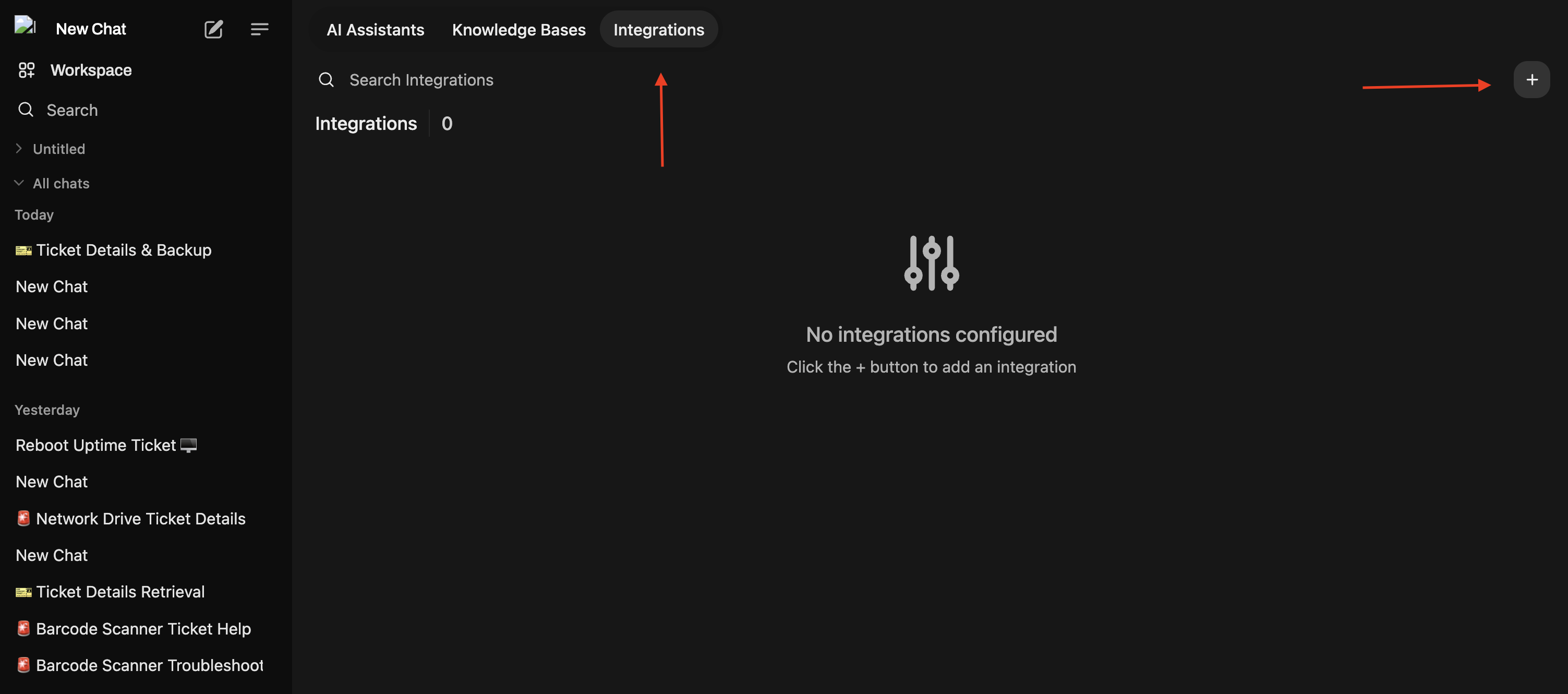
Use the integration type drop down menu to view the currently available and supported integrations.
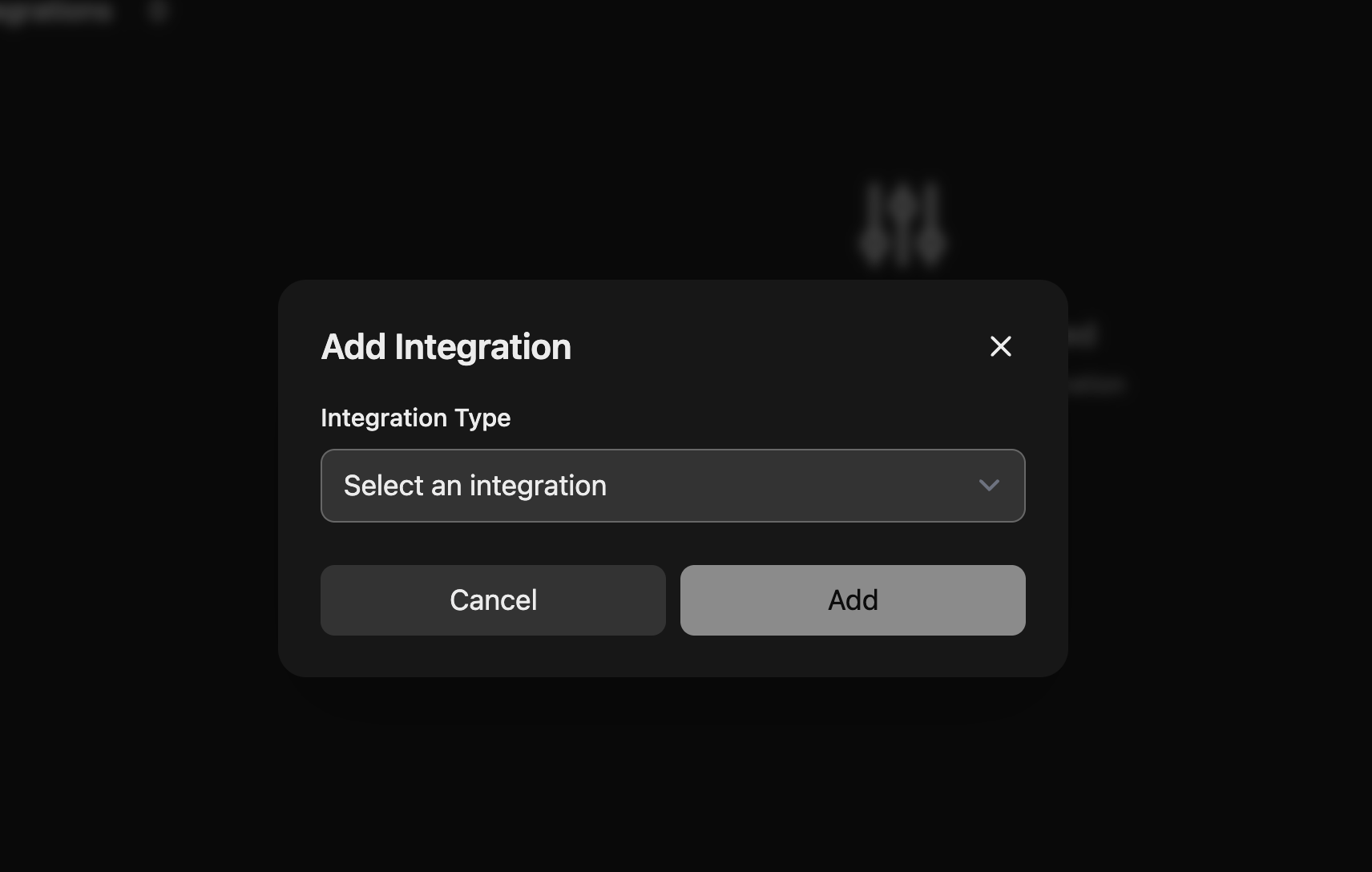
Select the integration you want to connect and follow the on screen setup steps.
Once the setup is complete, the integration will appear in your Integrations list and Copilot will be able to reference data from that platform when answering questions.
If an integration does not appear in the drop down, it is not currently supported.
Current Supported Integrations
NinjaOne RMM Integration
The NinjaOne integration allows Copilot to answer device related questions using live data from your NinjaOne environment.
Once the integration is enabled, Copilot can reference NinjaOne data when ticket context is available. A ticket must already be fetched and visible to the Copilot so Copilot understands which company the request relates to.
NinjaOne Integration Requirements
To connect NinjaOne with Copilot, specific API credentials must be provided during setup. These credentials allow Copilot to securely read device and system information from your NinjaOne environment. The steps below from the official NinjaOne documentation may be of guidance:
https://app.ninjarmm.com/apidocs-beta/authorization/create-applications/regular-web-apps
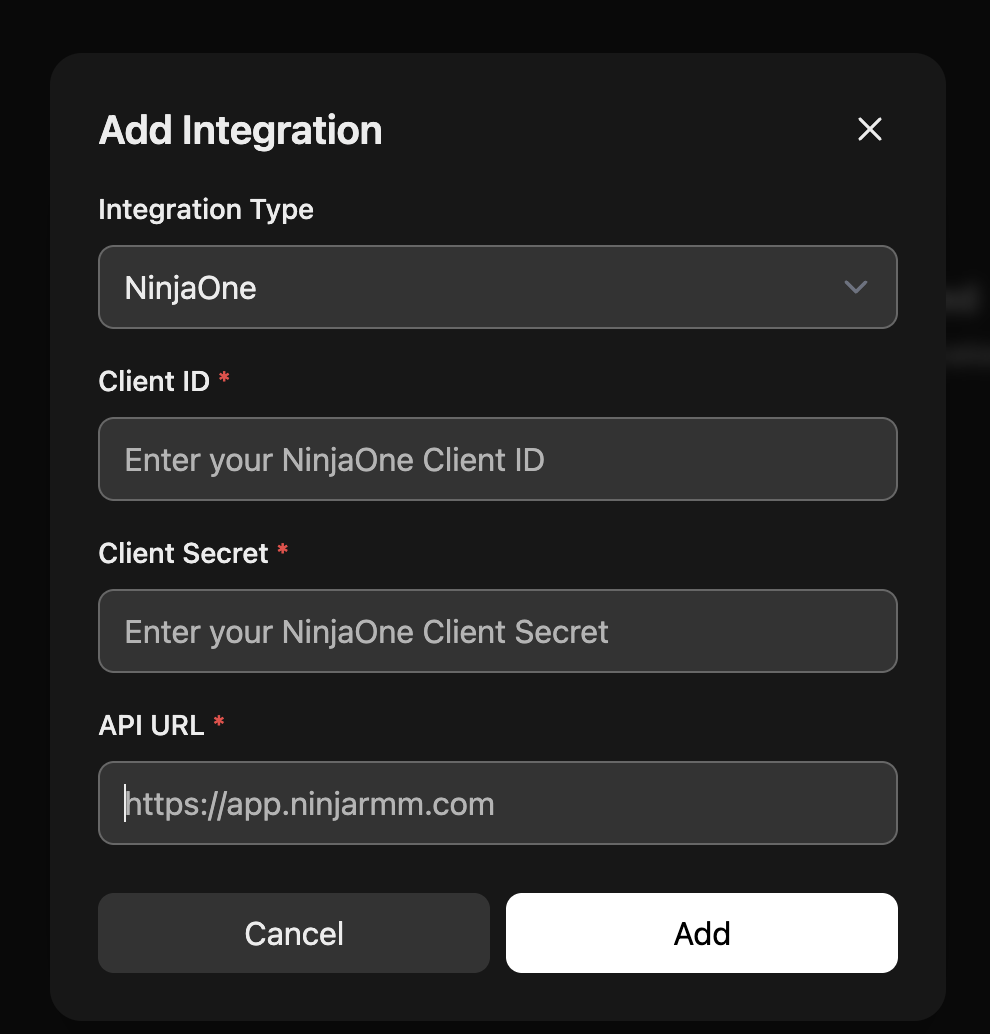
When setting up the NinjaOne integration, you will be asked to provide the following:
Client ID
Used to identify your NinjaOne application.Client Secret
Used to authenticate requests made by Copilot.API URL
The base API endpoint for your NinjaOne region.
All three fields are required for the integration to complete successfully.
Asking Company Level Device Questions
With ticket context established, users can ask questions such as:
“What devices are associated with this company?”
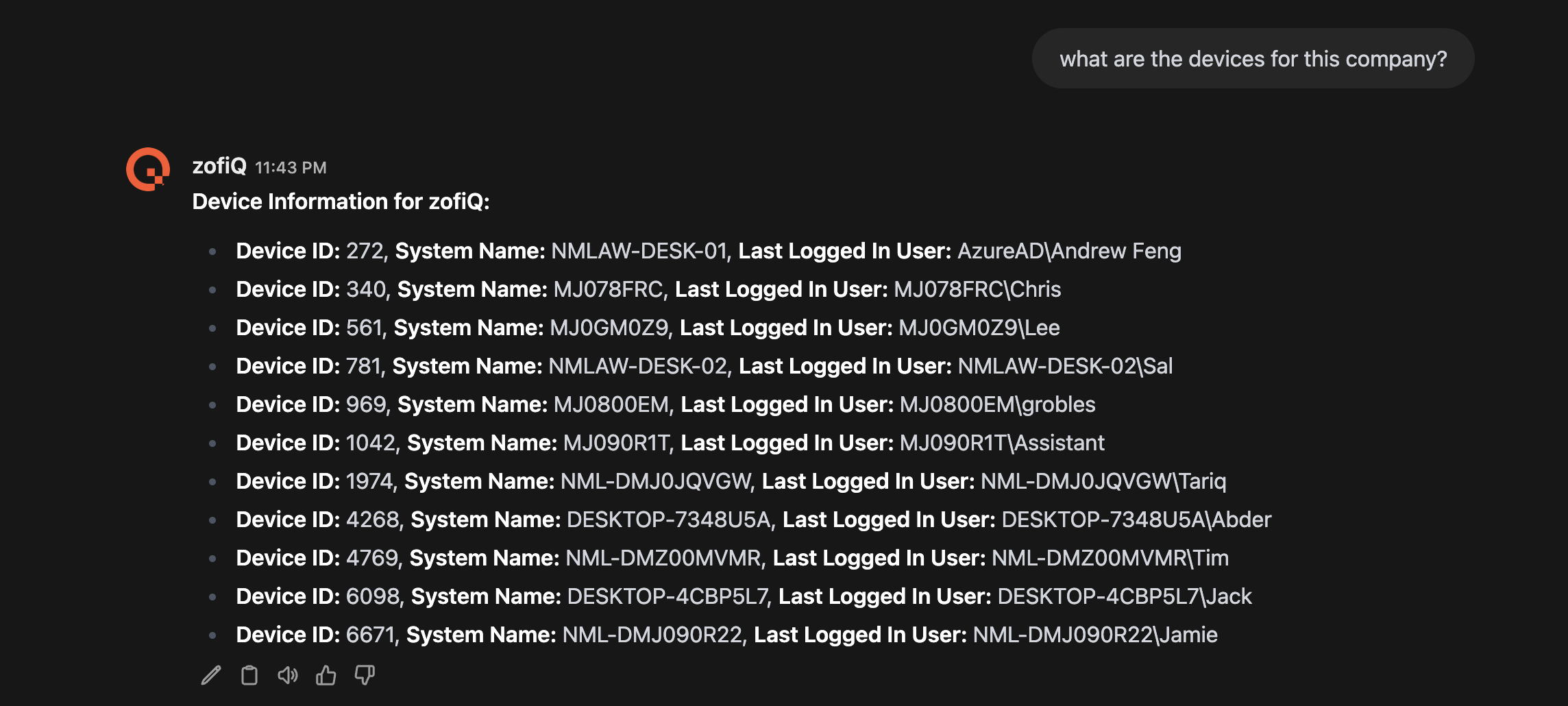
Copilot will return a list of devices pulled from NinjaOne, including key details such as:
Device ID
System name
Last logged in user
This removes the need to manually open NinjaOne just to confirm which devices belong to the customer.
Drilling Into a Specific Device
After reviewing the device list, users can ask follow up questions about a specific system. For example:
“Tell me about all specs for device ABC-LAPTOP-01.”
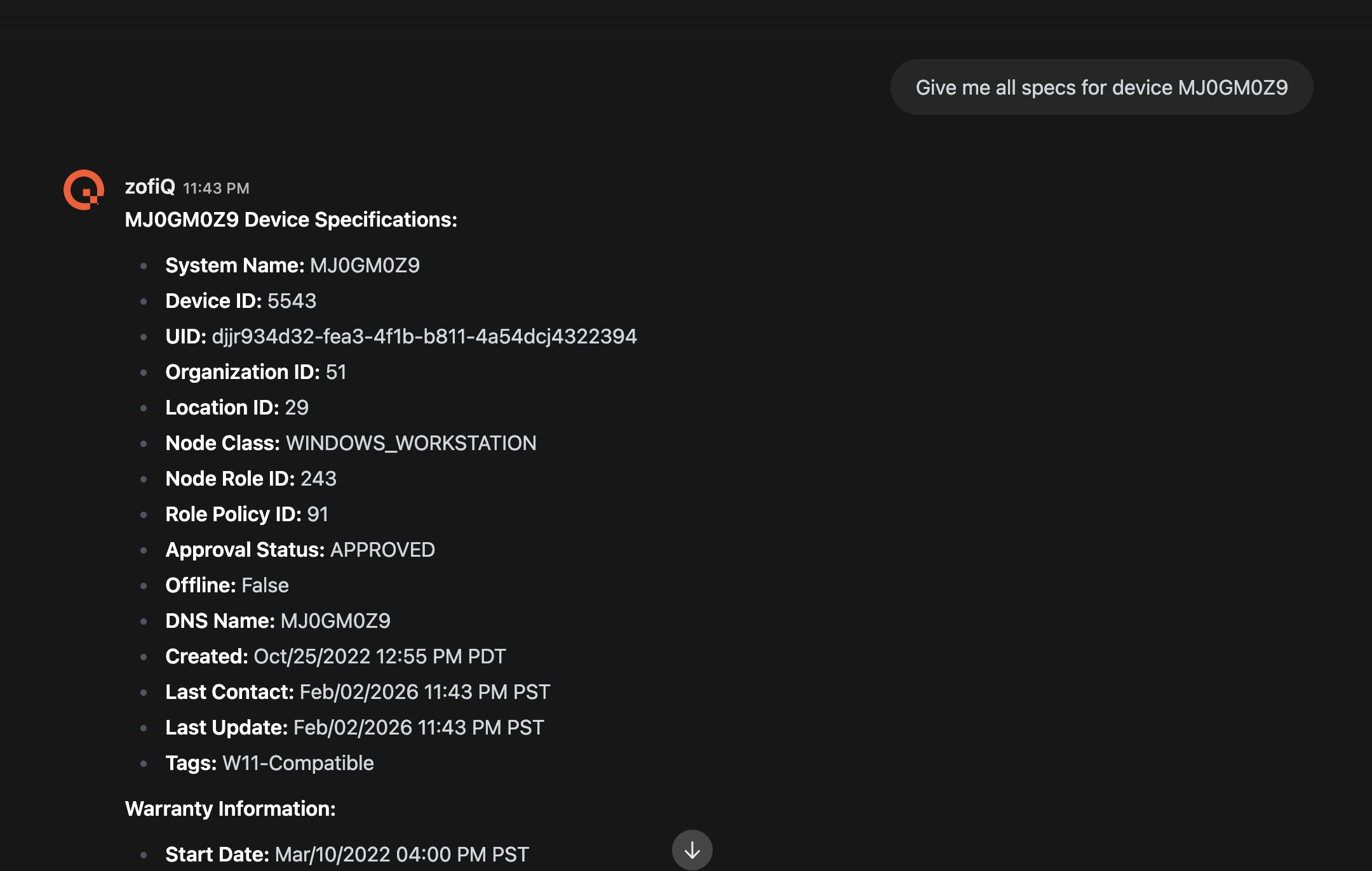
Copilot will then return a detailed breakdown of available device metrics for that system, based on what NinjaOne exposes for the device.
Example Device Details Available from NinjaOne RMM
System Name |
Device ID |
UID |
Organization ID |
Location ID |
Device Type |
Node Class |
Node Role ID |
Role Policy ID |
Approval Status |
Offline |
DNS Name |
Created |
Last Contact |
Last Update |
Tags |
Warranty Start Date |
Warranty End Date |
Manufacturer Fulfillment Date |
IP Addresses |
MAC Addresses |
Public IP Address |
OS Manufacturer |
Operating System Name |
OS Architecture |
Build Number |
Release ID |
Service Pack Version |
Locale |
Language |
Last Boot Time |
Needs Reboot |
System Manufacturer |
System Model |
BIOS Serial Number |
Serial Number |
Domain |
Domain Role |
Chassis Type |
Virtual Machine |
Number of Processors |
Total Physical Memory |
Memory Capacity |
Processor Name |
Processor Architecture |
Max Clock Speed |
Current Clock Speed |
Number of Cores |
Number of Logical Cores |
Volume Name |
Volume Label |
Volume Device Type |
File System |
Auto Mount |
Compressed |
Volume Capacity |
Free Space |
Volume Serial Number |
Last Logged In User |
Datto RMM Integration
The Datto RMM integration allows Copilot to answer device-related questions using live data from your Datto RMM environment.
Once the integration is enabled, Copilot can reference Datto RMM data when there is ticket context available. This means a ticket must already be fetched and visible to the Copilot so it knows which company the request relates to.
Datto RMM Integration Requirements
To connect Datto RMM with Copilot, specific API credentials must be provided during setup. These credentials allow Copilot to securely read device and system information from your Datto RMM environment.
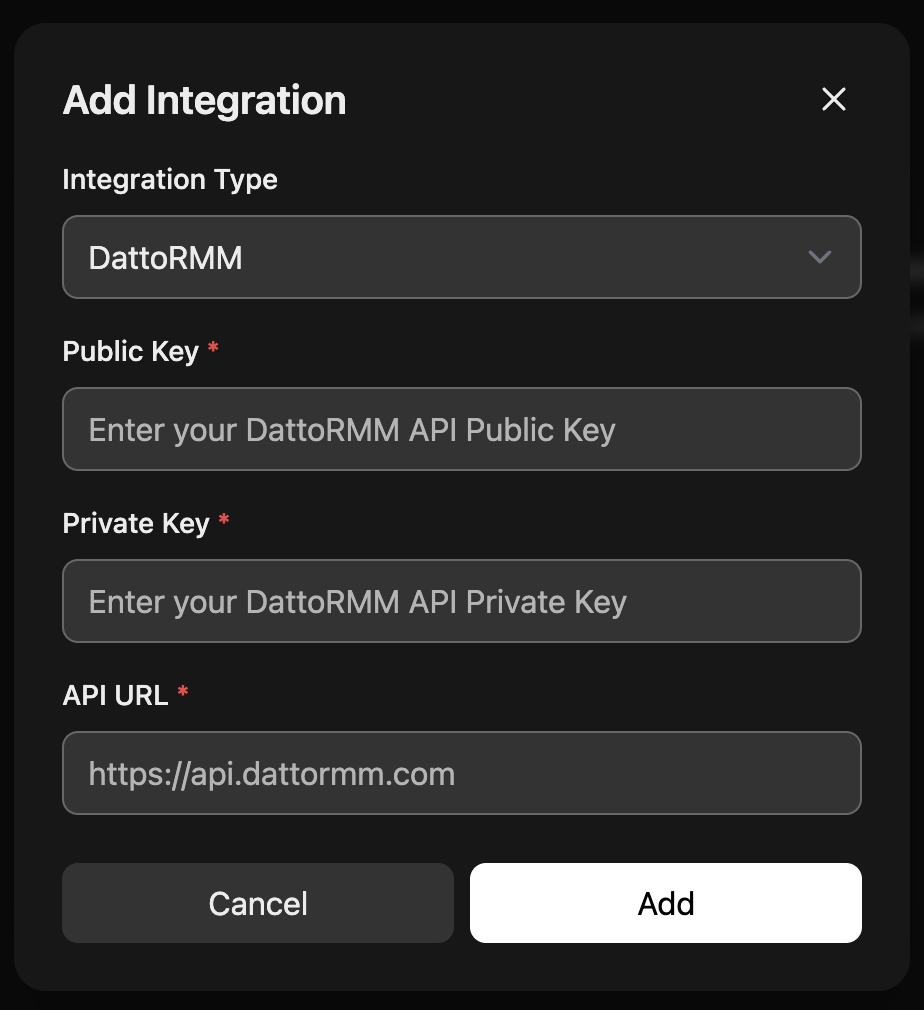
When setting up the Datto RMM integration, you will be asked to provide the following:
Public Key
Used to identify your Datto RMM API user.Private Key
Used to authenticate requests made by Copilot.API URL
The base API endpoint for your Datto RMM region.
All three fields are required for the integration to complete successfully.
Asking Company Level Device Questions
With ticket context established, users can ask questions such as:
“What devices are associated with this company?”
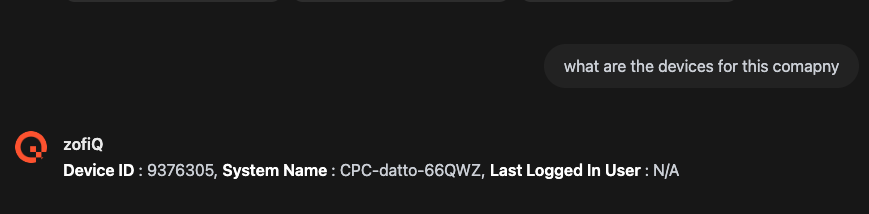
Copilot will return a list of devices pulled from Datto RMM, including key details such as:
Device ID
Device name
Last logged in user
This removes the need to manually open Datto RMM just to confirm which devices belong to the customer.
Drilling Into a Specific Device
After reviewing the device list, users can ask follow up questions about a specific system. For example:
“Tell me about all specs for device ABC-LAPTOP-01.”
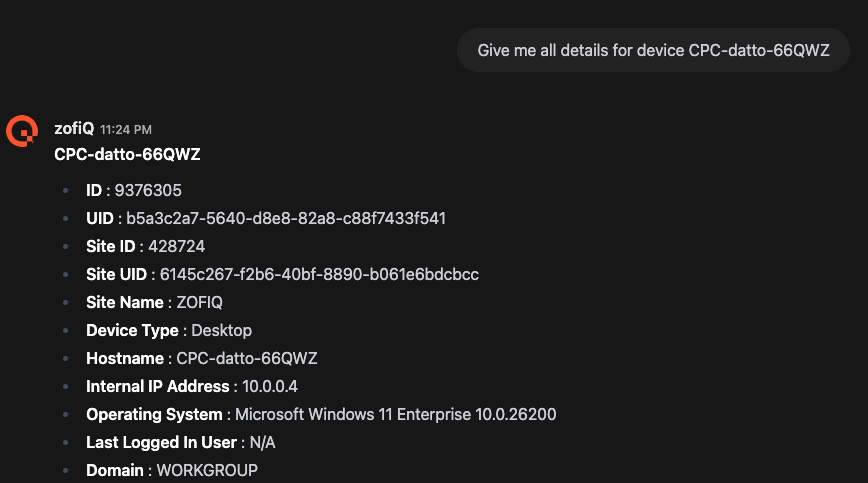
Copilot will then return a detailed breakdown of available device metrics for that system, based on what Datto RMM exposes for the device.
Example Device Details Available from Datto RMM
ID |
UID |
Site ID |
Site UID |
Site Name |
Device Type |
Device Class |
Hostname |
Description |
Operating System |
Domain |
64 Bit |
Internal IP Address |
External IP Address |
Last Logged In User |
Online |
Reboot Required |
Suspended |
Deleted |
CAG Version |
Display Version |
Last Seen |
Last Reboot |
Last Audit Date |
Creation Date |
Warranty Date |
SNMP Enabled |
Network Probe |
Onboarded Via Network Monitor |
Antivirus Product |
Antivirus Status |
Patch Status |
Patches Approved Pending |
Patches Not Approved |
Patches Installed |
Software Status |
Portal URL |
Web Remote URL |
UDF |