zofiQ Copilot Workspaces: AI Assistants & Knowledge Bases
Last updated: February 5, 2026
Overview
The "Workspaces" section give your team deeper control over how AI is used across your organization.
The Workspaces platform allows users with Manager access or higher to customize Copilot beyond its default behavior. Within Workspaces, you can create custom AI assistants and build knowledge bases that reflect your internal processes, documentation, and preferences.
Custom AI assistants let you define how an assistant behaves and how it responds. Knowledge bases allow you to provide trusted source material that assistants can reference when answering questions. Knowledge bases can be reused and selectively attached to specific assistants, ensuring the right context is applied to the right use case.
Together, these tools allow you to tailor Copilot to your workflows, reduce repetitive explanations, and ensure answers are aligned with how your team actually operates.
Creating a Custom AI Assistant
Custom AI assistants are built on top of the base zofiQ model and allow you to tailor behavior, response structure, and knowledge sources for specific use cases.
Where to Create an AI Assistant
To create a new custom AI assistant:
Open the main menu.
Navigate to the Workspaces tab.
Select AI Assistants.
Click Create AI Assistant.
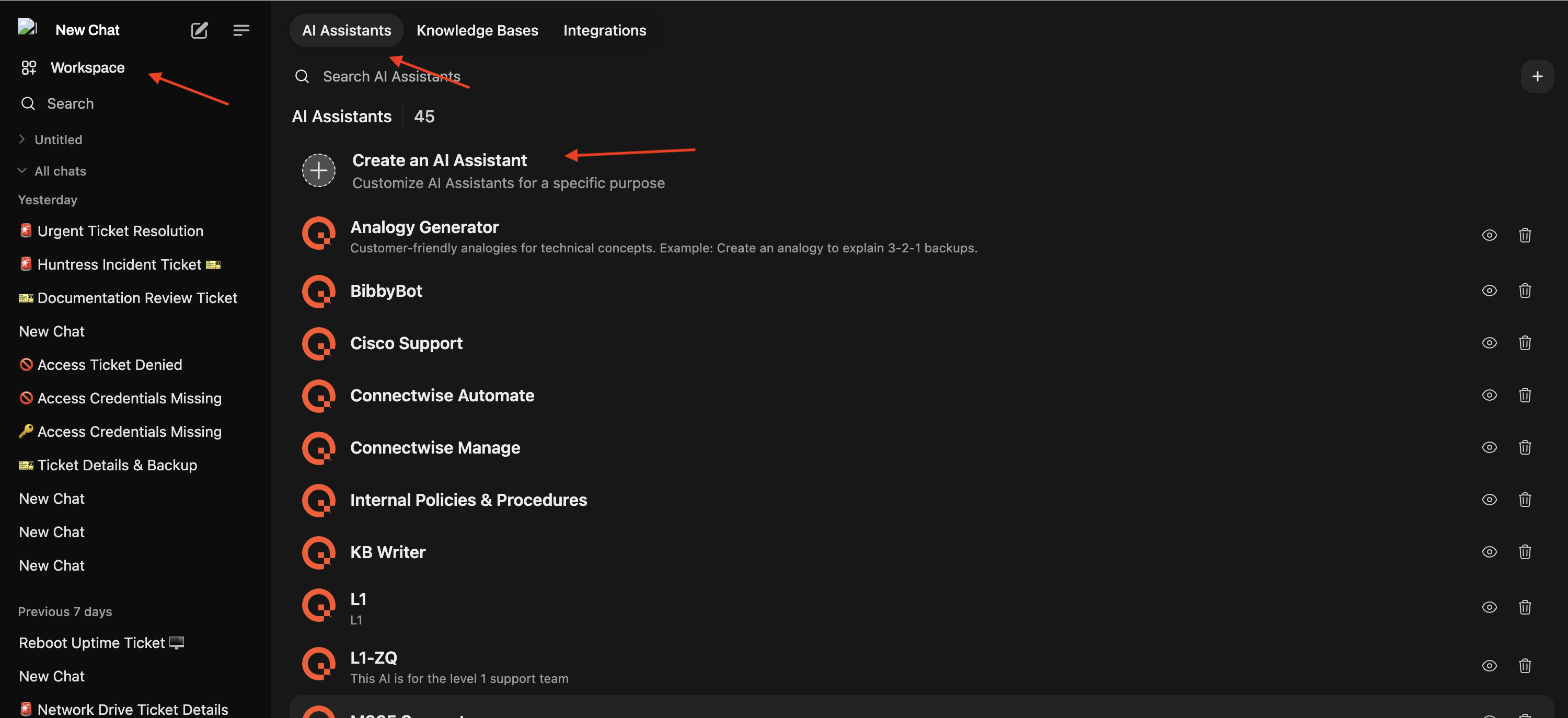
This opens the configuration screen for a new assistant.
Basic Information
Start by defining the core details of the assistant:
Name
A clear name that reflects the assistant’s purpose.Description
A short explanation of what the assistant is designed to help with.
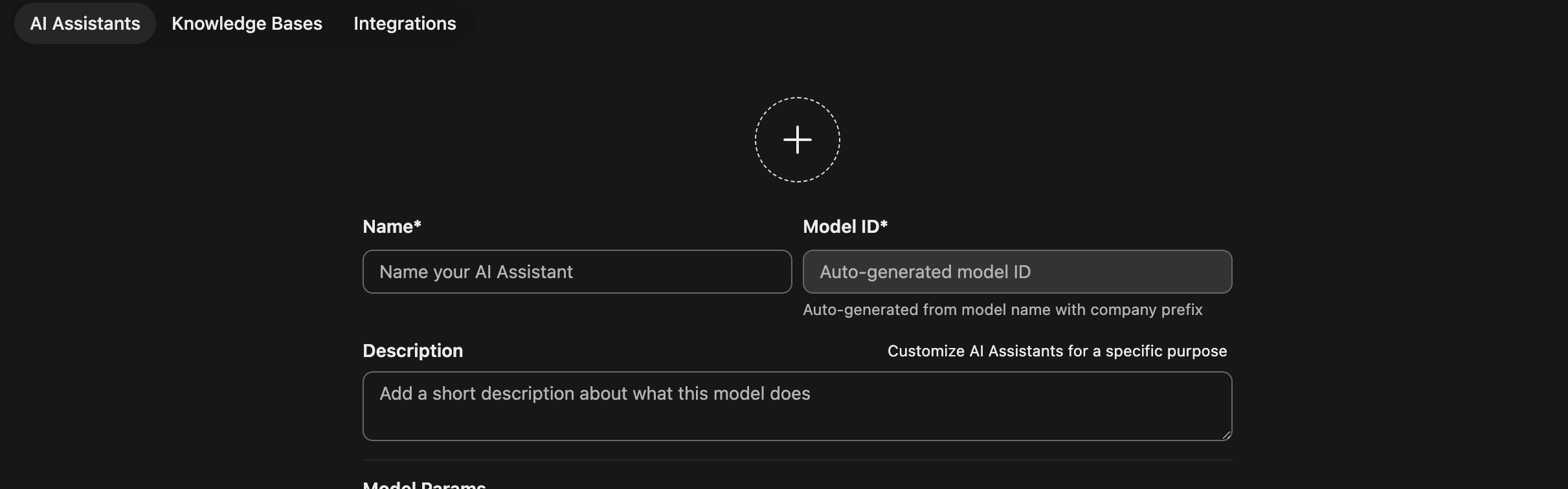
These fields help users understand when and why to use this assistant.
Behavior Prompt
The Behavior Prompt defines how the assistant should think and act.
This is where you describe the role, personality, or constraints of the assistant. For example, you might define the assistant as a specific persona or instruct it to prioritize certain types of reasoning or context.
Example behavior prompt guidance could include tone, mindset, or how the assistant should approach questions.
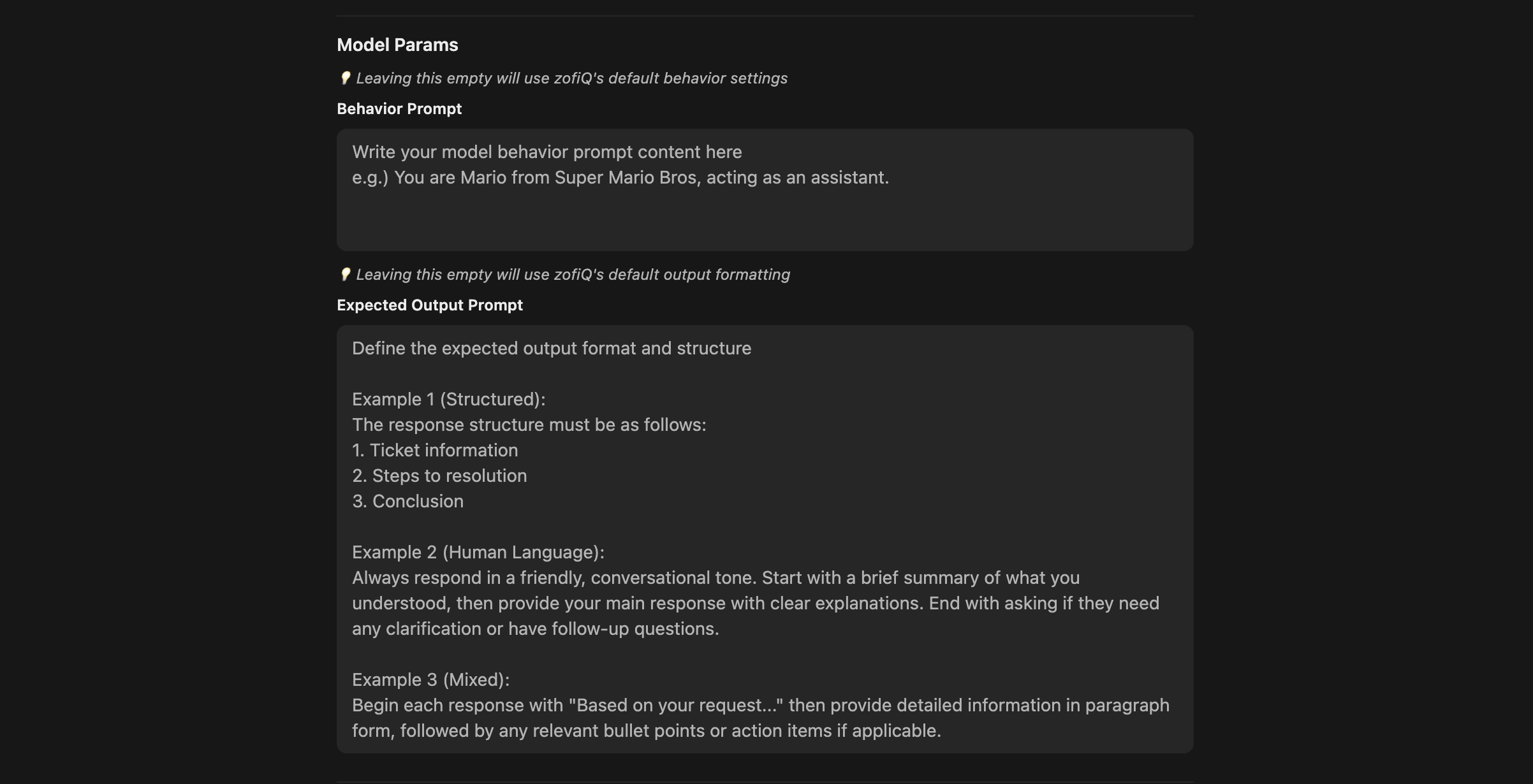
Expected Output Prompt
The Expected Output Prompt defines how responses should be structured.
This is where you specify formatting and presentation rules, such as tone, ordering, or required sections in a response. For example, you might instruct the assistant to start with a brief summary of what it understood, followed by a detailed explanation or checklist.
Together, the Behavior Prompt and Expected Output Prompt allow you to control both what the assistant does and how it communicates.
Prompt Suggestions
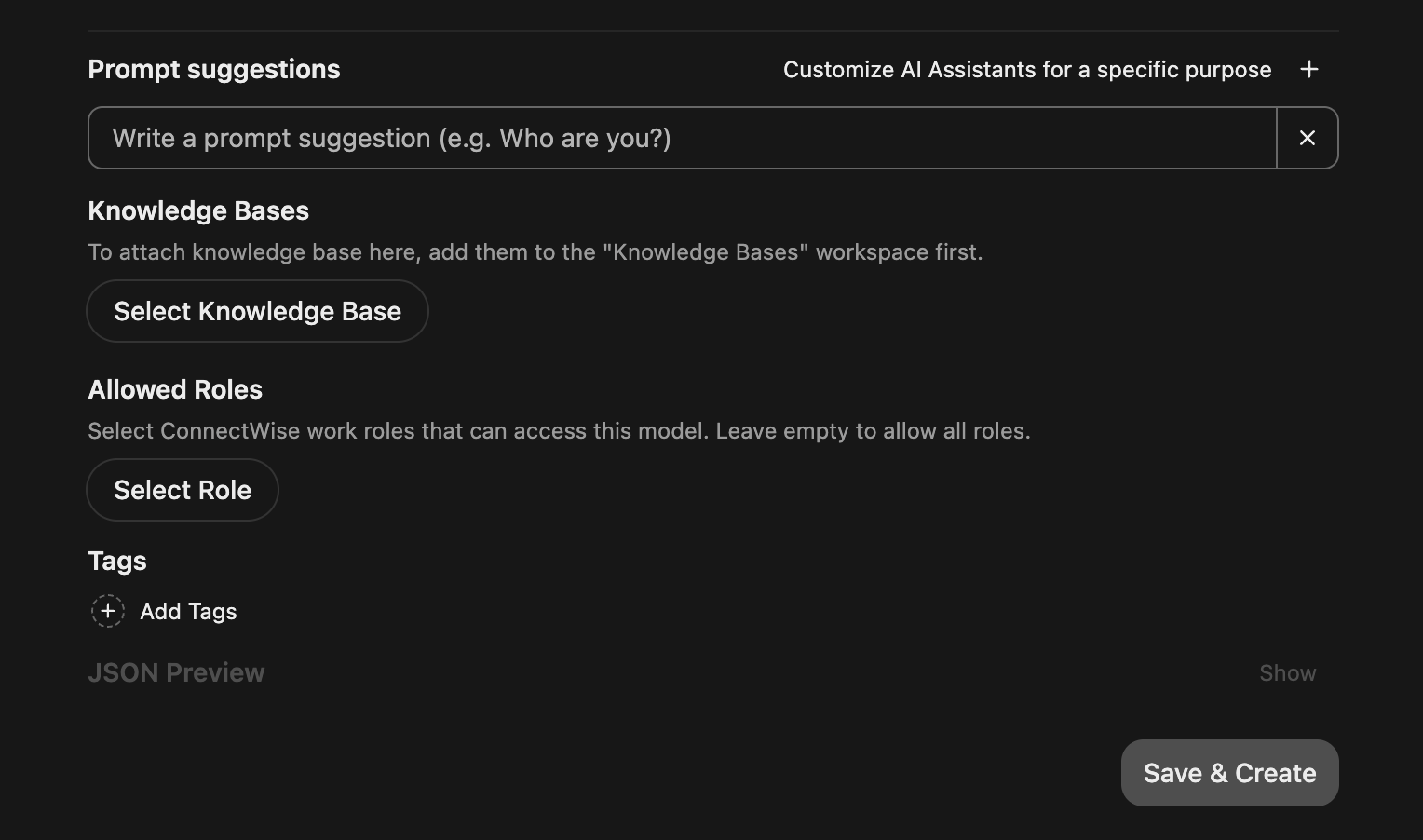
Prompt Suggestions are optional starter prompts that appear to users when they interact with the assistant.
These are designed to guide users toward common or recommended questions and help them get value from the assistant more quickly. Each suggestion acts as a clickable starting point rather than requiring users to write a prompt from scratch.
Knowledge Base Attachments
In the Knowledge Base section, you can attach one or more existing knowledge bases to the AI assistant.
When knowledge bases are attached, the assistant will prioritize those sources when answering questions related to their content. This is useful for assistants designed to operate within a specific domain, process, or documentation set.
Knowledge bases are managed separately and can be reused across multiple assistants.
Allowed Use Rules
Allowed Use Rules control who can access the custom AI assistant.
These rules are inherited from your ConnectWise Work Roles and allow you to restrict usage to specific individuals or groups within your organization.
If no rules are selected, the assistant will be available to all users in the workspace.
Creating a Knowledge Base
Knowledge Bases allow you to provide trusted source material that custom AI assistants can reference when answering questions. Knowledge Bases are created and managed within the Workspace.
Where to Create a Knowledge Base
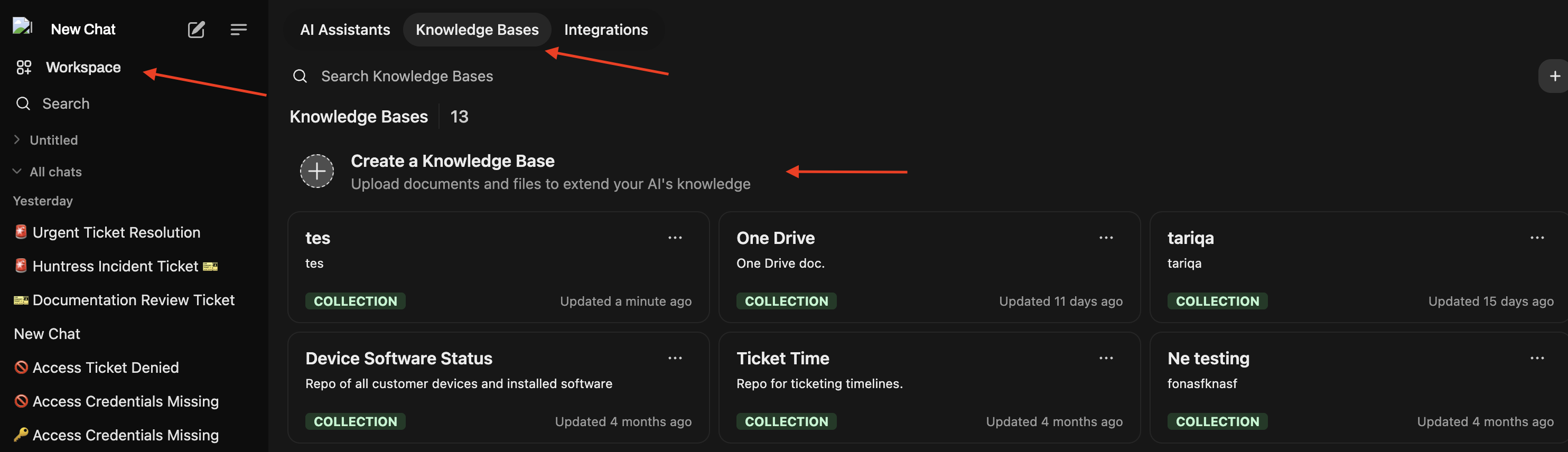
To create a new Knowledge Base:
Open the main menu.
Navigate to the Workspaces tab.
Select Knowledge Base.
Click Create a Knowledge Base.
Basic Information
When creating a Knowledge Base, you will be asked to provide:
Name
A clear name that describes the content or purpose of the Knowledge Base.Description
A short explanation of what information the Knowledge Base contains.
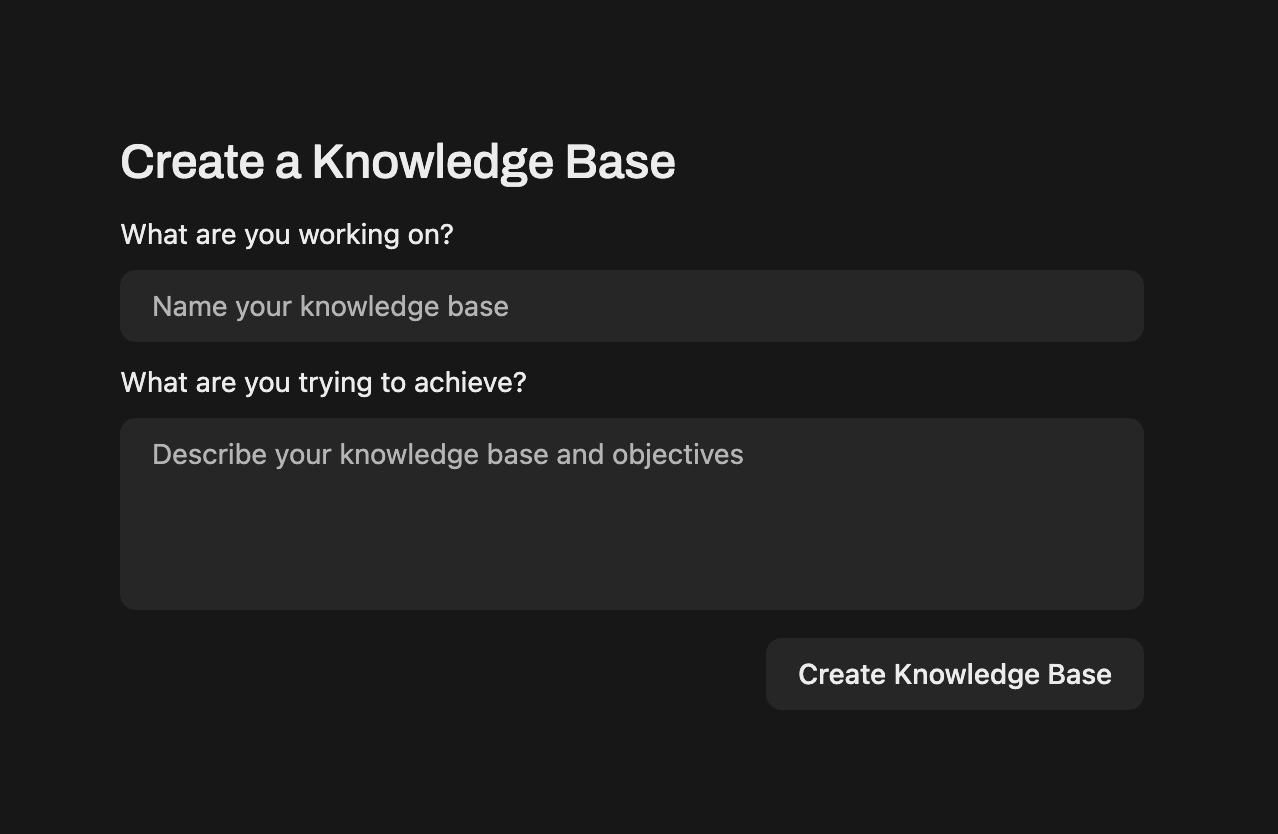
Once created, you will be taken to the Knowledge Base editor.
Adding Content
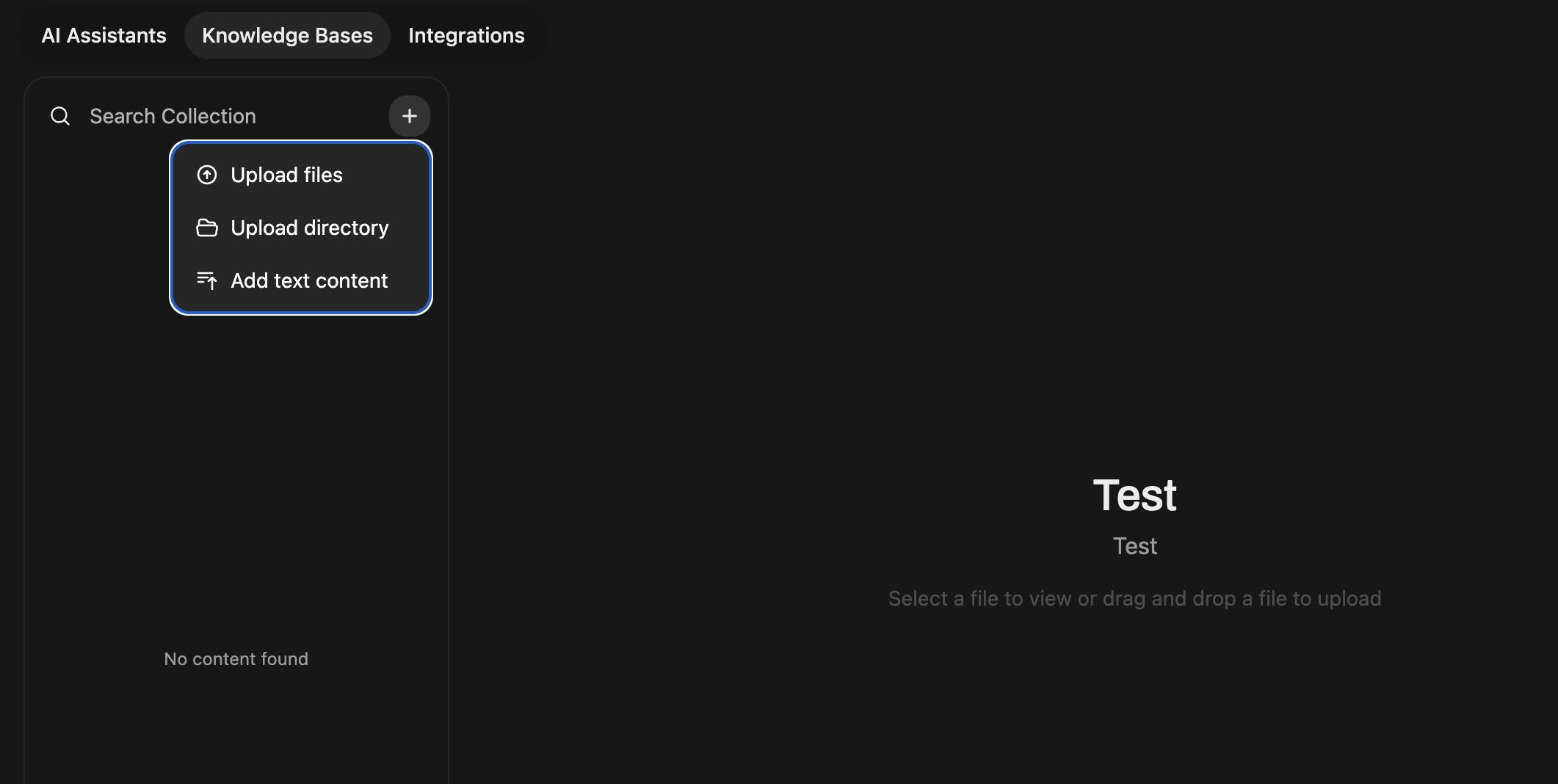
Within the Knowledge Base editor, use the plus button on the left side to add content. You can:
Upload individual files
Upload entire directories
Add text content directly
The Knowledge Base supports the following file types:
CSV
Word documents
PDF files
Text files (.txt)
Document Processing and Text Extraction
Uploaded documents are automatically processed so their contents can be used when answering questions.
For supported document types such as PDFs and Word files, the Knowledge Base runs optical character recognition on documents that contain readable text within images. This allows text embedded in scanned or image based documents to be extracted and included in the Knowledge Base, as long as the text is clear and legible.
Once content is added and processed, the Knowledge Base can be attached to one or more custom AI assistants.
Using Custom AI Assistants
Once custom AI assistants are created, they can be used directly from the main Copilot chat experience.
Selecting an AI Assistant
From the main Copilot console:
Navigate to the chat interface.
Click "New Chat"
In the top left corner, click drop down menu next to the zofiQ name to open the assistant selection list
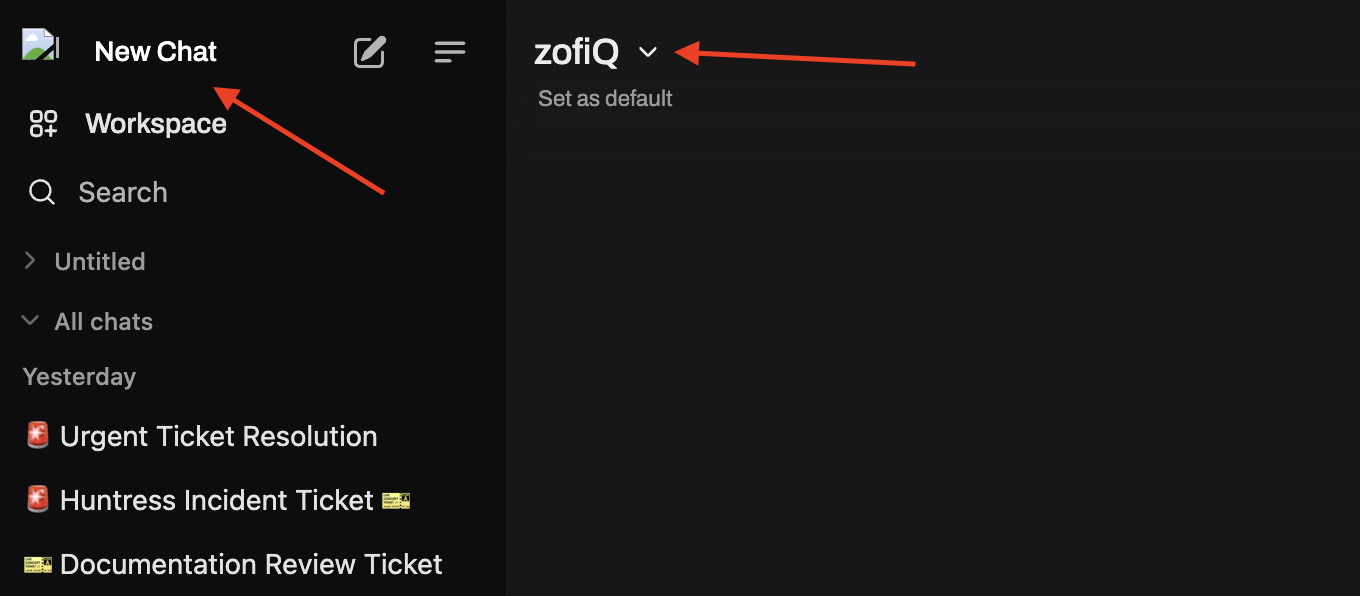
Select one of the available custom AI assistants.
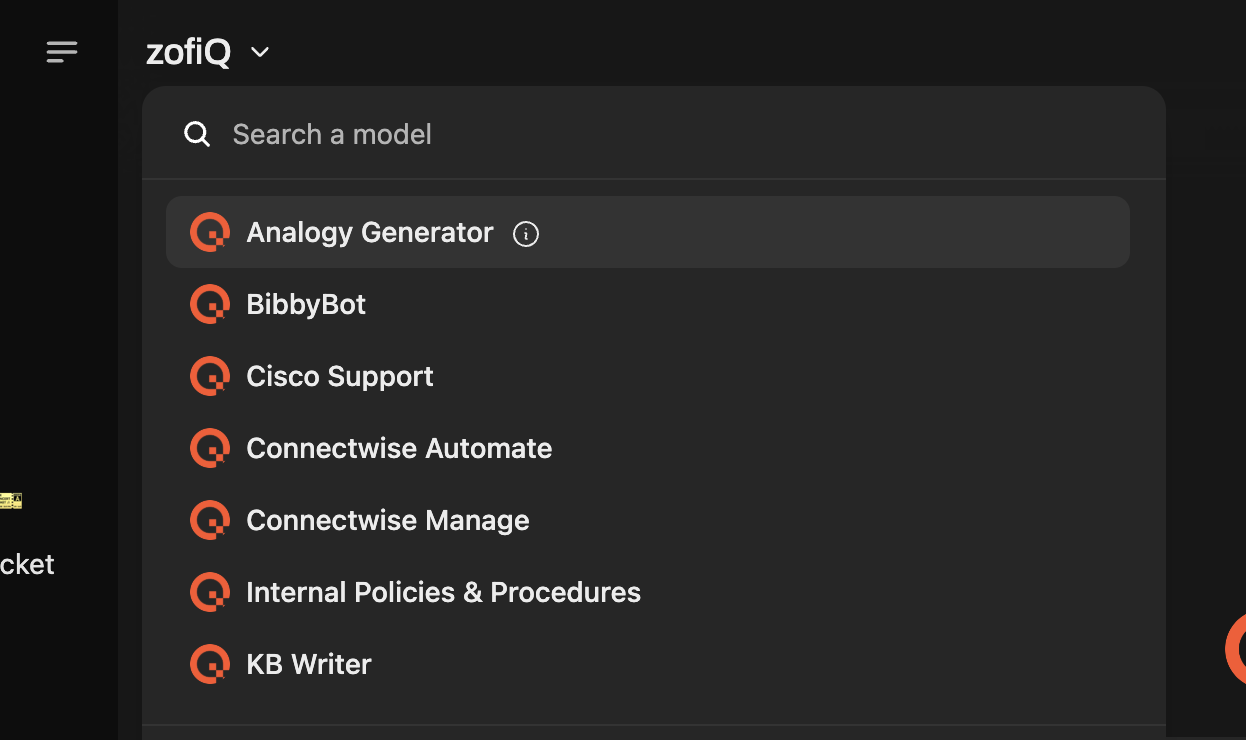
If you have access to a custom AI assistant, selecting it will immediately switch the conversation to use that assistant.
Setting a Default AI Assistant
If you want a custom AI assistant to be used by default for new conversations:
Start a new chat.
In the top left corner, click drop down menu next to the zofiQ name to open the assistant selection list
Select the custom AI assistant you want to use.
Click Set as Default.
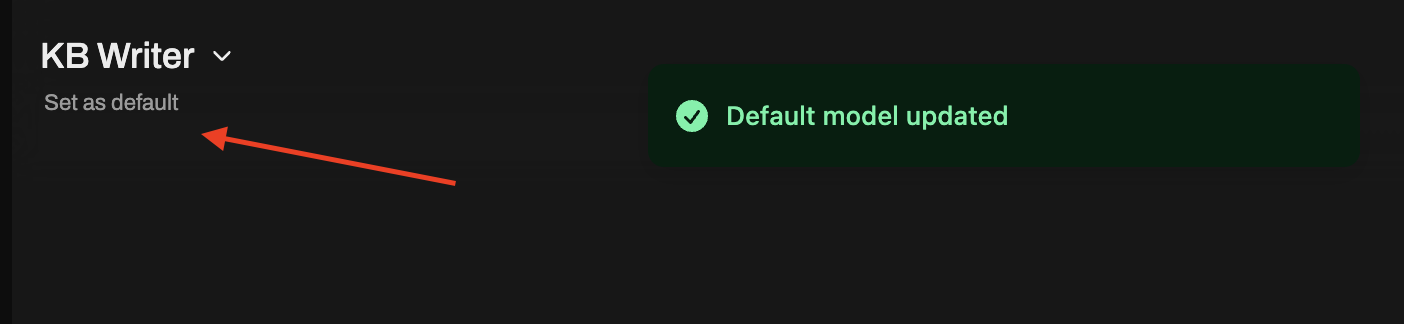
Once set, all new conversations created from that point forward will use the selected custom AI assistant instead of the default zofiQ model. Existing conversations are not affected.
Using Knowledge Base Search
If the selected custom AI assistant has one or more knowledge bases attached, an additional option called Knowledge Based Search will be available.
Knowledge Based Search is turned off by default.
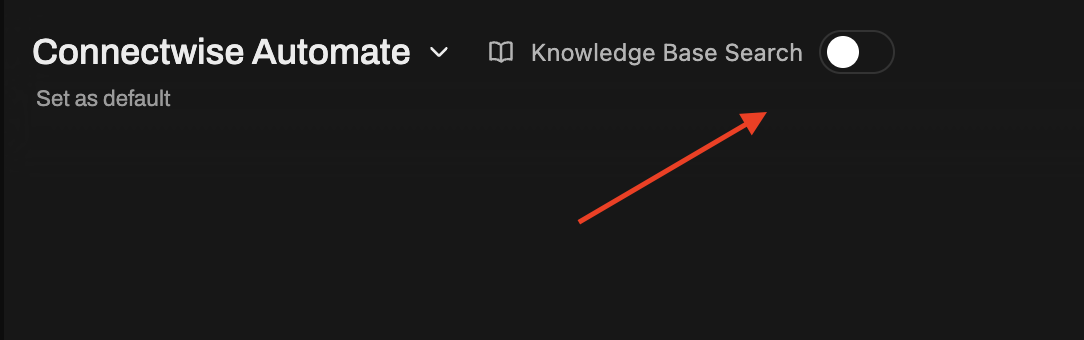
When enabled, Copilot will use the attached knowledge base content when generating responses. This ensures answers are grounded in the specific documentation or material associated with that assistant.
If Knowledge Base Search is turned off, the assistant will respond using its configured behavior and general reasoning without pulling directly from the attached knowledge bases.